A production-grade, end-to-end reference covering installation, CLAUDE.md, Hooks, GitHub Actions, MCP, Sub-Agents, FastMCP, and everything in between.
Off late I was digging deep into something that I honestly couldn’t stop thinking about — how to use Claude Code inside VS Code, end to end, the right way.
Not the “here’s how to install it” way. The real way — where you understand why each layer exists, when to reach for each tool, and how to wire it all together into something that actually changes how you write software day to day.
I started with the basics: installation, CLAUDE.md, slash commands. Then I kept pulling the thread — hooks, GitHub Actions automation, MCP servers, sub-agents, FastMCP, plugin marketplaces. Every layer unlocked something new. And the more I explored, the more I realised most guides out there stop at 20% of the picture.
So I decided to write the guide I wish existed when I started. Every section is verified against current docs, every code snippet is real, and every architectural diagram is drawn from how these pieces actually connect — not how they’re marketed.
Whether you’re just getting started or you’re already running Claude in your terminal and want to go deeper — this is for you.
A Quick Word on Claude Code’s Evolution
Claude Code launched in February 2025 as a terminal-based agentic coding tool. By mid-2026 it’s an extensible platform running in your CLI, VS Code, JetBrains, a standalone desktop app, and on the web at claude.ai/code. It can read and write files, run shell commands, spawn parallel agents, connect to external services via MCP, and integrate natively into GitHub workflows.
The extension ecosystem built up fast — MCP in Nov 2024, Sub-agents in Jul 2025, Hooks in Sep 2025, Plugins in Oct 2025, Skills in Oct 2025, Agent Teams in Feb 2026. Each release added a new layer. This guide covers all of them, in the order they build on each other.
Let’s build.
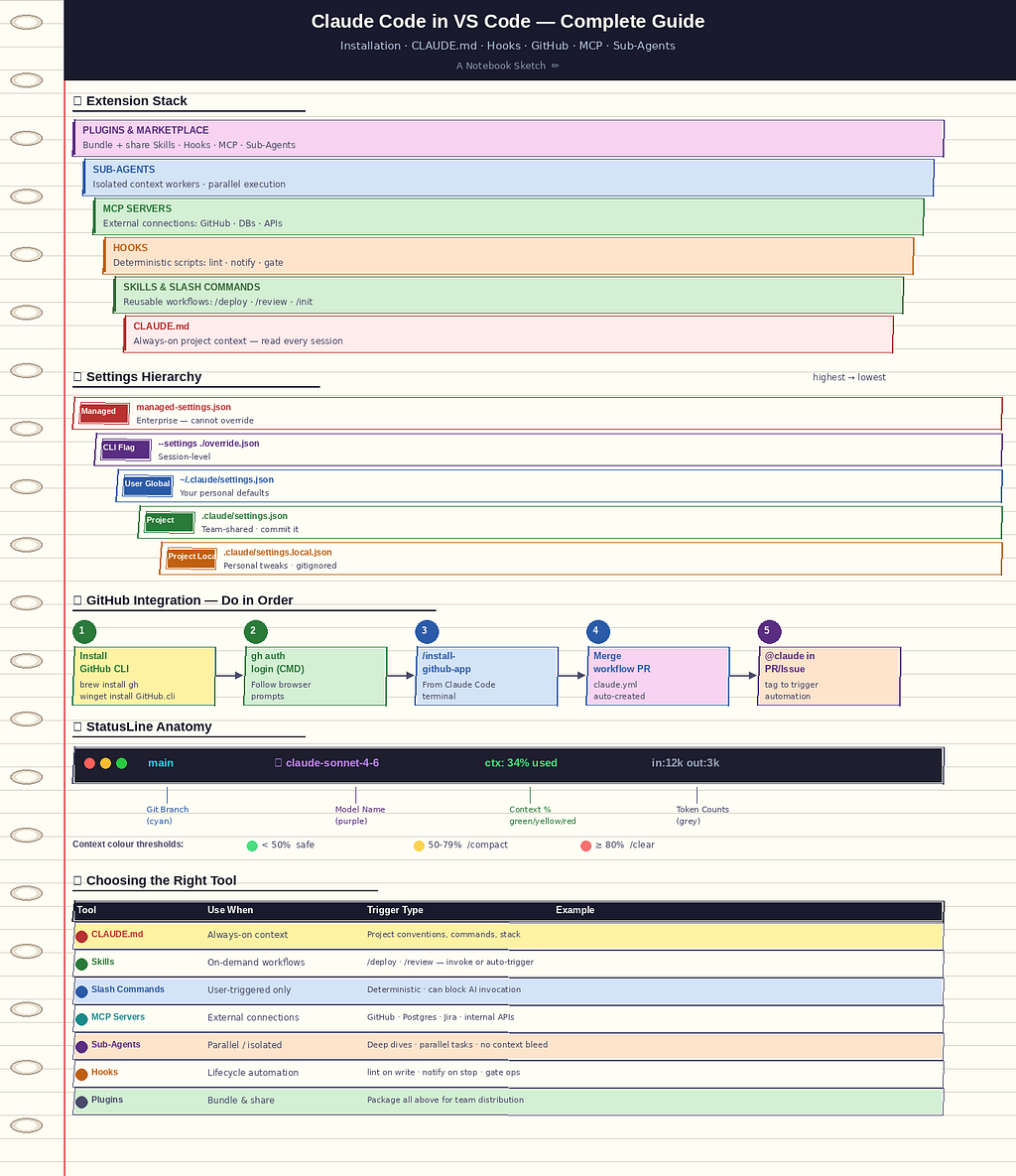
1. Getting Started: Install Claude Code in VS Code
Prerequisites
- Node.js 18+ (Claude Code is distributed as an npm package)
- VS Code (latest stable)
- An Anthropic account with API access or a Claude Pro/Max subscription
Installation
# Install Claude Code globally via npm
npm install -g @anthropic-ai/claude-code
⚠️ Note: Some older guides reference a native binary installer. As of 2026, the npm method is the canonical path for most setups. Verify the latest at docs.claude.com.
VS Code Extension
- Open VS Code → Extensions (Ctrl+Shift+X)
- Search “Claude Code” → Install the official Anthropic extension (2M+ installs, verified publisher)
- The Spark icon (⚡) appears in the sidebar — Claude Code now runs directly in your IDE
Authentication
claude   # launches Claude Code
# A browser window opens → log into your Anthropic account
# Copy the auth code and paste into the terminal
Architecture Overview
┌──────────────────────────────────────────────────────────────┐
│                      Your Workspace                          │
│                                                              │
│  ┌─────────────┐    ┌────────────────┐    ┌──────────────┐  │
│  │  VS Code    │◄──►│  Claude Code   │◄──►│  Terminal    │  │
│  │  Extension  │    │  Core Engine   │    │  (CLI)       │  │
│  └─────────────┘    └───────┬────────┘    └──────────────┘  │
│                             │                                │
│              ┌──────────────┼──────────────┐                │
│              ▼              ▼              ▼                │
│         ┌─────────┐  ┌──────────┐  ┌──────────┐            │
│         │  Files  │  │  Shell   │  │  MCP     │            │
│         │  (R/W)  │  │  (exec)  │  │  Servers │            │
│         └─────────┘  └──────────┘  └──────────┘            │
└──────────────────────────────────────────────────────────────┘
2. Starting a Sample Project & Creating CLAUDE.md with /init
What is CLAUDE.md?
CLAUDE.md is Claude Code's persistent project memory. Every session, Claude reads this file automatically — it's always-on context. Think of it as the README.md that Claude actually reads before touching your code.
Creating It with /init
cd my-project
claude
> /init
Claude scans your project structure, infers coding conventions, and generates a CLAUDE.md tailored to your repo. For example:
# CLAUDE.md — my-project

## Project Overview
Python FastAPI service for inventory management.
## Code Style
- PEP 8 compliance enforced via Ruff
- Type hints required on all public functions
- 100-char line limit
## Architecture
- src/api/       → FastAPI route handlers
- src/services/  → Business logic layer
- src/models/    → SQLAlchemy ORM models
## Testing
- pytest with pytest-asyncio
- Run: `pytest tests/ -v`
- Coverage target: 85%+
## Commands
- Start dev server: `uvicorn src.main:app --reload`
- Lint: `ruff check .`
- Format: `ruff format .`
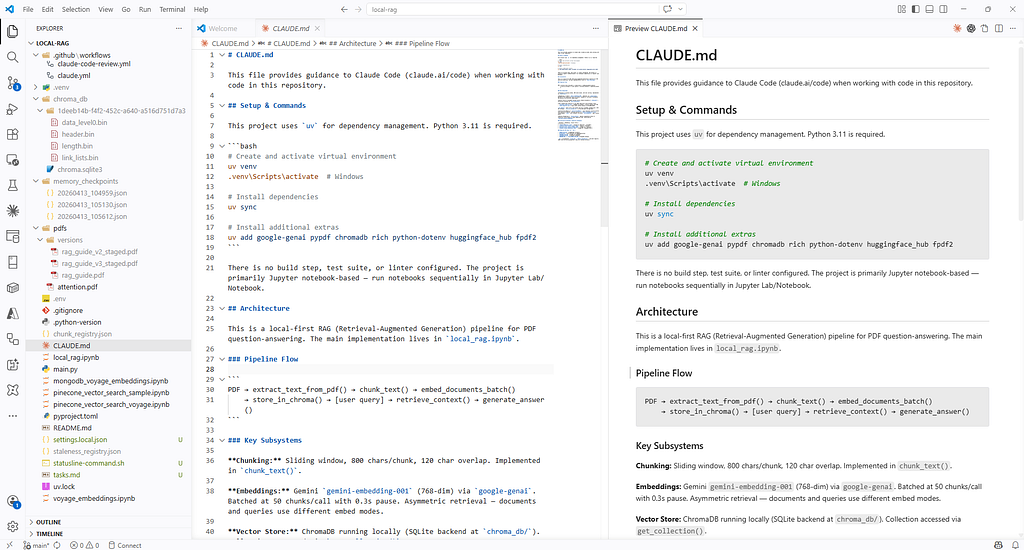
CLAUDE.md Discovery Order
Claude searches for CLAUDE.md in this priority order:
1. ~/.claude/CLAUDE.md         (global user-level, always loaded)
2. <project-root>/CLAUDE.md    (project-level)
3. Any parent-directory CLAUDE.md up the tree
4. Nested CLAUDE.md in subdirs (loaded when Claude navigates into them)
Best practice: Keep the root CLAUDE.md concise. Use nested CLAUDE.md files in subdirectories like src/api/CLAUDE.md to give Claude context-aware guidance.
Sample Project Bootstrap Workflow
/init
  └─► Claude scans repo structure
  └─► Infers tech stack, dependencies, naming conventions
  └─► Generates CLAUDE.md draft
  └─► You review + commit → Claude now "knows" your project
3. Understanding Claude Code Plugin Settings
Claude Code settings live at ~/.claude/settings.json (user-level) and .claude/settings.json (project-level). Project-level overrides user-level.
Key Settings
{
  "model": "claude-sonnet-4-6",
  "permissions": {
    "allow": ["Bash(git:*)", "Bash(npm:*)", "Read", "Write", "Edit"],
    "deny": ["Bash(rm -rf:*)"]
  },
  "env": {
    "NODE_ENV": "development"
  },
  "hooks": { ... },
  "mcpServers": { ... }
}
VS Code Extension Settings
In VS Code, open Settings → search Claude Code. Key knobs:
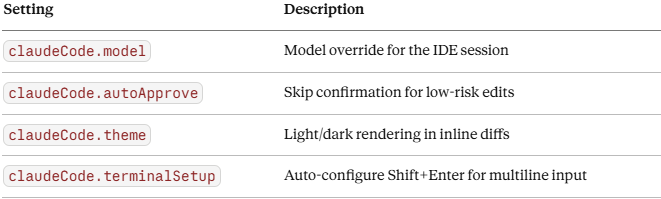
Run /terminal-setup inside a Claude Code session to auto-configure multi-line keybindings in VS Code's integrated terminal. No manual editing required.
Permission Modes
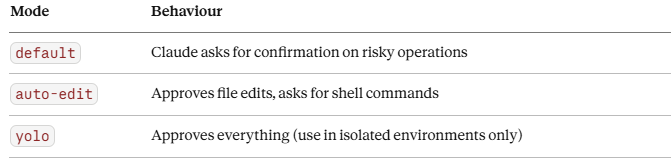
Cycle permission modes with Meta+M (Mac) / Alt+M (Windows/Linux) during a session.
4. Using Claude Code in the Terminal
The terminal is Claude Code’s native environment. The VS Code extension is a UI layer on top of the same CLI.
Basic Invocation Patterns
# Start interactive session
claude

# One-shot task (non-interactive)
claude -p "Add input validation to src/api/users.py"
# Print mode (output only, no interaction)
claude --print "Explain the auth flow in src/auth/"
# Resume last session
claude --resume
# Start with a specific model
claude --model claude-opus-4-6
Navigating During a Session
/help           → list all slash commands
/status         → context usage, model, token count
/compact        → summarize conversation to free context
/clear          → start fresh (preserves CLAUDE.md)
Ctrl+C          → interrupt current operation
Shift+Enter     → multiline input (after /terminal-setup)
Real Workflow: Explore a New Codebase
claude
> Explore the codebase. Summarise the architecture, key modules,
  and any obvious tech debt. Don't modify anything yet.
Claude reads files, follows imports, and produces a structured summary — no grep-and-pray needed.
5. Fixing Bugs with Claude
This is where most people start — and where Claude Code genuinely shines.
Pattern 1: Paste the Error
> I'm seeing this error when running pytest:

  FAILED tests/test_pipeline.py::test_ingest -
  ValueError: date value out of range: 10000-01-01

  Find the root cause and fix it.
Claude will: trace the stacktrace → locate the source → propose a fix → apply it → re-run the test.
Pattern 2: Point at the File
> The function `parse_sharepoint_dates` in src/utils/sharepoint_utils.py
  is returning incorrect timestamps for timezone-aware datetimes.
  Find the bug and fix it without changing the function signature.
Pattern 3: Git Bisect + Claude
> git log shows this worked 3 commits ago. Use git bisect to find
  the breaking commit and tell me what changed.
Bug Fix Workflow
You describe bug
       │
       ▼
Claude reads relevant files
       │
       ▼
Claude traces execution path
       │
       ▼
Claude proposes fix (shows inline diff in VS Code)
       │
  ┌────┴────┐
Accept?    Reject?
  │              │
  ▼              ▼
Applied     Claude retries
  │
  ▼
Run tests to verify
Best Practices
- Always include the full error message and stack trace
- Tell Claude what you’ve already tried (“I ruled out X because…”)
- Use --allowedTools "Bash(pytest:*)" to let Claude run tests autonomously
6. Working with Slash Commands
Slash commands are user-initiated shortcuts — deterministic entry points into repeatable workflows.
Built-in Commands
/init           → Generate CLAUDE.md
/compact        → Compress conversation context
/status         → Token usage, model, context stats
/clear          → Fresh session
/mcp            → Manage MCP servers
/hooks          → Interactive hook configuration
/plugin         → Install/manage plugins
/install-github-app  → Set up GitHub Actions
/terminal-setup → Configure VS Code terminal keybindings
/help           → Full command reference
Custom Slash Commands
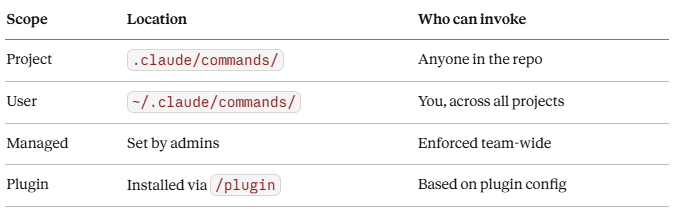
Create a markdown file in .claude/commands/ (project) or ~/.claude/commands/ (global):
<!-- .claude/commands/review.md -->
---
name: review
description: Full code review with security and performance checks
allowed-tools: Read, Grep, Glob
---

Review the changed files in this PR. Check for:
1. Potential bugs or edge cases
2. Security issues (input validation, injection risks)
3. Performance anti-patterns
4. Consistency with CLAUDE.md style conventions
Output a structured report with severity tags: [CRITICAL], [WARNING], [INFO]
Now /review is available in every session in this project.
Command Scoping
Disable Model Invocation
---
name: deploy
description: Deploy to production
disable-model-invocation: true   # You-only — Claude cannot auto-trigger this
allowed-tools: Bash(npm:*), Bash(git:*)
---

Run production deployment:
1. npm run test
2. npm run build
3. git push origin main
This creates /deploy that only you can invoke — Claude will never call it on its own.
7. Using Hooks for Notifications & Automation
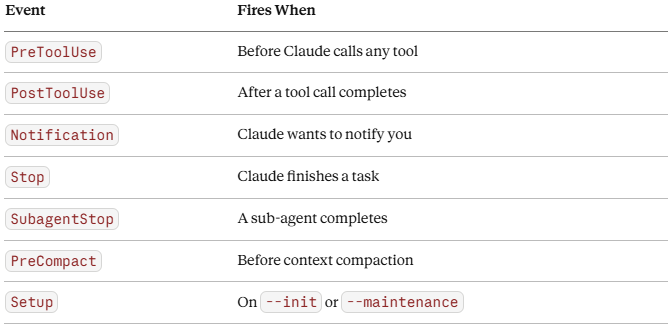
Hooks are deterministic scripts that fire at specific lifecycle events. They run outside Claude’s reasoning loop — no AI involved, just pure automation.
Think of them as Git hooks, but for Claude Code’s entire workflow.
Hook Events
Configuring Hooks
In ~/.claude/settings.json or .claude/settings.json:
{
  "hooks": {
    "PostToolUse": [
      {
        "matcher": "Write|Edit",
        "hooks": [
          {
            "type": "command",
            "command": "npm run lint -- $CLAUDE_TOOL_INPUT_PATH"
          }
        ]
      }
    ],
    "Stop": [
      {
        "hooks": [
          {
            "type": "command",
            "command": "notify-send 'Claude Code' 'Task complete'"
          }
        ]
      }
    ]
  }
}
Or configure interactively: > /hooks
Practical Hook Recipes
Auto-lint on every file write:
"PostToolUse": [{
  "matcher": "Write",
  "hooks": [{"type": "command", "command": "ruff check $CLAUDE_TOOL_INPUT_PATH --fix"}]
}]
Block dangerous bash commands:
"PreToolUse": [{
  "matcher": "Bash",
  "hooks": [{"type": "command", "command": "~/.claude/hooks/safety_check.sh"}]
}]
Desktop notification when Claude finishes:
"Stop": [{
  "hooks": [{"type": "command", "command": "osascript -e 'display notification \"Claude finished\" with title \"Claude Code\"'"}]
}]
Slack alert on sub-agent completion (for long-running tasks):
"SubagentStop": [{
  "hooks": [{
    "type": "command",
    "command": "curl -X POST $SLACK_WEBHOOK -d '{\"text\": \"Sub-agent task complete\"}'"
  }]
}]
Hook Execution Flow
Claude calls a tool (e.g., Write file)
        │
        ▼
PreToolUse hooks fire (can block!)
        │
        ▼
Tool executes
        │
        ▼
PostToolUse hooks fire
        │
        ▼
Claude reads hook output (if any)
        │
        ▼
Claude continues or adjusts
Hook output returned to stdout is injected back into Claude's context as tool results. Use this to feed Claude validation results.
8. Claude Code + GitHub Integration: Automating Dev Tasks
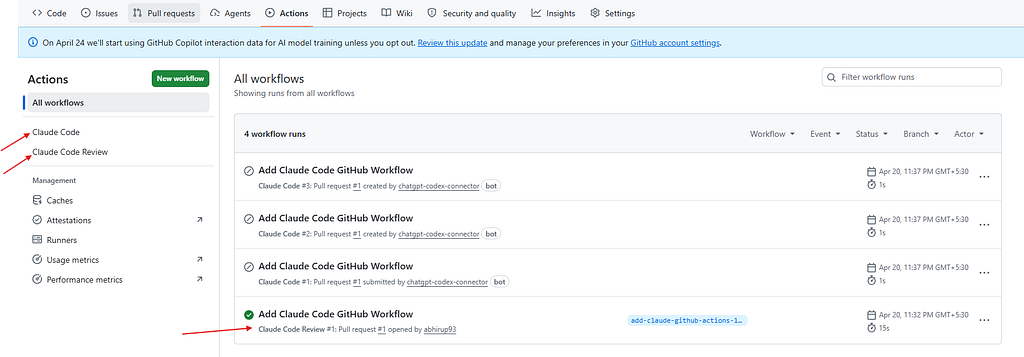
Claude Code GitHub Actions brings AI-powered automation directly into your GitHub workflow. With a simple @claude mention in any PR or issue, Claude can analyze code, create pull requests, implement features, and fix bugs — all while following your project's standards.
There are three steps you must complete in order before any of this works. Most guides skip steps 1 and 2 entirely, which is why people hit 404s and auth errors when they try /install-github-app.
Step 1: Install GitHub CLI
Claude Code uses the gh CLI under the hood to interact with GitHub — creating PRs, reading issues, pushing branches. Without it installed and authenticated, /install-github-app will fail silently or error out.
macOS:
brew install gh
Windows:
winget install --id GitHub.cli
Linux (Debian/Ubuntu):
(type -p wget >/dev/null || (sudo apt update && sudo apt install wget -y)) \
&& sudo mkdir -p -m 755 /etc/apt/keyrings \
&& wget -qO- https://cli.github.com/packages/githubcli-archive-keyring.gpg \
   | sudo tee /etc/apt/keyrings/githubcli-archive-keyring.gpg > /dev/null \
&& sudo apt update && sudo apt install gh -y
Verify it’s installed:
gh --version
Step 2: Authenticate the GitHub CLI
Open your CMD or terminal (not Claude Code — this is a regular shell step) and run:
bash
gh auth login
You’ll be walked through an interactive prompt:
? What account do you want to log into?  › GitHub.com
? What is your preferred protocol for Git operations?  › HTTPS
? Authenticate Git with your GitHub credentials?  › Yes
? How would you like to authenticate GitHub CLI?  › Login with a web browser

! First copy your one-time code: XXXX-XXXX
Press Enter to open github.com in your browser...
✓ Authentication complete.
✓ Logged in as your-username
Verify authentication worked:
gh auth status
Expected output:
github.com
  ✓ Logged in to github.com as your-username
  ✓ Git operations for github.com configured to use https protocol
  ✓ Token: gho_****
⚠️ Do not skip this step. /install-github-app calls gh internally — if gh isn't authenticated, the command will fail with a permissions error and you'll have no clear indication why.
Step 3: Run /install-github-app from Claude Code
Now open Claude Code — either in your terminal or the VS Code extension — navigate to your project, and run:
> /install-github-app
This guides you through:
- Installing the Claude GitHub App to your repo (opens browser for repo selection)
- Granting read/write permissions on Contents, Issues, and Pull Requests
- Auto-creating .github/workflows/claude.yml in your repo via a PR — merge it to activate
Manual setup (if /install-github-app fails): Visit https://github.com/apps/claude, install to your repo, then add ANTHROPIC_API_KEY to repo secrets under Settings → Secrets and variables → Actions.
Step 4: The Workflow File
# .github/workflows/claude.yml
name: Claude Code

on:
  issue_comment:
    types: [created]
  pull_request_review_comment:
    types: [created]
  issues:
    types: [opened, assigned]
  pull_request_review:
    types: [submitted]

jobs:
  claude:
    if: |
      (github.event_name == 'issue_comment' && contains(github.event.comment.body, '@claude')) ||
      (github.event_name == 'pull_request_review_comment' && contains(github.event.comment.body, '@claude')) ||
      (github.event_name == 'pull_request_review' && contains(github.event.review.body, '@claude')) ||
      (github.event_name == 'issues' && (contains(github.event.issue.body, '@claude') || contains(github.event.issue.title, '@claude')))
    runs-on: ubuntu-latest
    permissions:
      contents: read
      pull-requests: read
      issues: read
      id-token: write
      actions: read # Required for Claude to read CI results on PRs
    steps:
      - name: Checkout repository
        uses: actions/checkout@v4
        with:
          fetch-depth: 1

      - name: Run Claude Code
        id: claude
        uses: anthropics/claude-code-action@v1
        with:
          claude_code_oauth_token: ${{ secrets.CLAUDE_CODE_OAUTH_TOKEN }}

          # This is an optional setting that allows Claude to read CI results on PRs
          additional_permissions: |
            actions: read

          # Optional: Give a custom prompt to Claude. If this is not specified, Claude will perform the instructions specified in the comment that tagged it.
          # prompt: 'Update the pull request description to include a summary of changes.'

          # Optional: Add claude_args to customize behavior and configuration
          # See https://github.com/anthropics/claude-code-action/blob/main/docs/usage.md
          # or https://code.claude.com/docs/en/cli-reference for available options
          # claude_args: '--allowed-tools Bash(gh pr:*)'
Step 5: Use It
Interactive mode — tag @claude in any comment:
@claude Fix the NullPointerException in UserService.java line 147 and open a PR
@claude Review this PR for security vulnerabilities
@claude Write unit tests for the new checkout flow
Automation mode — run headlessly on every PR:
- uses: anthropics/claude-code-action@v1
  with:
    claude_code_oauth_token: ${{ secrets.CLAUDE_CODE_OAUTH_TOKEN }}
    direct_prompt: |
      Review the PR changes for potential bugs, style issues, and
      adherence to CLAUDE.md conventions. Post a detailed comment.
Complete GitHub Automation Architecture
┌─────────────────────────────────────────────────────────┐
│                   GitHub Repository                     │
│                                                         │
│  Issue created / PR opened / @claude comment            │
│         │                                               │
│         ▼                                               │
│  GitHub Actions Trigger                                 │
│         │                                               │
│         ▼                                               │
│  anthropics/claude-code-action@v1                       │
│         │                                               │
│    ┌────┴─────────────────┐                            │
│    ▼                      ▼                            │
│  Interactive Mode    Automation Mode                    │
│  (responds to        (direct_prompt in                  │
│  @claude mentions)    workflow YAML)                    │
│         │                      │                       │
│         └──────────┬───────────┘                       │
│                    ▼                                    │
│         Claude reads repo + CLAUDE.md                   │
│                    │                                    │
│         ┌──────────┴──────────┐                        │
│         ▼                     ▼                        │
│    Creates PR            Posts review comment          │
│    with fix              on PR/Issue                   │
└─────────────────────────────────────────────────────────┘
Automating CI Failure Fixes
name: Auto-Fix CI Failures
on:
  workflow_run:
    workflows: ["CI"]
    types: [completed]
jobs:
  auto-fix:
    if: github.event.workflow_run.conclusion == 'failure'
    runs-on: ubuntu-latest
    steps:
      - uses: actions/checkout@v4
      - uses: anthropics/claude-code-action@v1
        with:
          claude_code_oauth_token: ${{ secrets.CLAUDE_CODE_OAUTH_TOKEN }}
          direct_prompt: |
            The CI pipeline failed. Analyze the failure logs,
            identify the root cause, fix it, and open a PR.
Automating Code Review
name: Claude Code Review

on:
  pull_request:
    types: [opened, synchronize, ready_for_review, reopened]
    # Optional: Only run on specific file changes
    # paths:
    #   - "src/**/*.ts"
    #   - "src/**/*.tsx"
    #   - "src/**/*.js"
    #   - "src/**/*.jsx"

jobs:
  claude-review:
    # Optional: Filter by PR author
    # if: |
    #   github.event.pull_request.user.login == 'external-contributor' ||
    #   github.event.pull_request.user.login == 'new-developer' ||
    #   github.event.pull_request.author_association == 'FIRST_TIME_CONTRIBUTOR'

    runs-on: ubuntu-latest
    permissions:
      contents: read
      pull-requests: read
      issues: read
      id-token: write

    steps:
      - name: Checkout repository
        uses: actions/checkout@v4
        with:
          fetch-depth: 1

      - name: Run Claude Code Review
        id: claude-review
        uses: anthropics/claude-code-action@v1
        with:
          claude_code_oauth_token: ${{ secrets.CLAUDE_CODE_OAUTH_TOKEN }}
          plugin_marketplaces: 'https://github.com/anthropics/claude-code.git'
          plugins: 'code-review@claude-code-plugins'
          prompt: '/code-review:code-review ${{ github.repository }}/pull/${{ github.event.pull_request.number }}'
          # See https://github.com/anthropics/claude-code-action/blob/main/docs/usage.md
          # or https://code.claude.com/docs/en/cli-reference for available options
Security Checklist
- ✅ Always use ${{ secrets.CLAUDE_CODE_AUTH_TOKEN }} — never hardcode keys
- ✅ Limit allowed-tools to the minimum required
- ✅ Set permissions at the job level, not repo-wide
- ✅ Review Claude’s PRs before merging — treat them like any contributor’s code
- ✅ Add a CLAUDE.md to define what Claude should and shouldn't touch
9. Using StatusLine: Monitor Context, Tokens & Model
Claude Code has a built-in status overlay that tells you what’s consuming your context window and which model you’re running.
Activating StatusLine
> /statusLine
Returns real-time stats:
Model:        claude-sonnet-4-6
Context used: 42,318 / 200,000 tokens (21%)
Session cost: ~$0.08
Active MCPs:  github (1.2k tokens), filesystem (0.4k tokens)
Hooks:        3 registered (PostToolUse ×2, Stop ×1)
Monitoring Context During Long Tasks
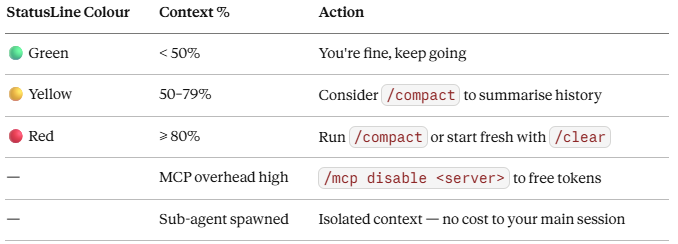
Run /mcp to see token costs per server. Disconnect servers you're not actively using. Each MCP server you have connected consumes tokens from your context window even when idle.
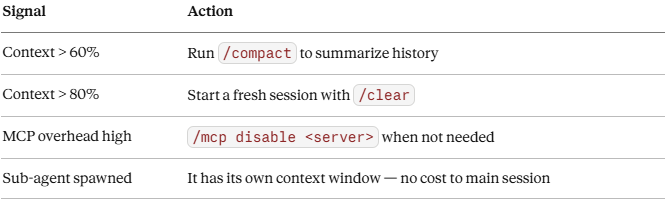
Context Management Strategies
StatusLine in VS Code
The VS Code extension shows a persistent status bar at the bottom of the editor with model name, context percentage, and session cost. This updates live as Claude works.
The real power comes from making it custom. You wire up a shell script, Claude Code pipes fresh JSON into it on every render cycle, and whatever your script prints to stdout becomes the status line. Stateless, composable, zero overhead.
Wiring It Up in settings.local.json
json
{
  "statusLine": {
    "type": "command",
    "command": "bash ~/.claude/scripts/statusline-command.sh"
  }
}
Claude Code will run this script periodically and display the output. The script receives a JSON payload via stdin containing the full session state.
A Real-World StatusLine Script
Here’s a production statusline script that surfaces git branch, model, context percentage (with colour-coded warnings), and token counts — all parsed from the JSON Claude Code pipes in:
#!/usr/bin/env bash
# Claude Code status line script
# Shows: git branch | model | context usage | token counts

input=$(cat)

# Parse fields from the JSON payload Claude Code pipes in via stdin
model=$(echo "$input"        | jq -r '.model.display_name // "Unknown Model"')
cwd=$(echo "$input"          | jq -r '.workspace.current_dir // .cwd // ""')
used_pct=$(echo "$input"     | jq -r '.context_window.used_percentage // empty')
input_tokens=$(echo "$input" | jq -r '.context_window.current_usage.input_tokens // empty')
output_tokens=$(echo "$input"| jq -r '.context_window.current_usage.output_tokens // empty')

# Get git branch (skip optional locks to avoid conflicts)
branch=""
if [ -n "$cwd" ] && [ -d "$cwd/.git" ] || git -C "$cwd" rev-parse --git-dir > /dev/null 2>&1; then
  branch=$(git -C "$cwd" symbolic-ref --short HEAD 2>/dev/null)
fi

# Build output parts
parts=()

# Git branch — cyan
if [ -n "$branch" ]; then
  parts+=("$(printf '\033[36m\xef\x94\xa0 %s\033[0m' "$branch")")
fi

# Model name — purple/magenta
if [ -n "$model" ]; then
  parts+=("$(printf '\033[35m\xe2\xa7\xab %s\033[0m' "$model")")
fi

# Context usage — colour-coded by threshold
if [ -n "$used_pct" ]; then
  used_int=$(printf '%.0f' "$used_pct")
  if [ "$used_int" -ge 80 ]; then
    color='\033[31m'   # red   ≥ 80%
  elif [ "$used_int" -ge 50 ]; then
    color='\033[33m'   # yellow ≥ 50%
  else
    color='\033[32m'   # green  < 50%
  fi
  parts+=("$(printf "${color}ctx: %s%% used\033[0m" "$used_int")")
fi

# Token counts (only when both are available)
if [ -n "$input_tokens" ] && [ -n "$output_tokens" ]; then
  parts+=("$(printf '\033[90min:%s out:%s\033[0m' "$input_tokens" "$output_tokens")")
fi

# Join parts with a separator and print
(IFS='  '; echo "${parts[*]}")
How It Works
Claude Code pipes a fresh JSON blob to stdin on every render cycle. Your script is stateless — it parses, formats, and exits. No polling, no background processes.
The JSON payload structure looks like this:
{
  "model": { "display_name": "claude-sonnet-4-6" },
  "workspace": { "current_dir": "/home/user/my-project" },
  "context_window": {
    "used_percentage": 34.2,
    "remaining_percentage": 65.8,
    "current_usage": {
      "input_tokens": 12400,
      "output_tokens": 3100
    }
  }
}
The jq -r '... // empty' pattern on each field is deliberate defensive coding — if a field isn't available yet (e.g. token counts early in a session), it returns empty rather than crashing the whole status line.
What the Output Looks Like
main   claude-sonnet-4-6   ctx: 34% used   in:12400 out:3100
  │           │                    │                │
cyan       purple               green           dark grey
                              (→ yellow ≥ 50%)
                              (→ red    ≥ 80%)
Context Management Strategies
Use the colour thresholds as action signals:
One Tip on File Location
Keep this script somewhere stable — not in Downloads/. A good home is:
~/.claude/scripts/statusline-command.sh
chmod +x ~/.claude/scripts/statusline-command.sh
Then reference it in settings.local.json with the ~ path. This way it survives across project changes and won't get accidentally deleted.
10. Using tasks.md to Track AI Coding Changes
When Claude makes multiple changes across a session, it’s easy to lose track of what was added, modified, or refactored. A tasks.md file acts as a living changelog for your AI-assisted work.
Setting It Up
Add this to your CLAUDE.md:
## Change Tracking Protocol
Whenever you make significant changes (new files, refactors, schema changes),
append an entry to `tasks.md` in the following format:
[DATE] [TYPE] — Short description
- Files changed: list of paths
- What changed: 1–2 sentence summary
- Why: Reason or linked issue
- Reversible: Yes/No + how to revert
Sample tasks.md
# AI Coding Changes Log

### 2026-04-21 [REFACTOR] — Extracted date parsing utility
- **Files changed:** `src/utils/date_utils.py` (new), `src/pipeline/ingest.py`
- **What changed:** Moved all datetime parsing logic into a dedicated utility
  module. Handles timezone-aware and naive datetimes uniformly.
- **Why:** Fix for streaming pipeline failure with out-of-range dates (10000-01-01)
- **Reversible:** Yes — revert src/utils/date_utils.py and inline original logic

### 2026-04-20 [FEATURE] — Added retry logic to SharePoint connector
- **Files changed:** `src/utils/sharepoint_utils_v2.py`
- **What changed:** Added exponential backoff (max 3 retries), status code
  validation, and 30s timeout on Graph API calls.
- **Why:** Flaky production failures during SharePoint ingestion jobs
- **Reversible:** Yes — remove retry decorator, revert to single-attempt calls
This becomes a searchable, reviewable history of everything Claude touched — especially valuable when you’re doing AI-assisted development across multiple sessions.
11. Install, Connect & Use MCP Tools in Claude
MCP (Model Context Protocol) is Anthropic’s open standard for connecting Claude to external tools and data sources. Think of it as USB-C for AI — a universal adapter for GitHub, databases, APIs, and internal services.
Installing a Public MCP Server
# Add the official GitHub MCP server
claude mcp add github -- npx @modelcontextprotocol/server-github

# Add Playwright for browser automation
claude mcp add playwright -- npx @playwright/mcp@latest

# Add a filesystem server
claude mcp add filesystem -- npx @modelcontextprotocol/server-filesystem /path/to/dir
Scoping: Where Does the Server Live?
# Local (just this session)
claude mcp add my-server --scope local -- command

# User (all your projects)
claude mcp add my-server --scope user -- command

# Project (everyone in the repo, via .claude/settings.json)
claude mcp add my-server --scope project -- command
Managing MCP Servers
> /mcp                           # List all connected servers + token cost
> /mcp enable github             # Enable a disabled server
> /mcp disable playwright        # Disable without removing
claude mcp list                  # CLI: list all configured servers
claude mcp remove github         # CLI: remove a server
Using MCP Tools in Conversation
Once connected, MCP tools are invoked naturally:
> Create a GitHub issue for the date parsing bug we just fixed

> Search our Postgres database for orders placed in the last 24h

> Run a browser test against the staging URL
MCP tools also surface as slash commands:
/mcp__github__create_issue
/mcp__playwright__create-test
MCP Server Architecture
Claude Code (Client)
       │
       │  STDIO / HTTP / SSE transport
       ▼
MCP Server Process
       │
  ┌────┴────────────────────────────┐
  │  Tools    Resources    Prompts  │
  │  (POST)   (GET-like)  (Templates│
  └────┬────────────────────────────┘
       │
External System
(GitHub API / Postgres / Filesystem / etc.)
12. MCP vs CLI: When to Use Which
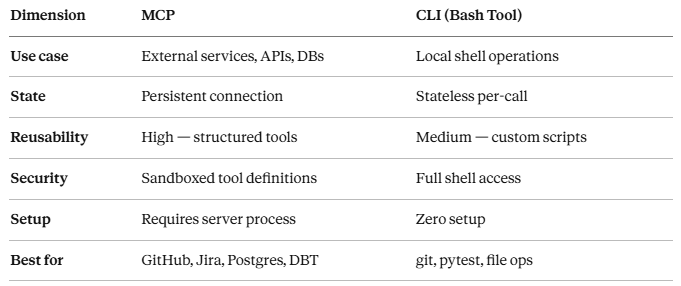
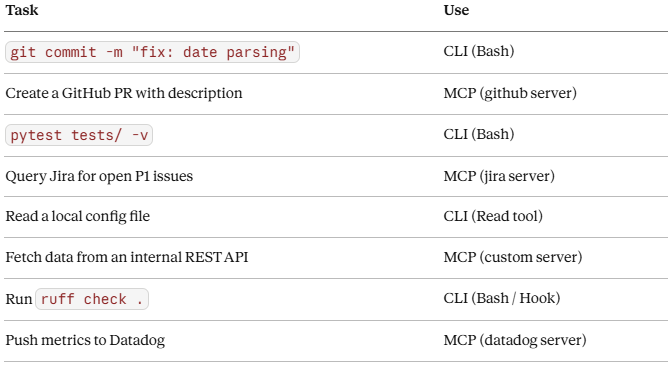
This is a question that trips up even experienced users. Here’s the decision framework:
┌─────────────────────────────────────────────────────────────────┐
│                     MCP vs CLI Decision Tree                    │
│                                                                 │
│   Does the operation require a live connection to an           │
│   external service, API, or database?                           │
│         │                                                       │
│    ┌────┴────┐                                                  │
│   YES        NO                                                 │
│    │          │                                                 │
│    ▼          ▼                                                 │
│   MCP      Is it a one-time shell operation?                    │
│              │                                                  │
│         ┌────┴────┐                                             │
│        YES        NO                                            │
│         │          │                                            │
│         ▼          ▼                                            │
│        CLI       Is it a reusable workflow                      │
│              with structured input/output?                       │
│                    │                                            │
│               ┌────┴────┐                                       │
│              YES        NO                                      │
│               │          │                                      │
│               ▼          ▼                                      │
│    MCP (or Skill)    Bash tool / CLI                            │
└─────────────────────────────────────────────────────────────────┘
Side-by-Side Comparison
Examples
13. Building Your Own MCP Tool with FastMCP (Python + uv)
FastMCP is the official high-level Python framework for building MCP servers. It turns standard Python functions into MCP tools with a single decorator — no protocol boilerplate required.
Setup with uv
# Install uv (modern Python package manager)
curl -LsSf https://astral.sh/uv/install.sh | sh

# Create project
uv init my-mcp-server
cd my-mcp-server

# Add fastmcp dependency
uv add fastmcp
Building a Code Quality MCP Server
# server.py
from fastmcp import FastMCP
import subprocess
import json
from pathlib import Path

mcp = FastMCP("Code Quality Tools")
@mcp.tool()
def run_linter(file_path: str) -> dict:
    """
    Run Ruff linter on a Python file and return violations.
    Args:
        file_path: Absolute or relative path to the Python file
    Returns:
        Dictionary with violations list and summary stats
    """
    result = subprocess.run(
        ["ruff", "check", file_path, "--output-format", "json"],
        capture_output=True,
        text=True
    )
    violations = json.loads(result.stdout) if result.stdout else []
    return {
        "file": file_path,
        "violation_count": len(violations),
        "violations": violations,
        "clean": len(violations) == 0
    }
@mcp.tool()
def get_test_coverage(module_path: str) -> dict:
    """
    Run pytest with coverage for a specific module.
    Args:
        module_path: Path to the module to test (e.g., src/utils)
    Returns:
        Coverage report with percentage and uncovered lines
    """
    result = subprocess.run(
        ["pytest", f"--cov={module_path}", "--cov-report=json", "-q"],
        capture_output=True,
        text=True
    )
    if Path("coverage.json").exists():
        with open("coverage.json") as f:
            cov_data = json.load(f)
        return {
            "module": module_path,
            "coverage_percent": cov_data["totals"]["percent_covered"],
            "missing_lines": cov_data["totals"]["missing_lines"]
        }
    return {"error": result.stderr}
@mcp.resource("project://structure")
def get_project_structure() -> str:
    """Returns the high-level project directory structure."""
    result = subprocess.run(
        ["find", ".", "-type", "f", "-name", "*.py",
         "-not", "-path", "./.venv/*"],
        capture_output=True, text=True
    )
    return result.stdout
if __name__ == "__main__":
    mcp.run()
Key FastMCP Concepts
# Tool — Claude calls this to perform actions
@mcp.tool()
def my_tool(param: str) -> dict: ...

# Resource - Claude reads this for context (GET-like)
@mcp.resource("data://my-resource")
def my_resource() -> str: ...

# Prompt - Reusable interaction templates
@mcp.prompt()
def my_prompt(context: str) -> str: ...
The docstring of each function becomes the tool description that Claude reads when deciding which tool to call. Write clear, specific docstrings.
14. Connecting Custom MCP with Claude Code
Method 1: FastMCP Install Command (Recommended)
# Auto-installs your server into Claude Code
fastmcp install claude-code server.py

# With dependencies
fastmcp install claude-code server.py --with pandas --with requests

# With environment variables (API keys)
fastmcp install claude-code server.py \
  --server-name "Code Quality" \
  --env GITHUB_TOKEN=your_token

# Specific Python version
fastmcp install claude-code server.py --python 3.11
Method 2: claude mcp add Command
# Add with uv runtime (handles dependencies automatically)
claude mcp add code-quality -- uv run --with fastmcp fastmcp run server.py

# Add with project scope (shared with team)
claude mcp add code-quality --scope project -- \
  uv run --project /path/to/my-mcp-server fastmcp run server.py
Method 3: Manual settings.json
{
  "mcpServers": {
    "code-quality": {
      "type": "stdio",
      "command": "uv",
      "args": ["run", "--with", "fastmcp", "fastmcp", "run", "/path/to/server.py"],
      "env": {
        "GITHUB_TOKEN": "${GITHUB_TOKEN}"
      }
    }
  }
}
Verify Connection
claude
> /mcp
You should see your server listed with its tool names and token cost. Try it:
> Run the linter on src/utils/date_utils.py
Claude detects your run_linter tool and calls it automatically.
Debugging
# Check server status
/mcp

# Common issues:
# 1. Server not connecting → check stdout pollution (no stray print statements)
# 2. Tools not discovered → ensure docstrings are present
# 3. Auth errors → verify env vars are passed correctly
15. Understanding, Creating & Using Sub-Agents
Sub-agents are mini Claude instances with their own isolated context windows. They handle specific tasks and report summaries back to the main session.
Your main Claude session gets cluttered fast during complex work. Subagents solve this by spinning up separate AI instances — each with its own system prompt, tool permissions, and even a different model. A “code-reviewer” agent reads diffs. An “explorer” agent searches a massive repo. They work in isolation, then hand back a summary.
Creating a Sub-Agent
Create a markdown file in ~/.claude/agents/ (global) or .claude/agents/ (project):
<!-- .claude/agents/code-reviewer.md -->
---
name: code-reviewer
description: Reviews Python code for quality, security, and performance issues.
  Invoke when code review is needed on changed files.
model: claude-opus-4-6
allowed-tools: Read, Grep, Glob
---

You are a senior Python code reviewer. When invoked, you receive a list of
changed files. For each file, review:

1. **Correctness** — Logic bugs, off-by-one errors, unhandled edge cases
2. **Security** — Input validation, injection risks, secret exposure
3. **Performance** — O(n²) patterns, unnecessary I/O, missing caching
4. **Style** — PEP 8 adherence, naming conventions, docstring quality

Output a structured report:

## Code Review Report

### [filename]
- CRITICAL: <issue> (line X)
- WARNING: <issue> (line X)
- INFO: <suggestion>

### Summary
Total issues: X (Y critical, Z warnings)
<!-- .claude/agents/explorer.md -->
---
name: explorer
description: Deep-dives into a codebase section to map dependencies,
  understand data flow, and surface architectural patterns.
allowed-tools: Read, Grep, Glob, Bash(find:*)
context: fork
---

Explore the specified module thoroughly. Map:
- Entry points and public APIs
- Dependencies (internal and external)
- Data flow (inputs → transformations → outputs)
- Side effects (DB calls, file writes, network calls)

Return a structured architectural summary.
Invoking Sub-Agents
# In a Claude Code session:
> @code-reviewer review the changes in src/pipeline/

> @explorer map the data flow through src/api/routes/

> Use the code-reviewer agent on all Python files modified in the last commit
Sub-Agent Context Isolation
Main Session
│  Full conversation history
│  All loaded skills
│  All MCP connections
│  Context: e.g. 80,000 tokens
│
└──► Spawns @code-reviewer
     │
     │  Isolated context window
     │  Only: system prompt + agent's skills + what main session passed
     │  Context: ~5,000 tokens
     │  No access to main session history
     │
     ▼
     Returns summary to main session
     (summary added to main context, not the full sub-agent conversation)
This isolation prevents context bloat. Use sub-agents for work that doesn’t need your full conversation history.
16. Building & Automating Workflows with Sub-Agents
Sub-agents become powerful when you chain them into pipelines.
Pattern 1: Parallel Research
> Research these three approaches to handling streaming date validation
  in Spark Structured Streaming:
  1. Schema enforcement at source
  2. Pre-filter with UDF
  3. ANALYZE TABLE side effects

  Spawn a separate sub-agent for each approach and have them report
  back concurrently.
Claude spawns three agents in parallel — each investigates one approach — then synthesizes the results. Same wall-clock time as one agent.
Pattern 2: Plan-Then-Execute Pipeline
<!-- .claude/agents/planner.md -->
---
name: planner
description: Creates detailed implementation plans for features.
  Invoke before writing any code.
allowed-tools: Read, Glob
---

Given a feature request, output a step-by-step implementation plan:
- Files to create/modify
- Functions to add/change
- Tests to write
- Potential breaking changes
- Estimated complexity: LOW / MEDIUM / HIGH
<!-- .claude/commands/implement.md -->
---
name: implement
description: Plan and implement a feature using the planner agent
---

Step 1: Invoke @planner with the feature description: $ARGUMENTS
Step 2: Review the plan with the user (pause for confirmation)
Step 3: Implement the plan file by file
Step 4: Run tests after each file change
Step 5: Update tasks.md with the change log
Now /implement add rate limiting to the API triggers the full pipeline.
Pattern 3: The PR Factory
User: /implement add retry logic to the Kafka consumer
         │
         ▼
@planner creates implementation plan
         │
         ▼  (user approves)
Main Claude implements changes
         │
         ▼
@code-reviewer reviews the changes
         │
         ▼
Main Claude fixes critical issues
         │
         ▼
Hook: auto-run pytest
         │
         ▼  (tests pass)
Claude creates PR via GitHub MCP
Agent Teams (Feb 2026+)
Unlike Subagents where you define system prompts and tool permissions in YAML config files, Agent Teams are configured through the prompt itself. You describe the roles and task, and the lead agent handles orchestration. Teammates inherit the lead’s permissions and MCP connections.
> Assemble a team: a backend developer, a security reviewer,
  and a documentation writer. Implement JWT authentication
  for the user service, have security review it, and have
  docs write the API reference.
17. Skills vs MCP vs Sub-Agents vs Slash Commands: The Decision Matrix
This is the question that matters most for designing effective Claude Code setups.
┌─────────────────┬────────────────────────────────────────────────────┐
│   Extension     │  Use When...                                       │
├─────────────────┼────────────────────────────────────────────────────┤
│ CLAUDE.md       │ Always-on context: project conventions, tech stack │
│                 │ coding standards, command shortcuts                 │
├─────────────────┼────────────────────────────────────────────────────┤
│ Skills          │ Reusable workflows you invoke on-demand             │
│ (.md files)     │ "Here are the steps to do X" — repeatable prompts  │
│                 │ Can auto-trigger when Claude detects relevance      │
├─────────────────┼────────────────────────────────────────────────────┤
│ Slash Commands  │ User-initiated shortcuts with defined inputs        │
│                 │ Deterministic entry points: /deploy, /review        │
│                 │ Can disable model invocation (human-only trigger)   │
├─────────────────┼────────────────────────────────────────────────────┤
│ MCP Servers     │ Connect to external systems (APIs, DBs, services)  │
│                 │ Structured tools with schemas and responses         │
│                 │ Persistent connections across the session           │
├─────────────────┼────────────────────────────────────────────────────┤
│ Sub-Agents      │ Parallel or isolated work                          │
│                 │ Deep dives that would pollute main context         │
│                 │ Specialized roles (reviewer, explorer, planner)    │
├─────────────────┼────────────────────────────────────────────────────┤
│ Hooks           │ Deterministic automation: no AI reasoning needed   │
│                 │ Quality gates: lint, test, notify                  │
│                 │ Fires on lifecycle events (not user-triggered)      │
├─────────────────┼────────────────────────────────────────────────────┤
│ Plugins         │ Packaging and sharing combinations of the above    │
│                 │ Team standardization, marketplace distribution      │
└─────────────────┴────────────────────────────────────────────────────┘
Common Combinations
Solo developer setup:
- CLAUDE.md → project context
- 3–4 skills → deploy, review, test, changelog
- 1–2 MCP servers → GitHub, filesystem
- Hooks → auto-lint on write, notify on stop
Team setup:
- Managed CLAUDE.md → enforced standards
- Plugin → shared skills + hooks + MCPs bundled
- Sub-agents → parallel review and exploration
- GitHub Actions → async PR automation
18. Claude Marketplace & Plugins
Plugins are a lightweight way to package and share any combination of: Slash commands, Subagents, MCP servers, and Hooks. You can install plugins directly within Claude Code using the /plugin command, now in public beta.
Installing a Plugin
> /plugin install <plugin-url-or-name>
Plugins toggle on/off as needed — disable them when not in use to reduce system prompt context.
Notable Community Plugins
- Compound Engineering Plugin (EveryInc) — practical agents/skills/commands built around learning from mistakes
- Context Engineering Kit (Vlad Goncharov) — advanced context techniques with minimal token footprint
- claudekit (Carl Rannaberg) — auto-save checkpointing, code quality hooks, 20+ specialized sub-agents including code-reviewer, typescript-expert, ai-sdk-expert
- claude-toolbox (serpro69) — starter template with pre-configured MCP servers
- awesome-claude-code (hesreallyhim) — curated list on GitHub
Building Your Own Plugin
A plugin is a directory with a plugin.json manifest:
{
  "name": "my-team-plugin",
  "version": "1.0.0",
  "description": "Our team's standardized Claude Code setup",
  "commands": ["commands/review.md", "commands/deploy.md"],
  "agents": ["agents/code-reviewer.md", "agents/planner.md"],
  "hooks": {
    "PostToolUse": [...]
  },
  "mcpServers": {
    "internal-api": { ... }
  }
}
Host it on GitHub and share the URL. Teammates install with /plugin install https://github.com/your-org/claude-plugin.
Plugin Marketplaces
Anyone can build and host plugins and create plugin marketplaces — curated collections where other developers can discover and install plugins. For instance, engineer Dan Ávila’s plugin marketplace offers plugins for DevOps automation, documentation generation, project management, and testing suites.
19. Effective Ways to Create Skills, Hooks & Commands
The Anatomy of a Good Skill
---
name: db-migration
description: Generates and runs Alembic database migrations safely.
  Auto-invoked when discussing schema changes or model updates.
allowed-tools: Read, Bash(alembic:*), Bash(python:*)
context: fork          # runs in isolated sub-agent context
---

When creating a database migration:

1. Read the current SQLAlchemy models in src/models/
2. Compare to the latest migration in alembic/versions/
3. Generate migration: `alembic revision --autogenerate -m "$ARGUMENTS"`
4. Review the generated migration for destructive operations
   (DROP TABLE, DROP COLUMN) — flag and ask user to confirm
5. Run migration in dry mode first: `alembic upgrade head --sql`
6. If safe, apply: `alembic upgrade head`
7. Update tasks.md with the schema change details
What makes it good:
- Specific description that enables accurate auto-invocation
- Explicit steps (deterministic workflow, not vague instructions)
- Safety gates before destructive operations
- Scoped allowed-tools — least privilege
- context: fork for isolation when the skill has side effects
Hook Best Practices
{
  "hooks": {
    "PostToolUse": [{
      "matcher": "Write|Edit",           // scope narrowly
      "hooks": [{
        "type": "command",
        "command": "~/.claude/hooks/validate_write.sh",
        "timeout": 10                    // always set timeouts
      }]
    }]
  }
}
validate_write.sh:
#!/bin/bash
# PostToolUse hook — validates every file write
FILE="$CLAUDE_TOOL_INPUT_PATH"

# Only process Python files
if [[ ! "$FILE" == *.py ]]; then exit 0; fi

# Run ruff, output to stdout so Claude can read it
ruff check "$FILE" --output-format json 2>/dev/null
Hook output to stdout is injected into Claude’s context. If you return structured JSON, Claude can reason about it and self-correct.
Command Creation Checklist
□ Name is a verb (review, deploy, analyze) — not a noun
□ Description is 1 sentence, specific enough to auto-invoke correctly
□ Steps are numbered and explicit
□ $ARGUMENTS is used where user input flows in
□ allowed-tools is scoped to minimum needed
□ disable-model-invocation is set for human-only commands
□ Tested in an isolated project before sharing
20. Testing AI-Generated Code
AI-generated code requires the same testing discipline as human-written code — arguably more, because AI can produce plausible-looking code with subtle logical errors.
The Three-Layer Testing Strategy
┌─────────────────────────────────────────────────────┐
│              Layer 1: Unit Tests                    │
│  Claude writes them; you review the edge cases      │
│  Focus: individual functions, pure logic            │
├─────────────────────────────────────────────────────┤
│              Layer 2: Integration Tests             │
│  Test the seams between components                  │
│  Focus: DB calls, API contracts, data transforms    │
├─────────────────────────────────────────────────────┤
│              Layer 3: Smoke / Contract Tests        │
│  Run after every AI change in CI                    │
│  Focus: "did we break anything obvious?"            │
└─────────────────────────────────────────────────────┘
Workflow: Test-Driven AI Development
1. Write the test first (or ask Claude to write it based on spec)
2. Verify the test FAILS (confirms it tests something real)
3. Ask Claude to implement the function until tests pass
4. Review: does the code match intent, or did Claude "cheat"?
5. Run full test suite (via Hook or manually)
6. Commit
Asking Claude to Write Tests Well
> Write pytest tests for the `run_linter` function in server.py.
>
> Requirements:
> - Test the happy path (file with no violations)
> - Test a file with violations (mock subprocess.run)
> - Test with a non-existent file path (error handling)
> - Use pytest fixtures for reusable file setup
> - Mock all subprocess calls — no real filesystem side effects
The more specific your requirements, the more useful the tests.
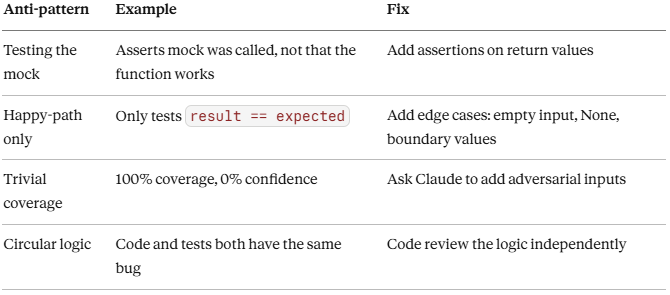
Reviewing AI-Generated Tests
Watch for these AI test anti-patterns:
Automated Testing Hook
"Stop": [{
  "hooks": [{
    "type": "command",
    "command": "pytest tests/ -q --tb=short 2>&1 | tail -20"
  }]
}]
This runs your test suite every time Claude finishes a task. The output is surfaced to Claude, which can see failures and self-correct before you even look.
21. Final Thoughts
Claude Code in 2026 is not a code autocomplete tool. It’s an orchestration platform — one where the AI doesn’t just suggest changes but plans, executes, tests, reviews, and ships them.
The extension hierarchy builds on itself:
CLAUDE.md           → What Claude always knows
Skills              → What Claude can recall on demand
Slash Commands      → What you trigger deterministically
MCP Servers         → What Claude can reach externally
Sub-Agents          → How Claude parallelizes and isolates work
Hooks               → What happens automatically without reasoning
Plugins             → How you package and share all of the above
The developers getting the most out of Claude Code aren’t the ones using the most features — they’re the ones who’ve built the right CLAUDE.md, the right 3–4 skills, and the right hooks for their specific workflow. Start there. Add complexity only when you feel a real friction point.
One more thing: always review what Claude builds. The tools are remarkable, the judgment is still yours.
Happy building. If this helped, follow me on Medium:- Abhirup Pal and LinkedIn for more data and AI engineering content.
#ClaudeCode #AIEngineering #DeveloperTools #VSCode #MCP #ModelContextProtocol #AIAgents #FastMCP #GitHubActions #DevAutomation #Anthropic #AICoding #SoftwareEngineering #PythonDevelopment #DataEngineering #LLMTools #AgenticAI #Productivity #OpenSource #BuildWithClaude
The Complete Developer’s Guide to Claude Code in VS Code: From Zero to Autonomous AI Dev Workflows was originally published in Towards AI on Medium, where people are continuing the conversation by highlighting and responding to this story.