A confessional guide to the queries that burned me — and the fixes I wish someone had shown me on day one.
I’m going to tell you something embarrassing.
Three months into my first data analyst role, I brought down a production dashboard. Not with some exotic zero-day bug or a complicated schema migration gone wrong. I did it with six characters: SELECT *.
My manager pinged me on Teams. “Priya, the executive dashboard hasn’t loaded in four minutes. Did you change the underlying query?”
I had. I’d been “quickly” adding a new column to a report, and instead of specifying the columns I needed, I’d grabbed everything. Every. Single. Column. From a table with 47 fields and 14 million rows. The Power BI dataset refresh ballooned from 90 seconds to timeout. The CFO’s Monday morning dashboard was a spinning wheel of shame.
That was my welcome-to-the-real-world moment. And honestly? It was the best thing that could have happened to me.
Because here’s the part nobody talks about: I still see senior analysts making the same mistakes. Not because they’re careless, but because SQL feels so intuitive that we stop questioning our habits. We write the same patterns we learned in our first tutorial, never realising those patterns are silently costing us performance, accuracy, or both.
So here are five SQL mistakes I made as a junior analyst — mistakes I’ve since spotted in code reviews from people with a decade of experience. For each one, I’ll show you the bad query, explain why it’s a problem, and give you the fix I wish someone had handed me on day one.
Mistake 1: Using SELECT * Like It’s Free
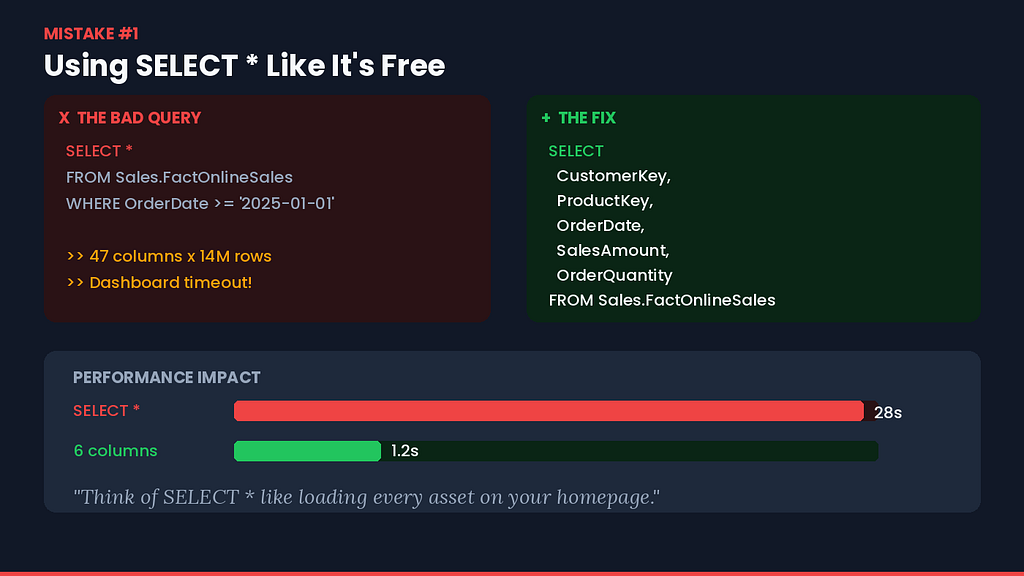
The story: That Monday morning dashboard incident I just described? It’s the most common SQL anti-pattern in existence, and it’s the one I see most often in Power BI datasets connected to SQL sources — whether it’s a Fabric SQL endpoint, an Azure SQL database, or a Synapse warehouse.
Why it happens: When you’re exploring data, SELECT * is fast to type. It's great for poking around in SSMS or a Fabric notebook. The problem is when that exploratory query sneaks into production.
The bad query:
SELECT *
FROM Sales.FactOnlineSales
WHERE OrderDate >= '2025-01-01'
Why this hurts:
- You’re transferring data you don’t need. If the table has 47 columns and your report uses 6, you’re moving 41 columns of wasted bandwidth between your SQL engine and Power BI.
- You’re killing query plan caching. Every time someone adds a column to the underlying table, your SELECT * returns a different result set. This invalidates cached plans and forces recompilation.
- You’re making your future self miserable. Six months later, when you’re debugging a slow dashboard, you won’t know which columns are actually needed without tracing every visual.
The fix:
SELECT
    CustomerKey,
    ProductKey,
    OrderDate,
    SalesAmount,
    OrderQuantity,
    TaxAmount
FROM Sales.FactOnlineSales
WHERE OrderDate >= '2025-01-01'
The designer in me sees it this way: Think of SELECT * like designing a mobile app that loads every asset on the home screen — every image, every font variant, every animation. No designer would do that. You'd lazy-load. You'd optimise. SQL deserves the same respect.
The senior version of this mistake: I’ve seen leads write SELECT * inside CTEs and subqueries thinking "it doesn't matter because I'm filtering later." It matters. The SQL engine still has to read and pass through every column at every stage of the query plan. Be explicit from the innermost query outward.
Mistake 2: Treating NULL Like It’s Zero
The story: In my fourth month, I was building a financial summary report. Revenue numbers looked perfect in my test environment. But when we pushed it to production, the totals were off by ₹3.2 lakhs. Not a small number.
After two days of debugging — checking joins, verifying source data, questioning my life choices — I found the problem. Twelve customer records had NULL in the DiscountAmount column.
My calculation was:
SELECT
    CustomerKey,
    SalesAmount - DiscountAmount AS NetRevenue
FROM Sales.FactOnlineSales
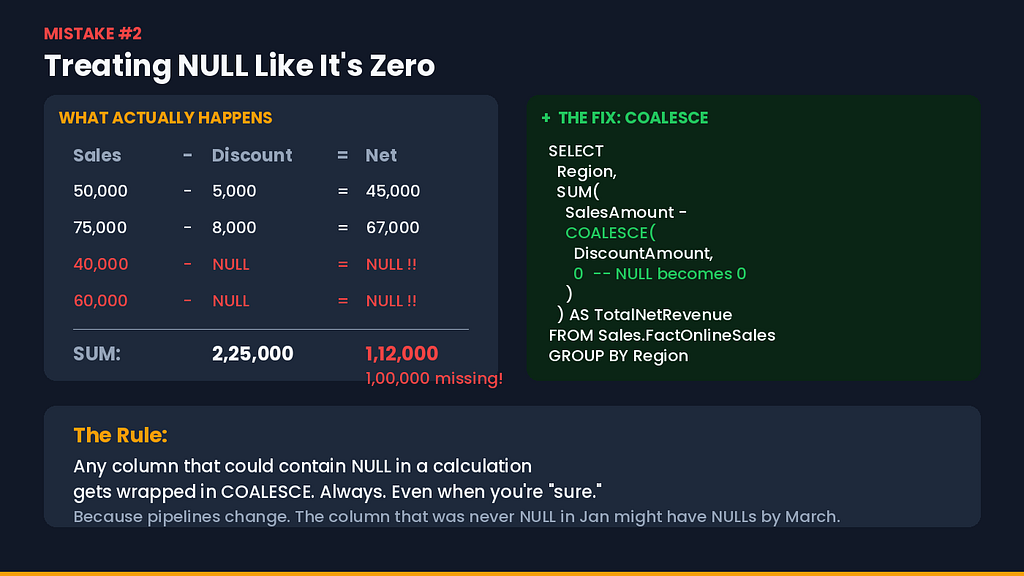
Any arithmetic with NULL returns NULL. Those twelve rows weren't being subtracted incorrectly — they were vanishing entirely from my aggregation. SUM() ignores NULL, so when I summed NetRevenue, those rows contributed nothing. No sales amount. No discount. Just gone.
Why it happens: Coming from a UI/UX background, I thought about data the way I thought about form fields — if a field is empty, treat it as zero. SQL doesn’t agree. NULL is not zero. NULL is not an empty string. NULL is the absence of a value, and SQL treats it accordingly.
The bad query:
SELECT
    Region,
    SUM(SalesAmount - DiscountAmount) AS TotalNetRevenue
FROM Sales.FactOnlineSales
GROUP BY Region
The fix:
SELECT
    Region,
    SUM(SalesAmount - COALESCE(DiscountAmount, 0)) AS TotalNetRevenue
FROM Sales.FactOnlineSales
GROUP BY Region
COALESCE is your safety net. It says: "If this value is NULL, use this default instead." You can also use ISNULL() in T-SQL, but COALESCE is ANSI standard and works across SQL dialects — useful if you ever move between Fabric's SQL endpoint and, say, a PostgreSQL source.
The rule I follow now: Any column that could contain NULL in a calculation gets wrapped in COALESCE. I do this even when I'm "sure" the column is clean, because data pipelines change, source systems get updated, and the column that was never NULL in January might have NULLs by March.
The senior version of this mistake: Using WHERE Status != 'Cancelled' and forgetting that rows where Status IS NULL are also excluded. NULL != 'Cancelled' evaluates to UNKNOWN, not TRUE, so those rows disappear. If you need them, you need:
WHERE Status != 'Cancelled' OR Status IS NULL
Mistake 3: Wrapping Columns in Functions (And Wondering Why It’s Slow)
The story: I had a report that needed to show sales by month. Simple enough, right? I wrote this:
SELECT
    YEAR(OrderDate) AS OrderYear,
    MONTH(OrderDate) AS OrderMonth,
    SUM(SalesAmount) AS TotalSales
FROM Sales.FactOnlineSales
GROUP BY YEAR(OrderDate), MONTH(OrderDate)
ORDER BY OrderYear, OrderMonth
The query worked. But it took 28 seconds on a table with 20 million rows. My manager looked at the query and said two words: “Non-SARGable.”
I had no idea what that meant.
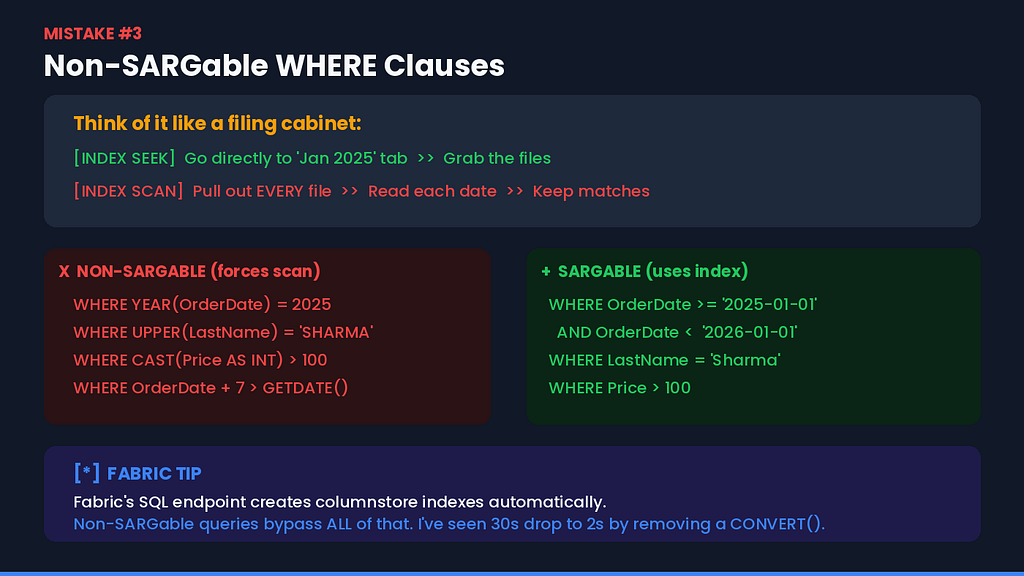
Why it happens: SARGable stands for Search ARGument ABLE. It means the query optimizer can use an index to quickly find the rows it needs. When you wrap a column in a function — YEAR(), MONTH(), CAST(), UPPER(), CONVERT() — the optimizer can no longer use the index on that column. It has to scan every single row, apply the function, and then decide whether the row qualifies.
It’s like having a perfectly organised filing cabinet sorted by date, but instead of looking up “January 2025,” you’re pulling out every single file, reading the date, and putting it in a pile. The filing cabinet’s organisation is useless.
The bad query (another example):
SELECT *
FROM Sales.DimCustomer
WHERE UPPER(LastName) = 'SHARMA'
Even if there’s an index on LastName, this query can't use it because you've wrapped the column in UPPER().
The fix for the date query:
SELECT
    YEAR(OrderDate) AS OrderYear,
    MONTH(OrderDate) AS OrderMonth,
    SUM(SalesAmount) AS TotalSales
FROM Sales.FactOnlineSales
WHERE OrderDate >= '2025-01-01' AND OrderDate < '2026-01-01'
GROUP BY YEAR(OrderDate), MONTH(OrderDate)
ORDER BY OrderYear, OrderMonth
The key difference: I’m filtering with a range predicate on the raw column (OrderDate >= ... AND OrderDate < ...), which IS SARGable. The YEAR() and MONTH() in the SELECT and GROUP BY are fine — they only run on the rows that survive the WHERE filter, not on every row in the table.
The fix for the name query:
SELECT *
FROM Sales.DimCustomer
WHERE LastName = 'Sharma'
If your column stores mixed-case data and you genuinely need case-insensitive matching, set the collation at the column or database level rather than wrapping every query in UPPER().
Why this matters in Fabric: The SQL analytics endpoint in Microsoft Fabric automatically creates columnstore indexes on your Lakehouse tables. These are incredibly efficient — but only when your queries are SARGable. Wrap a column in a function, and you bypass all of that optimization. I’ve seen query times drop from 30+ seconds to under 2 seconds just by removing a CONVERT() from a WHERE clause.
Mistake 4: Using DISTINCT as a Band-Aid for Bad Joins
The story: This one took me the longest to unlearn. Early in my career, whenever a query returned duplicate rows, my instinct was to slap DISTINCT on it. Problem solved, right? The row count looked correct. The report looked clean. Ship it.
Except I wasn’t solving the problem. I was hiding it.
Here’s what happened: I was joining a fact table to a dimension table that had a slowly changing dimension (SCD Type 2). Each customer could have multiple rows in the dimension table — one for each version of their record. My join was matching on CustomerKey, but because the dimension had three rows for the same customer (current address, previous address, address before that), my sales figures were tripling.
Instead of understanding why the duplicates existed, I just added DISTINCT. The row count went back to what I expected. But the SalesAmount was still being summed incorrectly in downstream aggregations because the join was producing inflated rows before the DISTINCT was applied.
The bad query:
SELECT DISTINCT
    f.OrderDate,
    f.SalesAmount,
    d.CustomerName,
    d.City
FROM Sales.FactOnlineSales f
JOIN Sales.DimCustomer d ON f.CustomerKey = d.CustomerKey
WHERE f.OrderDate >= '2025-01-01'
Why this hurts:
- It masks data quality issues. If your join produces duplicates, that’s a signal. Either your join condition is incomplete, your dimension has unexpected granularity, or your data model has a problem. DISTINCT suppresses that signal.
- It’s expensive. DISTINCT forces a sort or hash operation on the entire result set. On large datasets, this is not cheap.
- It gives false confidence. The row count looks right, but the underlying data relationships are wrong.
The fix:
SELECT
    f.OrderDate,
    f.SalesAmount,
    d.CustomerName,
    d.City
FROM Sales.FactOnlineSales f
JOIN Sales.DimCustomer d
    ON f.CustomerKey = d.CustomerKey
    AND d.IsCurrent = 1  -- Only join to the current version
WHERE f.OrderDate >= '2025-01-01'
By adding AND d.IsCurrent = 1 to the join condition, I'm ensuring a one-to-one relationship between fact and dimension. No duplicates. No DISTINCT needed.
The rule I follow now: Every time I’m tempted to type DISTINCT, I stop and ask: "Why are there duplicates?" Nine times out of ten, the answer is a join problem — either a missing join condition, a many-to-many relationship I didn't account for, or a dimension with multiple versions per entity. Fix the join. Don't wallpaper over it.
The senior version of this mistake: Using DISTINCT inside a subquery that feeds into a larger aggregation. The DISTINCT deduplicates rows at the subquery level, but if the outer query joins to another table, the duplicates come right back. You've paid the performance cost of DISTINCT and gained nothing.
I’ve also seen a subtler version: using COUNT(DISTINCT CustomerKey) in a report without realising that the underlying join is already producing duplicates. The COUNT looks correct — you're counting unique customers — but the SUM(SalesAmount) on the same result set is inflated because each customer's sales appear multiple times. The DISTINCT protects the count but not the sum. If you find yourself mixing COUNT(DISTINCT ...) with SUM(...) in the same query, that's a strong signal your join granularity is off.
Mistake 5: Filtering in the Wrong Place (WHERE vs. HAVING)
The story: This one’s subtle, and it tripped me up because the results looked identical. I was building a report that showed product categories with more than ₹10 lakhs in total sales. I wrote two versions:
Version A (with HAVING):
SELECT
    ProductCategory,
    SUM(SalesAmount) AS TotalSales
FROM Sales.FactOnlineSales f
JOIN Sales.DimProduct p ON f.ProductKey = p.ProductKey
WHERE OrderDate >= '2025-01-01'
GROUP BY ProductCategory
HAVING SUM(SalesAmount) > 1000000
Version B (with a subquery and WHERE):
SELECT *
FROM (
    SELECT
        ProductCategory,
        SUM(SalesAmount) AS TotalSales
    FROM Sales.FactOnlineSales f
    JOIN Sales.DimProduct p ON f.ProductKey = p.ProductKey
    WHERE OrderDate >= '2025-01-01'
    GROUP BY ProductCategory
) AS Summary
WHERE TotalSales > 1000000
Both returned the same results. But the real mistake was something different — confusing WHERE and HAVING in simpler queries.
The actual mistake I made:
SELECT
    ProductCategory,
    SUM(SalesAmount) AS TotalSales
FROM Sales.FactOnlineSales f
JOIN Sales.DimProduct p ON f.ProductKey = p.ProductKey
GROUP BY ProductCategory
HAVING OrderDate >= '2025-01-01'
    AND SUM(SalesAmount) > 1000000
I put the date filter in HAVING instead of WHERE.
Why this hurts:
The SQL execution order is:
FROM → WHERE → GROUP BY → HAVING → SELECT → ORDER BY.
When you filter with WHERE, you eliminate rows before the aggregation happens. The GROUP BY operates on a smaller dataset. When you filter with HAVING, the aggregation runs on everything first, and only then does the filter kick in.
In my case, instead of filtering 20 million rows down to 5 million (2025 data only) and then grouping, I was grouping all 20 million rows and then filtering. The query took 4x longer and used 4x more memory.
The rule:
- Use WHERE for conditions on individual rows (before aggregation).
- Use HAVING for conditions on aggregated values (after aggregation).
If you can put it in WHERE, always put it in WHERE. HAVING should only contain conditions that reference aggregate functions like SUM(), COUNT(), AVG(), etc.
The fix:
SELECT
    ProductCategory,
    SUM(SalesAmount) AS TotalSales
FROM Sales.FactOnlineSales f
JOIN Sales.DimProduct p ON f.ProductKey = p.ProductKey
WHERE OrderDate >= '2025-01-01'      -- Row-level filter: WHERE
GROUP BY ProductCategory
HAVING SUM(SalesAmount) > 1000000    -- Aggregate filter: HAVING
Why this matters for Power BI: If you’re writing SQL views or stored procedures that feed Power BI datasets, this mistake compounds. Power BI generates additional filter queries on top of your base query. If your base query is already doing unnecessary work because of misplaced filters, every slicer interaction in the dashboard multiplies the waste.
The Pattern Behind All Five Mistakes
Looking back at these mistakes, I see a common thread — and it’s something my UI/UX background actually helped me articulate.
In design, there’s a principle: don’t make the user think. Every extra click, every ambiguous label, every unnecessary screen is friction.
SQL has the same principle, but for the query engine: don’t make the optimizer work harder than it has to.
- SELECT * makes it read more data than needed.
- Ignoring NULLs makes it produce wrong results silently.
- Non-SARGable filters make it scan when it could seek.
- DISTINCT makes it sort when the join should be clean.
- Misplaced filters make it aggregate more rows than necessary.
Every one of these mistakes is the query equivalent of bad UX — it works, kind of, but it’s slow, confusing, and fragile.
My SQL Review Checklist
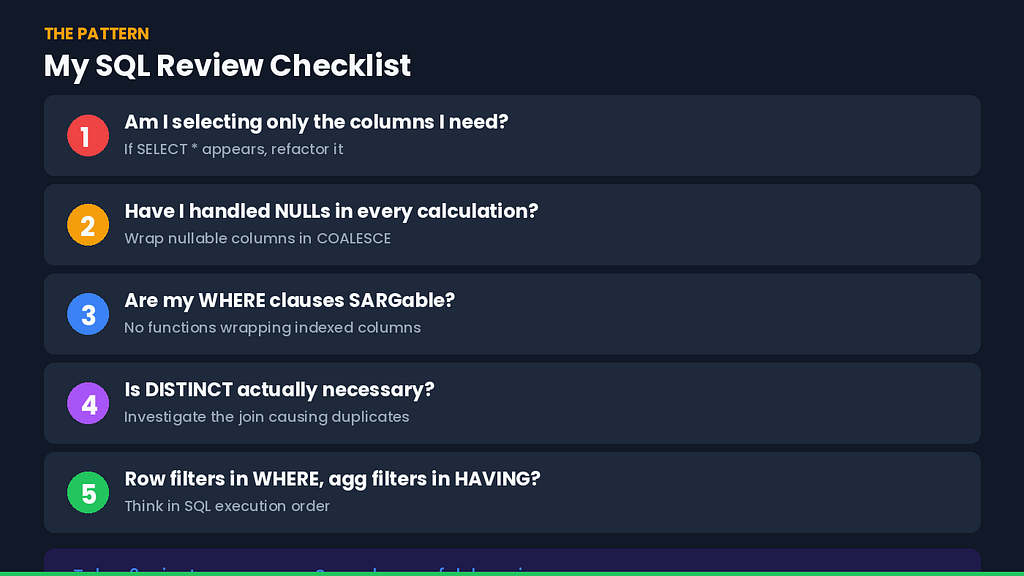
These days, before I commit any SQL that touches a production dataset, I run through five questions:
- Am I selecting only the columns I need? If I see SELECT *, I refactor.
- Have I handled NULLs in every calculation? I search for arithmetic operators and make sure every nullable column is wrapped in COALESCE.
- Are my WHERE clauses SARGable? I check that I’m not wrapping indexed columns in functions.
- Is DISTINCT actually necessary? If I’ve typed it, I investigate the join that’s causing duplicates.
- Are row-level filters in WHERE and aggregate filters in HAVING? I re-read the query with execution order in mind.
This takes me about two minutes per query. It’s saved me hours of debugging and, honestly, a lot of embarrassment.
Wrapping Up
If you’ve made any of these mistakes — welcome to the club. Every analyst has. The difference isn’t whether you make them; it’s whether you learn to recognise the patterns.
And if you’re a senior analyst reading this, thinking “I already know all of this” — run a quick audit on your most recent production queries. I’d bet at least one of these patterns is lurking somewhere. Not because you’re careless, but because we all develop muscle memory with SQL. We type the same patterns we learned in our first tutorial, and those patterns calcify. The query works. The results look right. We move on to the next ticket.
The best SQL writers I know aren’t the ones who never make mistakes. They’re the ones who’ve built systems — checklists, code reviews, automated linters — to catch them before they ship.
One more thing I’ve learned: every one of these mistakes is easier to catch when you read your own SQL out loud. Not in your head — actually out loud, or at least mouthing the words. When I read SELECT *, my brain auto-completes it as "select everything I need." But when I say it out loud, I hear what it actually means: "select every column in this table, whether I need it or not." That shift from intention to literal meaning is where most of these bugs live.
The SQL you write today will be read by someone else tomorrow — or by you, six months from now, at 11pm, trying to figure out why a dashboard is broken. Write it for that person. They’ll thank you.
5 SQL Mistakes I Made as a Junior Analyst (That I Still See Seniors Making) was originally published in Towards AI on Medium, where people are continuing the conversation by highlighting and responding to this story.