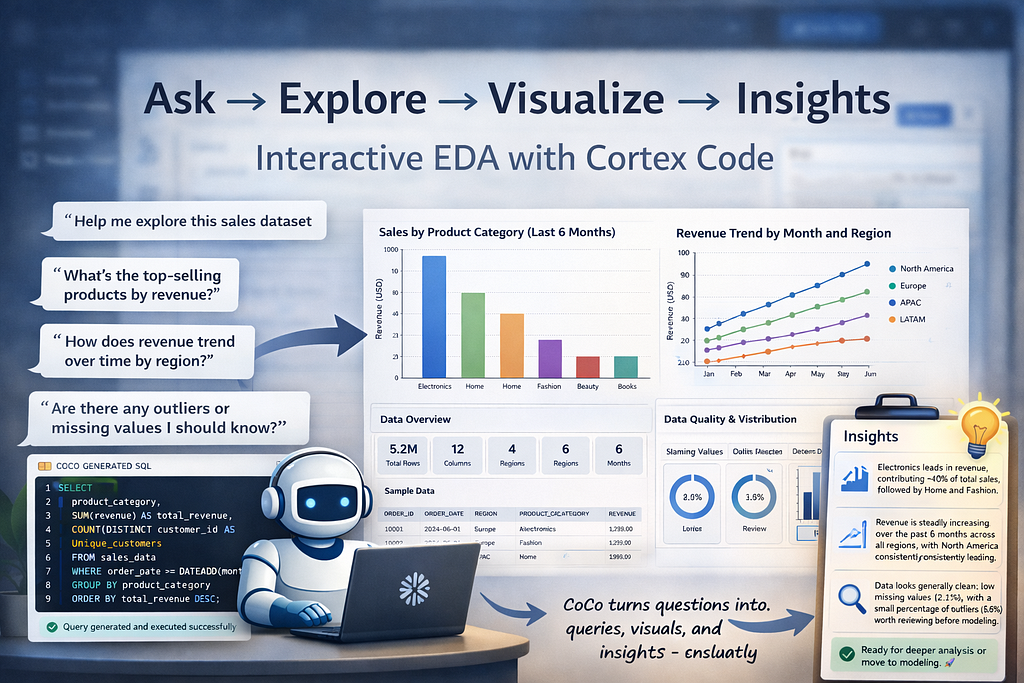
From one prompt to a complete notebook — queries, visualizations, and insights generated without writing boilerplate SQL or Python
Meet Presto
Presto is a data scientist working on a new dataset — around 600 customers, 1,200 policies, and few hundred claims.
Her manager asks for a quick feel of the data. Sounds simple, but this is where time goes — notebooks, SQL checks, charts, going back and forth. Before she even gets to real analysis, couple of hours are already gone.
This time, she opens CoCo, types one prompt… and waits.
What changed with CoCo
Earlier, this kind of EDA would easily take 2–3 hours — writing SQL, setting up a notebook, building charts, fixing small issues here and there. Most of the time goes in setup, not actual thinking.
Now Presto just wrote one prompt. And CoCo started generating everything — queries, charts, even a full notebook — step by step.
She didn’t switch tools. Didn’t write boilerplate. Just guided the flow. And within few minutes, she already had a working view of the data
What CoCo is actually doing behind the scenes
When Presto typed that one prompt, CoCo didn’t just generate a notebook randomly. It was actually breaking the problem into smaller steps — checking the data, looking at distributions, finding relationships, and then summarizing what matters.
You don’t really see these steps one by one. But they are happening in the background. And instead of writing all that logic manually, she is just guiding it with prompts.
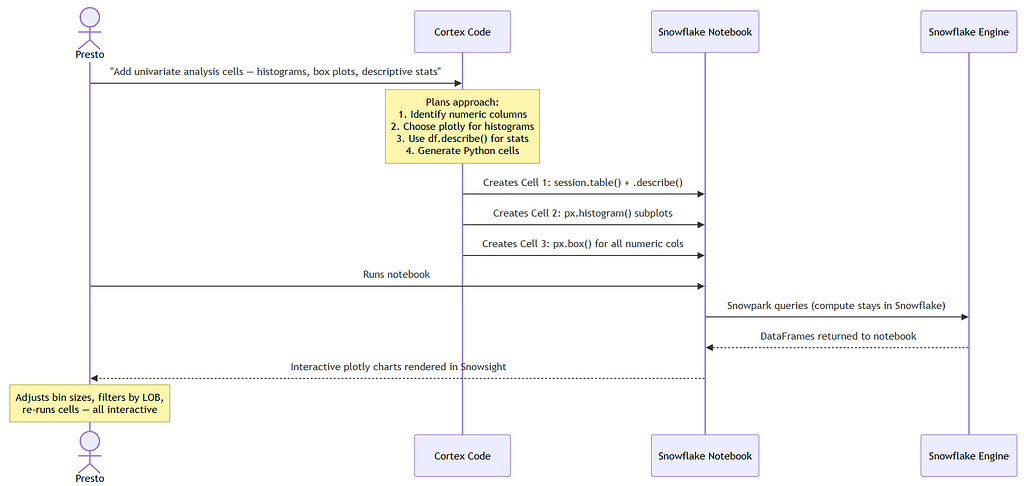
The EDA Flow — Powered By CoCo

Step 1 — Understand the Problem
Presto didn’t jump into code first. She just described what she is trying to do:
“I have an insurance dataset in INSURANCE.SOURCE with tables for customers, policies, claims, payments, and agents. I want to build a claims prediction model. What should I look for during EDA?”
Instead of writing queries, CoCo responds with what actually matters:
check class balance in claim status, look for leakage in days_to_close, understand premium distributions across business lines, and verify join cardinality between tables. It even asks whether she’s predicting claim occurrence or claim severity — because the EDA path differs.
No code yet. Just a shared understanding of what “explore” means for this problem.
Step 2 — Import and Inspect the Data — Let CoCo do the heavy lifting
Instead of writing queries for each table, Presto just asked:
“Create a Python notebook that inspects all tables in INSURANCE.SOURCE — row counts, column types, duplicate check on primary keys, join cardinality between tables, and date range coverage.”
Within few seconds, she could already see:
- how many rows each table has
- what the key columns are
- whether there are duplicates
- how tables are connected
- how far the data goes (date range)
She didn’t write any SQL Didn’t switch to another tool. Just scrolled through the notebook as it was getting created.
And this is where it gets interesting.
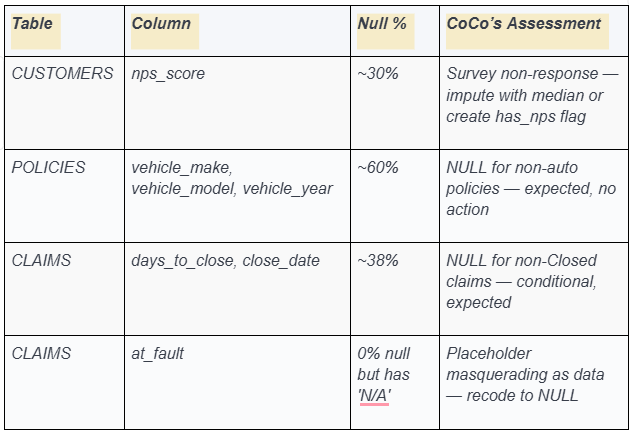
Even before any real analysis, CoCo already flagged:
- no duplicate primary keys
- data spanning multiple years
- how customers connect to policies and claims
- and even a small data quality issue (at_fault = ‘N/A’)
Step 3 — Handling Missing Values
Next, Presto wanted to check missing values Instead of writing checks for each column, she just asked:
“Add cells to the notebook that check null rates across all columns in every table. Flag anything above 10%, classify whether it’s structural or a data quality issue, and render a null heatmap using seaborn.”
CoCo added new cells to the notebook and ran the checks. But what stood out was not the numbers it was how it explained them. Normally, this step takes time — checking column by column, figuring out context. Here, most of it was already explained.
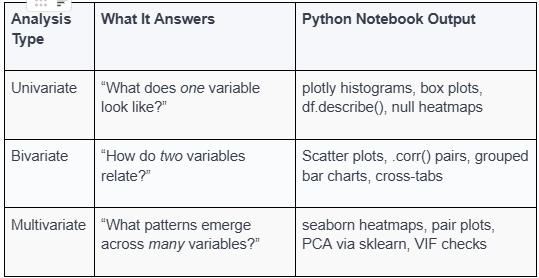
How the analysis actually evolves
By this point, Presto already has a working notebook. What CoCo is generating is not random charts — it’s following a natural EDA flow.
First looking at individual variables, then how variables relate, and finally patterns across multiple variables.
Step 4 — Explore Data Characteristics (Univariate Analysis)
Now Presto wanted to understand how the data actually looks. Instead of writing multiple queries and building charts manually, she just asked:
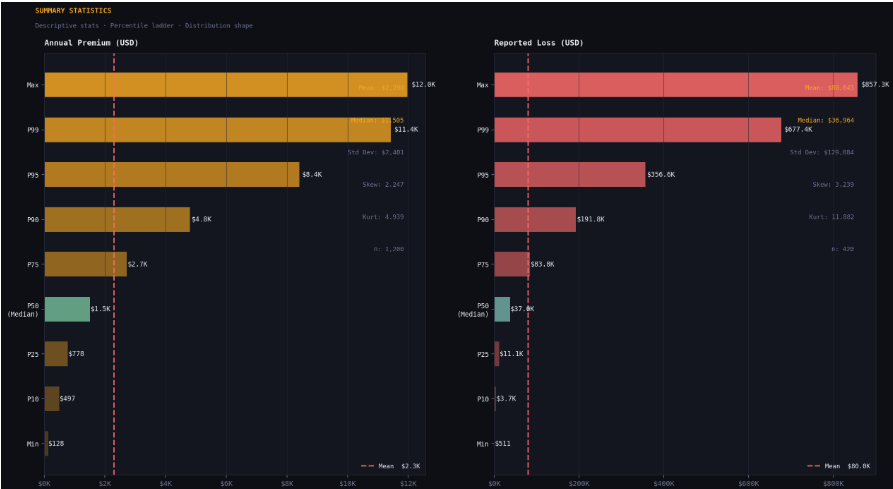
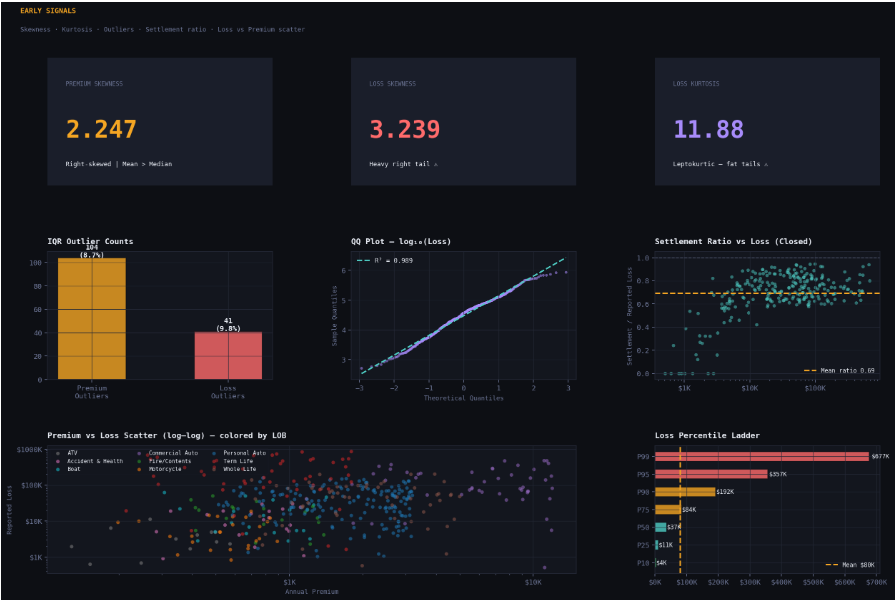
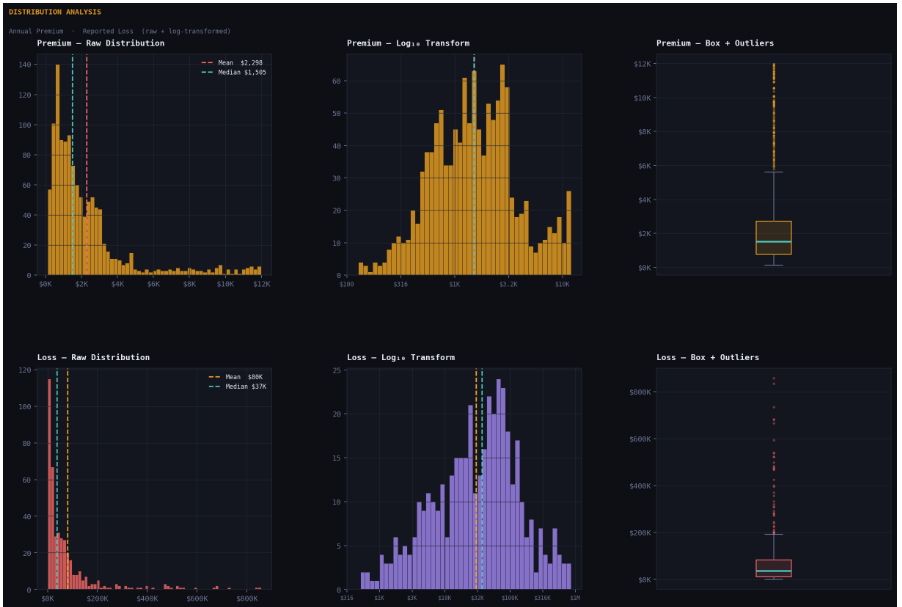
“Add univariate analysis cells — descriptive statistics (mean, median, stddev, percentiles) for premiums and claim losses, histograms for both distributions, and a claim status breakdown with average loss and settlement. Use plotly for interactive charts.”
Note: fine tuning of prompts may be required for additional charts
And CoCo did the rest. Within seconds, the notebook had:
- distribution charts for premiums and losses
- summary statistics like mean, median, and percentiles
- breakdown of claim status with average loss
- early signals like skew and outliers
Step 5 — Perform Data Transformation (Setting Up for Bivariate Analysis)
Now Presto wanted to go one level deeper.Not just understanding the data but creating features that could actually be useful later for modeling.
Instead of writing joins and transformations manually, she just asked:
“Add transformation cells — create a claim-to-customer ratio by state by joining customers to claims through policies, and bucket customers by age group showing claim frequency per bucket. Visualize both as bar charts.”
Note: fine tuning of prompts may be required for additional charts
And CoCo handled the rest. Behind the scenes, it:
- joined customers, policies, and claims
- grouped data by state
- calculated ratios
- created age buckets
- built charts on top of it
Within seconds, she could see:
- which states had higher claim ratios
- which age groups had more claims
- patterns that were not obvious earlier
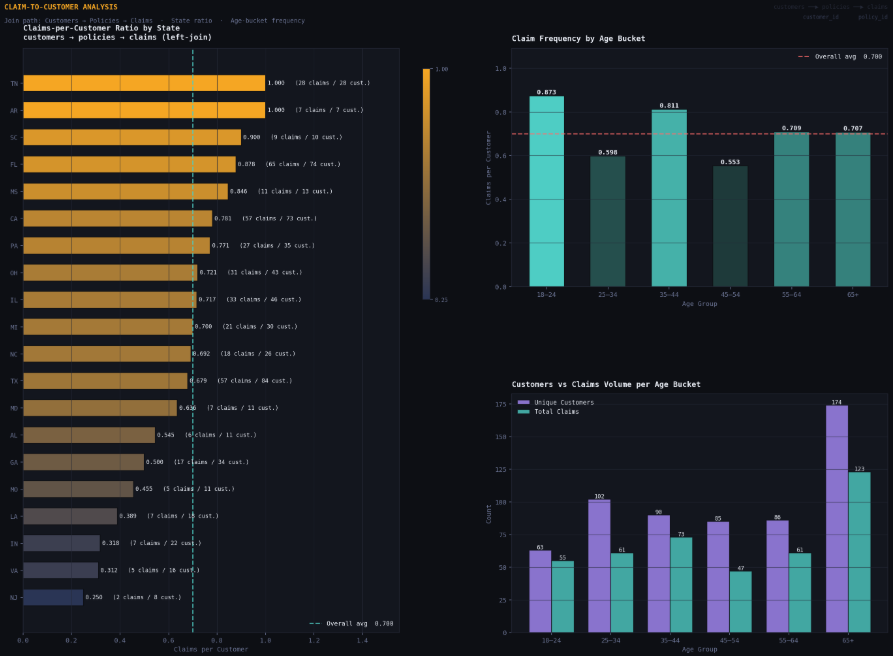
What usually takes time — writing joins, debugging, validating — was already done. And the best part? She could tweak the logic just by changing the prompt.
Instead of rewriting code, she was just guiding the transformation.
Because these are notebook cells, Presto can tweak the bins ([18, 25, 35, 50, 65, 100]), re-run, and see how the pattern changes. These derived features set the stage for bivariate analysis — she can now add a cell asking “does claim ratio vary with income band?” or “is age bucket correlated with settlement amount?”
Step 6 — Visualize Data Relationships (Bivariate & Multivariate Analysis)
This step is the heart of relationship discovery — moving from “what does each variable look like” to “how do variables interact.”
Bivariate Analysis
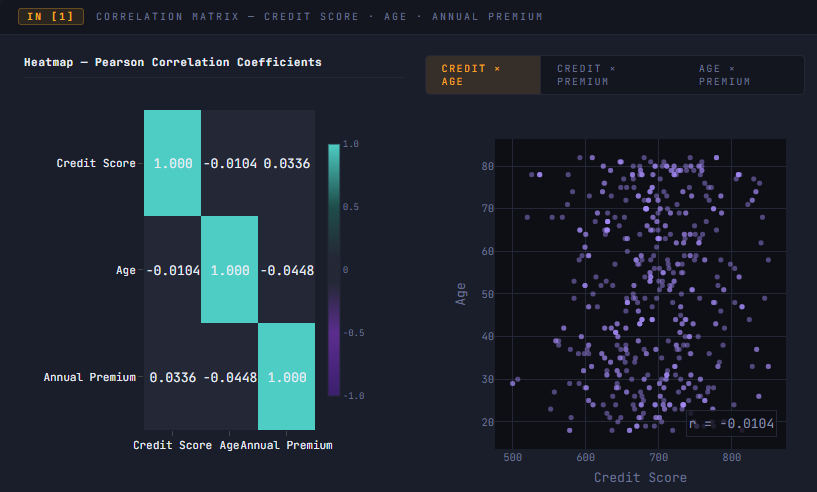
“Add bivariate analysis cells — correlation between credit score, age, and premium as a matrix, plus a grouped bar chart of claim status vs. average loss. Use plotly.”
CoCo generates cells that compute pairwise correlations and visualize relationships:
Multivariate Analysis
By this point, Presto had a good understanding of individual variables. Now she wanted to see how things connect. Instead of writing multiple queries and plotting comparisons manually, she just asked:
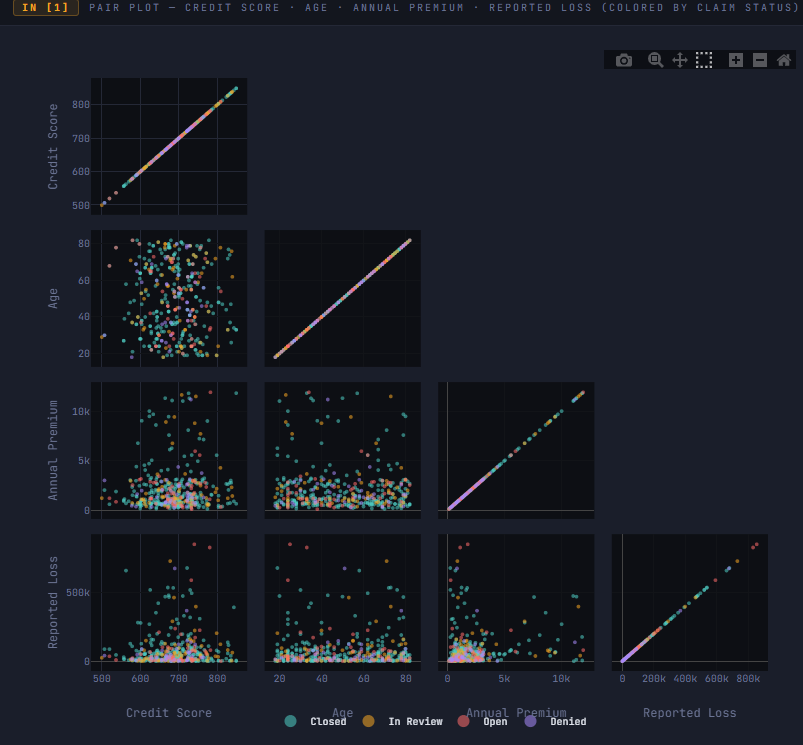
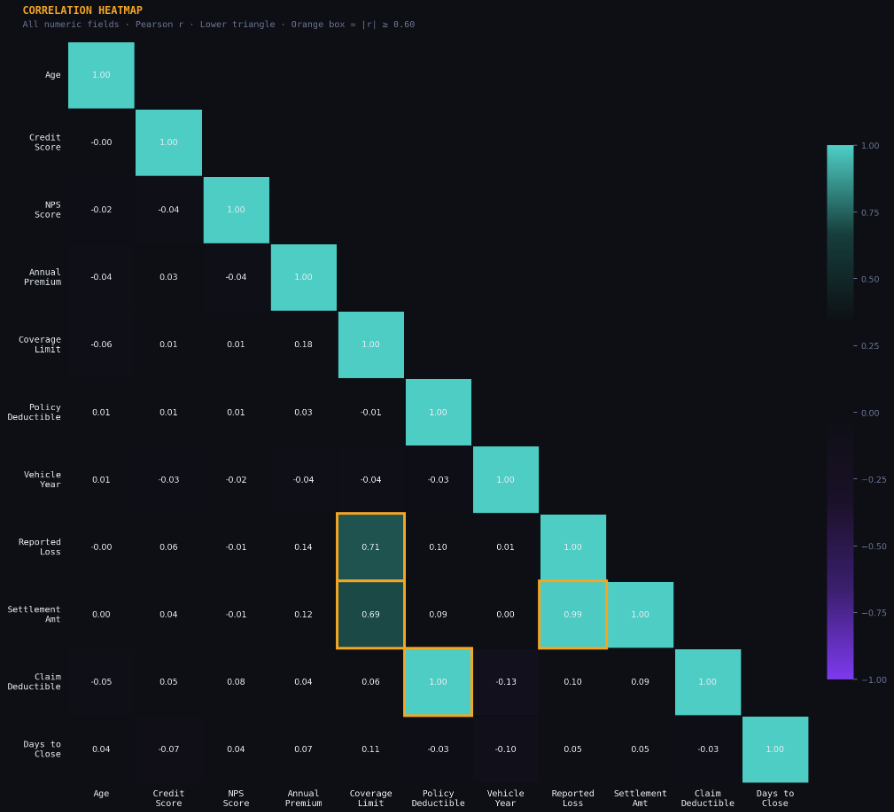
“Add multivariate analysis cells — a correlation heatmap across all numeric fields, a pair plot for credit_score, age, annual_premium, and reported_loss colored by claim status, and a PCA scatter to see if claims cluster naturally. Use seaborn for the heatmap and plotly for the rest.”
Step 7 — Handling Outliers
By now, Presto had a good view of the data. But one question still remained
what looks off? Instead of writing logic for outlier detection, she just asked:
“Add outlier detection cells — identify outliers in reported_loss_usd using IQR, cross-reference flagged claims against their coverage limits, and visualize the flagged claims with a scatter plot showing the IQR fence.”
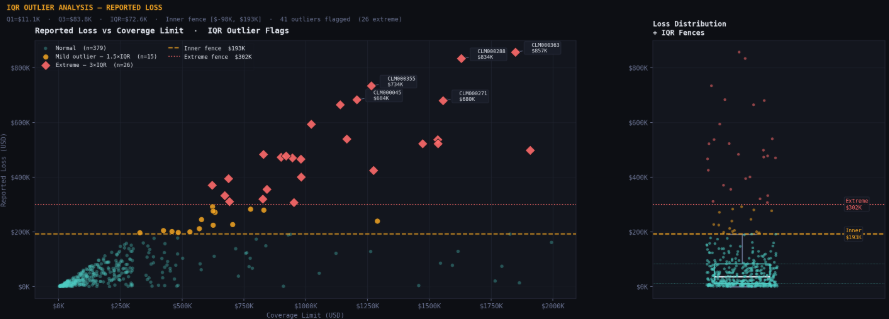
Instead of manually calculating thresholds and validating records, this was already visual and explained.
Some outliers are signals. Some are problems. CoCo helps separate both.
Step 8 — Communicate Findings and Insights
By now, Presto had everything — distributions, relationships, features, outliers. But one thing still remained.
How do you share this with others?
And CoCo added one final cell.
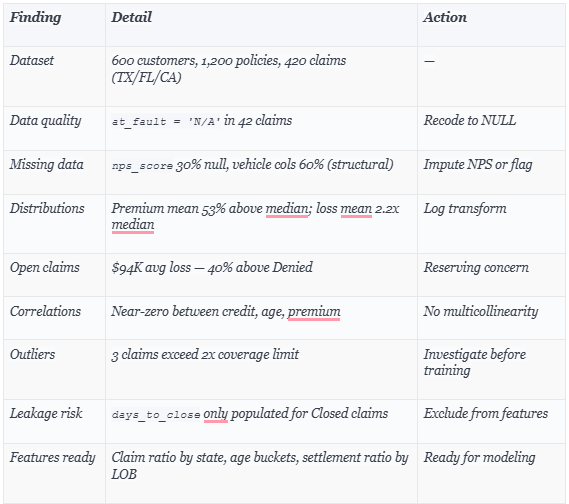
It pulled everything together into a clean summary:
- key dataset stats
- important data quality issues
- patterns in distributions
- feature recommendations
- potential risks (like data leakage)
“Add a summary cell that compiles everything we’ve learned into a stakeholder-ready brief — key stats, data quality issues, distribution insights, feature recommendations, and leakage warnings. Format as a printable markdown table.”
CoCo generates a final cell that synthesizes all prior analysis:
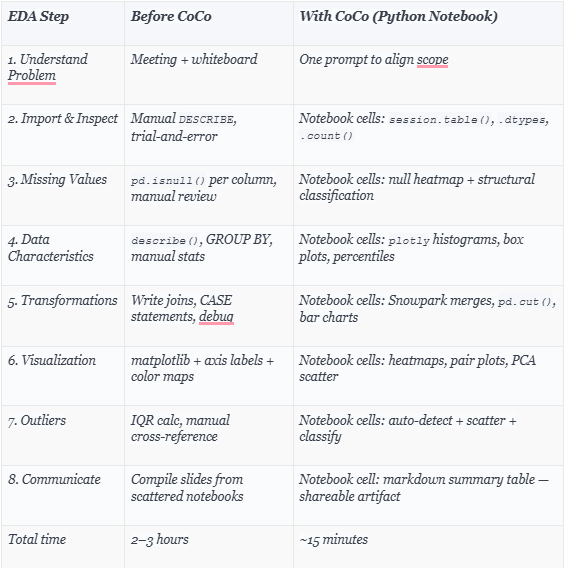
Before vs. After
What actually changed
At this point, it’s easier to step back and see what really changed in the workflow.
Final Thoughts
Nothing in this article is new from a capability perspective.
You could always:
- write SQL
- build notebooks
- create charts
But earlier, you had to figure out:
- what to do
- how to connect everything
- and where to start
Now, you just describe what you want.
And CoCo builds the path. It didn’t feel like writing EDA code. It felt like guiding the analysis. And that small shift… makes a big difference.
The companion Quickstart Guide walks through this full EDA process with sample data to be shared in the comment box
If you are exploring Snowflake Cortex Code (CoCo) or planning to enable it for your team, happy to connect and exchange thoughts.
I’ve been working closely on Snowflake and modern data platforms, and always open to discuss real-world use cases, challenges, or even different approaches that are working across teams.
Feel free to reach out on LinkedIn : https://www.linkedin.com/in/rahul-sahay-8573923/
Series Note
This is the 5th part of the series on Snowflake Cortex Code (CoCo).
If you haven’t checked the earlier parts, sharing here:
- Cortex Code in Snowflake: How to Use It Without Burning Credits
- How Snowflake Cortex Code (CoCo) Works with RBAC: A Complete Security Guide
- Unlocking Cortex Code: The Agent Architecture, AGENTS.md, and Custom Skills
- I Told Snowflake’s AI to Find Our Hidden PII. It Did More Than That
More parts coming soon.
Cut EDA Time from Hours to Minutes with Snowflake Cortex Code was originally published in Towards AI on Medium, where people are continuing the conversation by highlighting and responding to this story.