You just got a new laptop. How long until you’re productive? Not “I can open a browser” productive — I mean actually productive. Your shell aliases, your editor plugins, your database services running, your AI coding agents configured and ready to pair. The whole thing.
For most developers, the answer is painful. A day? Two? A week of “oh right, I also need to install that”? And somewhere along the way, you’re copy-pasting commands from a six-month-old setup doc that’s already outdated.
What if I told you it’s one command?
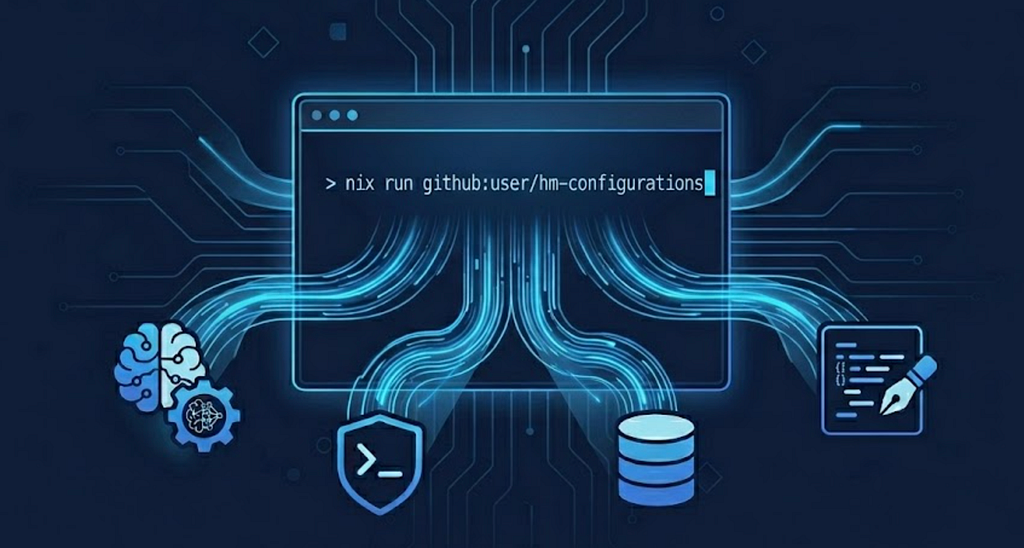
nix run github:gupta-ujjwal/hm-configurations
Fresh machine. Fully configured. Shell, editor, databases, AI agents, services — everything. Let’s talk about how.
Why This Matters More Now Than Ever — The AI Agent Era
Reproducible environments aren’t a new idea. Docker solved it for applications years ago. But something has shifted.
AI agents now live in your terminal.
Tools like Claude Code, OpenCode, and Cursor aren’t just autocomplete anymore. They read your files, run shell commands, install packages, spin up servers, and modify your codebase. They’re not suggesting code — they’re operating your machine.
And then there’s the next wave — tools like OpenClaw and Hermes. Autonomous agents that can claw through your filesystem, refactor entire codebases, set up infrastructure. Powerful — but powerful also means dangerous.
This changes what a good dev environment means in three important ways:
Consistency. Let an agent loose on an ad-hoc machine and you get version mismatches, implicit dependencies, tools that exist on your machine but not your colleague’s. Same prompt, different machine, different results. A declarative environment means your agent always knows what it’s working with — same tools, same versions, same paths, every time.
Reproducibility. If your environment can’t be reproduced exactly, you can’t trust your agent’s output across machines or teammates. The moment “works on my machine” applies to your AI setup, you’ve lost control of what your agents are actually doing.
Disposability. These agents have real power — shell access, file writes, network calls. The safest way to run an autonomous agent is in an environment you can throw away. Spin up a VM, replicate your full setup with one command, let the agent work, review the results, destroy the VM. No risk. No residue.
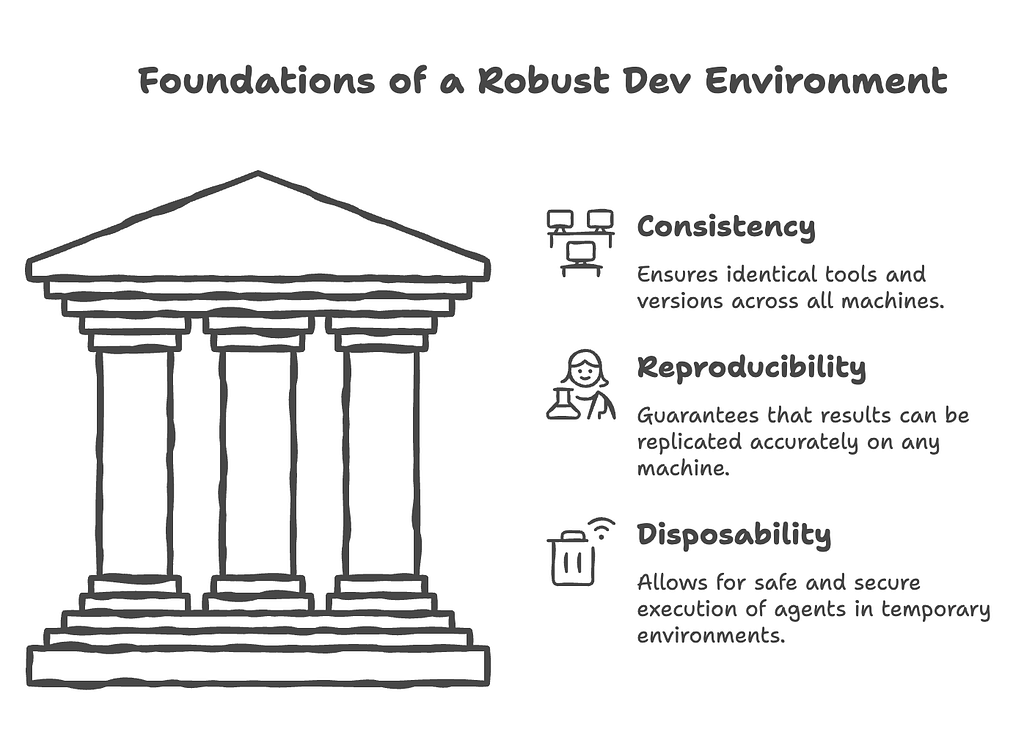
A declarative, reproducible, disposable dev environment isn’t just nice to have anymore. For anyone building seriously with AI agents, it’s infrastructure.
From Skeptic to Believer
Honestly, reproducible builds and declarative environments sounded like over-engineered nonsense to me for a long time. The Nix syntax alone was enough to make me close the tab.
What actually converted me was a dead MacBook.
I’d been delaying the upgrade for months — because setting up a fresh machine from scratch is exhausting. So I kept nursing the old one until it stopped working entirely. No migration path. Start from zero.
That’s when I decided to actually sit down with Home Manager on the new machine. Painful at first — the syntax is genuinely unfamiliar and AI helped a lot to get through it. But I pushed through.
Then I got a Linux machine a few weeks later. Installed Nix, cloned my config, ran home-manager switch.
Everything was there. Instantly. That’s when it clicked.
Now I use the same config across both machines and spin up identical VMs whenever I need a clean environment to run agents. The thing that looked like unnecessary complexity turned out to be the simplest thing I’d ever done.
A special mention to Srid and Shivaraj — the flag bearers of Nix in our org. While the rest of us nodded politely and went back to our Homebrew installs, they were already living in a world where their entire dev environment was declared in code, reproducible anywhere, and never thought about again. I was skeptical longer than I should have been. This article is partly my way of paying that forward.
Nix in 5 Minutes — Just Enough to Be Dangerous
Nix is three things at once:
- A package manager — like brew or apt, but with superpowers
- A language — a purely functional language for describing system configurations
- A philosophy — declarative over imperative, reproducible over ad-hoc
Instead of running a sequence of install commands and hoping you remember them all next time, you describe what your environment should look like — and Nix builds it.
Describe what you want, not how to get there.
Nix is to your dev environment what Docker is to your application. Except instead of containerizing one app, you’re declaring your entire machine setup.
Flakes
If you’ve heard of Nix before, you might’ve been scared off by “channels” and “nix-env” and general confusion. Flakes fix that.
A flake is just a flake.nix file with:
- Inputs — where your packages and modules come from (pinned with a lockfile)
- Outputs — what you’re building (in our case, a home configuration)
The lockfile (flake.lock) pins every input to an exact commit. Someone running your flake six months from now gets the exact same result you got today.
Enter Home Manager — Your Environment as Code
Home Manager manages your entire user environment declaratively — packages, dotfiles, shell config, editor plugins, background services, all of it.
The mental model:
- You edit .nix files describing what you want
- You run home-manager switch
- Your environment matches the description — instantly, completely, idempotently
Run it once, run it ten times — same result. Broke something? Edit the file, switch again. Want to roll back? Git revert.
Why not just a dotfile manager? Tools like stow or chezmoi symlink config files. But they don’t install anything. They don’t manage services. They don’t ensure your Python version and your database version and your shell plugins are all in sync. Home Manager doesn’t just place files — it builds your environment.
Walking Through My Setup
Let’s get concrete. Here’s how my setup is structured — and why each piece exists.
The Flake — Inputs and Wiring
# flake.nix
{
  inputs = {
    nixpkgs.url = "github:nixos/nixpkgs/nixos-unstable";
    home-manager = {
      url = "github:nix-community/home-manager/master";
      inputs.nixpkgs.follows = "nixpkgs";
    };
    nix-agent-wire.url = "github:gupta-ujjwal/nix-agent-wire";
    juspay-AI.url = "github:juspay/AI";
  };
  # ...
}
- nixpkgs — the package repository, tracking unstable for the latest versions
- home-manager — follows the same nixpkgs to avoid conflicts (inputs.nixpkgs.follows)
- nix-agent-wire — Home Manager module for Claude Code configuration
- juspay-AI — shared AI agent skills and the OpenCode module
Multi-System Support
supportedSystems = [ "aarch64-darwin" "x86_64-darwin"
                     "x86_64-linux" "aarch64-linux" ];
username = let env = builtins.getEnv "USER"; in
  if env != "" then env else "Ujjwal.gupta";
The config auto-detects username and home directory from environment variables — same flake works on Mac, Linux, and CI runners.
The Shell Layer
programs.zsh = {
  enable = true;
  enableCompletion = true;
  autosuggestion.enable = true;
  syntaxHighlighting.enable = true;
  history = { size = 10000; ignoreDups = true; share = true; };
  shellAliases = {
    g = "git"; lg = "lazygit"; d = "docker"; dc = "docker compose";
    hms = "home-manager switch --flake ~/.config/home-manager --impure";
  };
};
programs.starship.enable = true; # Beautiful prompt
programs.fzf.enable = true; # Fuzzy finder
programs.direnv.enable = true; # Auto-load per-project Nix environments
programs.nix-index.enable = true; # "Which package has this binary?"
A few lines give me Zsh with autosuggestions, syntax highlighting, shared history, aliases, a gorgeous prompt, fuzzy search, and auto-activating project environments. No oh-my-zsh installation, no manual .zshrc editing.
Packages — The Full Stack in One List
home.packages = with pkgs; [
  postgresql_17 redis           # Databases
  docker colima                 # Containers
  git lazygit ripgrep htop btop # Dev tools
  python313 uv nodejs_24 stack  # Languages
  netbird gh                    # Networking
  nerd-fonts.jetbrains-mono     # Fonts
  opencode                      # AI tools
];
My entire toolchain, one list. Add a line, switch, done. Remove a line, switch, gone.
Modules — Separation of Concerns
When a tool needs more than a few lines of config, it gets its own module:
~/.config/home-manager/
├── flake.nix              # Inputs + wiring
├── home.nix               # Main config
├── modules/
│   ├── neovim.nix         # Editor + plugins + LSP
│   ├── tmux.nix           # Terminal multiplexer
│   ├── tmate.nix          # Remote pairing
│   ├── redis.nix          # Service + config
│   ├── obsidian.nix       # Vault sync + CLI
│   └── opencode-config.nix
└── agents/
    ├── settings/
    │   └── claude-code.nix
    └── skills/
Take Redis — the module handles the service, the config file, and cross-platform differences in one place:
# modules/redis.nix — simplified
{
  systemd.user.services.redis = lib.mkIf isLinux {
    Service.ExecStart = "${pkgs.redis}/bin/redis-server ~/.config/redis/redis.conf";
  };
  launchd.agents.redis = lib.mkIf isDarwin {
    config.ProgramArguments = [ "${pkgs.redis}/bin/redis-server" "..." ];
    config.RunAtLoad = true;
  };
  home.file.".config/redis/redis.conf".text = ''
    port 6379
    bind 127.0.0.1
    appendonly yes
  '';
}
lib.mkIf isDarwin and lib.mkIf isLinux — one codebase, two platforms.
AI Agent Wiring
This is where it gets interesting for anyone working with AI tools. Both Claude Code and OpenCode are configured declaratively:
programs.claude-code = {
  enable = true;
  autoWire.dirs = [ (juspay-AI + "/.agents") ./agents ];
};
programs.opencode = {
enable = true;
autoWire.dirs = [ (juspay-AI + "/.agents") ./agents ];
settings = import ./modules/opencode-config.nix;
};autoWire.dirs discovers agent skills from a shared company repo (juspay-AI) and local custom skills (./agents). New team member? Same agent config out of the box. New skill in the shared repo? Everyone gets it on their next switch. No manual setup, no "which version of the skill did you install" conversations.
This is what a team-consistent AI setup looks like. Every engineer, every machine, same agents, same skills, same configuration.
Microsoft’s APM (Agent Package Manager) is another tool worth exploring for wiring agent skills and configurations declaratively across your team.
Obsidian — Notes as Infrastructure
The Obsidian module manages a Git-synced vault with auto-sync every 10 minutes, a CLI tool (obs sync, obs daily, obs search), and automatic vault cloning on first setup:
obsidian-sync = pkgs.writeShellScriptBin "obsidian-sync" ''
  cd "$VAULT_DIR"
  git add -A
  git commit -m "vault: auto-sync $(date) from $(hostname -s)" || true
  git pull --rebase --autostash origin main
  git push origin main
'';
New machine? home-manager switch clones the vault, starts the sync service, installs the CLI. Notes are waiting.
Bootstrap — The One-Command Trick
The flake exposes a bootstrap script as its default app:
apps = forAllSystems (system: {
  default = {
    type = "app";
    program = "${self.packages.${system}.bootstrap}/bin/bootstrap";
  };
});
The script detects your platform, clones the config, and runs home-manager switch. This is what makes nix run github:<user>/<repo> work — and anyone can replicate this pattern for their own config.
Tweak, Break, and Learn — DIY Section
Ready to build your own? Let’s go.
Prerequisites
Install Nix using the Determinate installer (macOS and Linux):
curl --proto '=https' --tlsv1.2 -sSf -L \
  https://install.determinate.systems/nix | sh -s -- install
Restart your shell after installation.
Step 1: Fork and Run
Fork my repo — it’s a working template with multi-system support, modular structure, and bootstrap already wired. Then run your fork:
nix run github:<your-username>/hm-configurations
You now have a working config at ~/.config/home-manager. Explore it, break it, make it yours.
Step 2: Customize
The two files you’ll touch first:
- home.nix — edit the packages list, tweak shell aliases, enable/disable programs
- flake.nix — strip out inputs you don’t need (a minimal setup only needs nixpkgs and home-manager)
After any change: home-manager switch --flake ~/.config/home-manager --impure
Step 3: Add a Module
Create modules/git.nix:
{ ... }:
{
  programs.git = {
    enable = true;
    userName = "Your Name";
    userEmail = "you@example.com";
    extraConfig = {
      init.defaultBranch = "main";
      push.autoSetupRemote = true;
    };
  };
}
Wire it in flake.nix:
modules = [ ./home.nix ./modules/git.nix ];
Switch. Git is now declarative. Same pattern for any tool — check the Home Manager options to see what’s available.
Step 4: Push and Own It
Commit your changes, push to your fork. Now your setup is one nix run away on any machine — forever.
Challenge: Pick a tool that isn’t in the config yet. Add it declaratively — either via a programs.<n> module or home.packages + home.file for its config. Commit, push, done.
What’s Next?
- Team-shared flake templates — onboard a developer with one command, same tools, same agent config
- Ephemeral AI sandboxes — spin up a VM, apply the flake, let the agent work, destroy it
- Skill libraries — community-shared AI agent skills that auto-wire into any environment
The line between “my machine” and “our platform” is blurring. Declarative environments are the bridge.
If you found this useful, I’d love to hear how you’re setting up your dev environments. Drop a comment or find me on LinkedIn.
References
- Nix
- Home Manager Manual
- Determinate Nix Installer
- Home Manager Options Search
- My Config Repo
- nix-agent-wire
- Microsoft APM
Further Reading — AI From First Principles
- From Workflows to AI Agents — Building PortfolioBuddy with LangGraph
- What Makes an AI Agent Actually Agentic? Building Beyond the Basics with LangGraph
- Build and Run Your Own MCP Server Locally — Power Your Dev Agents
The Dev Environment Setup Every AI Engineer Should Have was originally published in Towards AI on Medium, where people are continuing the conversation by highlighting and responding to this story.