Power BI’s new Translytical Task Flows just went GA. I spent a week pushing them to their limits. What I found made me rethink what a “report” even is.

Last Tuesday, I did something in Power BI that would have been impossible a month ago.
I was staring at a sales report — a perfectly ordinary table of high-risk opportunities with shrinking time windows and razor-thin margins. The kind of dashboard I’ve built hundreds of times. Except this time, instead of copying an opportunity ID into Slack, switching to our CRM, manually requesting a discount, and then pinging my manager on Teams, I just… typed a number into the report. Clicked a button. And watched the discount request post itself to our Teams channel, complete with justification notes, opportunity context, and approval routing.
No Power Automate flow. No third-party connector. No leaving the report.
The report did something.
If that sounds like a small thing, you haven’t been paying attention. Because Microsoft just quietly turned Power BI from a window you look through into a cockpit you fly from. And after a week of testing, I’m convinced this is the most consequential Power BI update since DirectQuery.
Let me show you exactly what I mean.
What Are Translytical Task Flows, Actually?
Let’s cut through the marketing language. Translytical Task Flows, which hit general availability in the Q1 2026 Power BI update, do one fundamental thing: they let end users write data back to your databases and trigger external actions — directly from a Power BI report.
That’s it. And it changes everything.
Traditionally, Power BI has been a read-only affair. You model your data, build your visuals, and people look at them. If someone needs to act on what they see — update a status, approve a request, log a note — they leave the report and go somewhere else. The insight-to-action gap has always been Power BI’s silent weakness.
Translytical Task Flows close that gap entirely. Here’s what they enable:
Add data. A sales rep sees an account in a report and adds a customer note — directly into the underlying SQL table — without leaving the dashboard.
Edit data. A project manager updates a status field from “In Progress” to “Completed” right inside the report. The database updates. The visuals refresh. Done.
Delete data. A data steward removes an obsolete record from a table, and the report reflects it immediately.
Call an external API. This is the wildcard. A user clicks a button in the report and triggers a REST API call — posting to Teams, creating a Jira ticket, hitting an Azure OpenAI endpoint for AI-generated recommendations, or anything else your API can do.
The mechanism behind all of this is a new Fabric capability called User Data Functions — Python-based functions that live in your Fabric workspace and act as the bridge between what a user does in a report and what happens in your data layer.
The Architecture (It’s Simpler Than You Think)
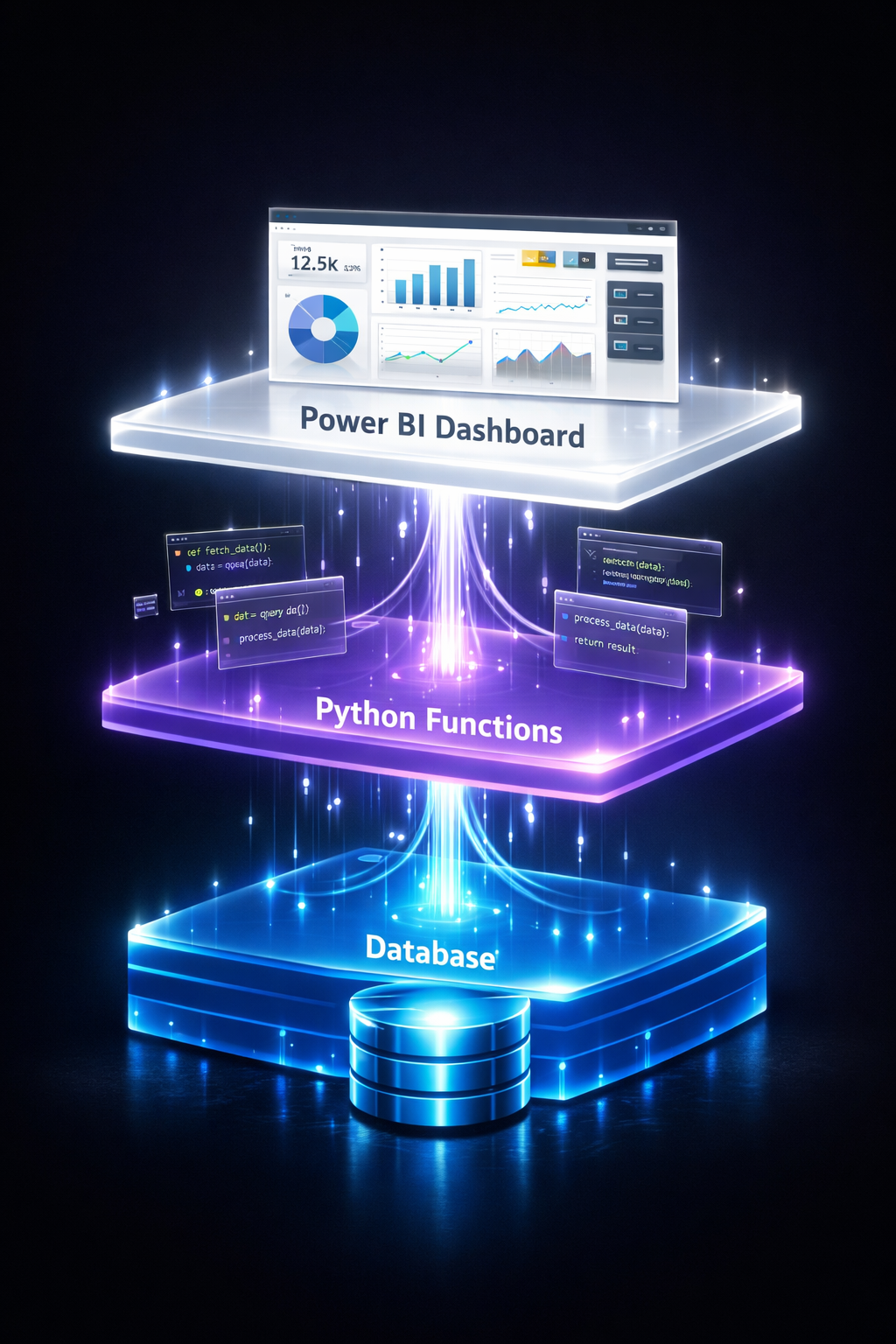
When I first read about Translytical Task Flows, I expected a maze of configuration. I was wrong. The entire architecture is a clean three-layer stack:
Layer 1: Your Data Source. This is a Fabric SQL database, warehouse, or lakehouse. For write-back scenarios, Microsoft recommends SQL database — it handles the heavy read/write operations that reporting demands.
Layer 2: User Data Functions. These are Python functions hosted in Fabric that do the actual work. They receive parameters from the report (filter context, user input, selected values), connect to your data source, and execute whatever logic you define — an INSERT statement, an API call, a validation check. They must return a string, which Power BI displays as a success or error message.
Layer 3: Your Power BI Report. You connect a button in your report to a User Data Function. You map the function’s input parameters to report elements — slicers, filter context, conditional formatting expressions. When the user clicks the button, the function fires, the action executes, and the report auto-refreshes to show the result.
That’s the whole thing. Three layers, no middleware, no Power Automate, no premium connectors.
My Week of Testing: A Real-World Walkthrough
I didn’t want to just follow the tutorial. I wanted to know if this feature could survive a real business scenario — one with messy data, impatient stakeholders, and the kind of edge cases that documentation never covers.
So I built a product annotation system for a fictional (but realistic) e-commerce team. The scenario: product managers need to review items in a catalog, write updated descriptions, and see those changes reflected in real time — all without leaving the report.
Here’s exactly how I did it, step by step.
Step 1: Setting Up the Data Source
I created a new SQL database in our Fabric workspace and loaded the AdventureWorksLT sample dataset. This gave me a realistic product catalog with models, descriptions, and relational tables to work with.
The key tables I needed were SalesLT.ProductModel, SalesLT.ProductDescription, and SalesLT.ProductModelProductDescription — the junction table that ties models to their descriptions.
Time spent: About 5 minutes. The Fabric portal makes SQL database creation almost embarrassingly easy.
Step 2: Writing the User Data Function
This is where the magic lives. I navigated to our workspace, created a new User Data Function called sqlwriteback, and connected it to my SQL database.
The function itself is surprisingly concise. Here’s the core logic:
import fabric.functions as fn
import uuid

udf = fn.UserDataFunctions()

@udf.connection(argName="sqlDB", alias="your-connection-alias")
@udf.function()
def write_one_to_sql_db(sqlDB: fn.FabricSqlConnection,
                         productDescription: str,
                         productModelId: int) -> str:

    if len(productDescription) > 200:
        raise fn.UserThrownError(
            "Descriptions have a 200 character limit.",
            {"Description:": productDescription}
        )

    connection = sqlDB.connect()
    cursor = connection.cursor()

    insert_query = """INSERT INTO [SalesLT].[ProductDescription]
                      (Description) OUTPUT INSERTED.ProductDescriptionID
                      VALUES (?)"""
    cursor.execute(insert_query, productDescription)
    results = cursor.fetchall()

    cultureId = str(uuid.uuid4())

    link_query = """INSERT INTO [SalesLT].[ProductModelProductDescription]
                    (ProductModelID, ProductDescriptionID, Culture)
                    VALUES (?, ?, ?)"""
    cursor.execute(link_query, (productModelId, results[0][0], cultureId[:6]))

    connection.commit()
    cursor.close()
    connection.close()

    return "Product description was added"
A few things stood out during development. The @udf.connection decorator handles all authentication — no connection strings in your code. The fn.UserThrownError class lets you send friendly error messages back to the report user. And the function must return a string, which is how Power BI knows what to display after execution.
I published the function and tested it directly in the Fabric portal before touching Power BI. The built-in test runner lets you provide sample parameters and inspect both the output and the execution logs. This is critical — debug your function here first, not in the report.
Time spent: About 20 minutes, including testing.
Step 3: Building the Report
In Power BI Desktop, I connected to my SQL database through the OneLake Catalog, loaded my three tables in DirectQuery mode (essential for seeing write-back results in real time), and built the report.
The layout was intentionally simple:
A product selection table showing model names and IDs. An input slicer where users type a new product description. A submit button wired to the User Data Function. And a results table showing all descriptions for the selected product, including the modification date.
The button configuration is where Translytical Task Flows really click into place. In the Format pane, you set the button’s Action type to “Data function,” then select your workspace, function set, and specific function. Power BI automatically surfaces the function’s input parameters, and you map each one to a report element:
The productDescription parameter maps to the input slicer. The productModelId parameter maps to the selected row's ID using conditional formatting (field value).
I also configured the loading state — a “Submitting…” label with a spinner icon — which gives users visual feedback while the function executes.
Time spent: About 30 minutes, including formatting.
Step 4: The Moment of Truth
I published the report to Power BI Service, opened it in the browser, selected a product, typed a description, and clicked the button.
Three seconds later: “The action on your report was submitted successfully.”
The description table refreshed. My new text was right there, timestamped, linked to the correct product model. I refreshed the page. Still there. I checked the SQL database directly. The rows were committed.
It just worked.
What This Really Means for Data Teams

I’ve been building Power BI reports for years, and I’ve lost count of the times a stakeholder has looked at a dashboard and asked, “Great, but can I update this from here?” The answer has always been some variation of “No, but you could use Power Apps / Power Automate / a custom app / a SharePoint form…”
Translytical Task Flows eliminate that entire conversation.
For analysts and report builders, this means your reports can finally be the single pane of glass everyone always wanted. You’re not just delivering insights — you’re delivering workflows.
For business users, this means fewer context switches, fewer tabs, fewer “let me go update that in the other system” moments. The report becomes the operating surface.
For IT and governance teams, this is actually more controlled than the alternative. User Data Functions have explicit permission models — you grant Execute permissions to specific users or groups. Every function call is logged. The data flows through your Fabric workspace, not through a spaghetti of Power Automate flows and custom connectors.
And the API integration capability opens a door that I think most teams haven’t even begun to walk through. Imagine a report where a marketing manager sees underperforming campaigns, clicks a button, and an Azure OpenAI function generates tailored optimization suggestions based on the campaign data — all without leaving the dashboard. Microsoft’s own documentation shows exactly this scenario, and it’s not a future roadmap item. It works today.
The Gotchas (Because Nothing Is Perfect)
A week of testing surfaced some real limitations you should know about:
User Data Functions must return a string. This seems minor, but it means you can’t return complex objects or datasets back to the report. Your function’s output is always a simple message.
DirectQuery is essential for write-back. If you use Import mode, you won’t see your changes until the next scheduled refresh. For the real-time feedback loop that makes this feature compelling, you need DirectQuery — which comes with its own performance considerations.
Permissions require deliberate setup. Every user who needs to trigger a function must be explicitly granted Execute permissions. This is good for security, but it’s an extra step that’s easy to forget during rollout.
Power BI Embedded has limitations. Secure embed scenarios are supported, but other embedded configurations may not work with Translytical Task Flows yet.
Error handling is on you. The framework gives you UserThrownError for custom messages, but designing a good error experience requires thought. Your users will type unexpected things into those input slicers.
Who Should Be Paying Attention Right Now
If you’re a Power BI developer or analyst building operational reports — anything involving status tracking, approvals, annotations, data quality management, or process workflows — stop what you’re doing and try this feature. It will change how you think about report design.
If you’re a data team lead, start thinking about which of your existing reports could benefit from write-back. The ones where users constantly leave the report to update something elsewhere? Those are your candidates.
If you’re a Fabric administrator, familiarize yourself with User Data Functions and their permission model now. Your report builders are going to start asking for this.
Getting Started: Your 15-Minute Quick Path
Want to try this yourself? Here’s the fastest path:
- Ensure you have access to a Fabric workspace (a free trial works).
- Create a SQL database in Fabric and load the AdventureWorksLT sample data.
- Create a User Data Function in the same workspace and connect it to your database.
- Write a simple function — even just an INSERT statement — and test it in the Fabric portal.
- Build a Power BI report with a table, an input slicer, and a Data Function button.
- Map the button parameters to your report elements.
- Publish and test.
The Bottom Line
Power BI has spent years becoming the dominant business intelligence tool. But intelligence without action has always been its ceiling. Translytical Task Flows don’t just raise that ceiling — they remove it.
Reports that write back. Dashboards that trigger workflows. Visualizations that call APIs. This isn’t a preview feature or a roadmap promise. It’s GA, it’s in the Q1 2026 update, and it works.
I built a functional write-back system in under an hour. You can too.
The question isn’t whether this feature is ready. It’s whether you are.
I Tested Power BI’s Most Radical Feature Update in Years — Here’s Why It Changes Everything was originally published in Towards AI on Medium, where people are continuing the conversation by highlighting and responding to this story.