Background
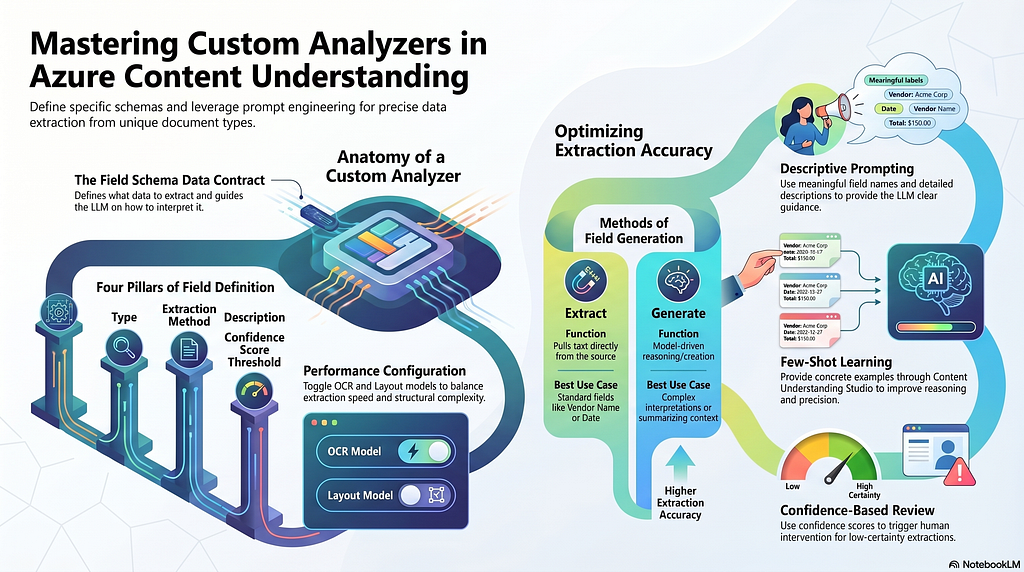
In a previous article, I shared how Azure Content Understanding can be used to build an Intelligent Document Processing (IDP) solution. As I mentioned there, the core of Azure Content Understanding is its analyzers.
In earlier experiments, I mainly used the built-in analyzers provided by Azure. They work out of the box, which is great, but I did not spend much time digging into how an analyzer is actually structured. In this article, I want to go one step further and share what I learned about building a custom analyzer so that the extraction logic can align more closely with real business needs.
After reading this post, you can understand what an analyzer looks like, how to define your own schema, and how Prompt Engineering can help improve extraction accuracy.
What Is an Analyzer
Built-in Analyzer List
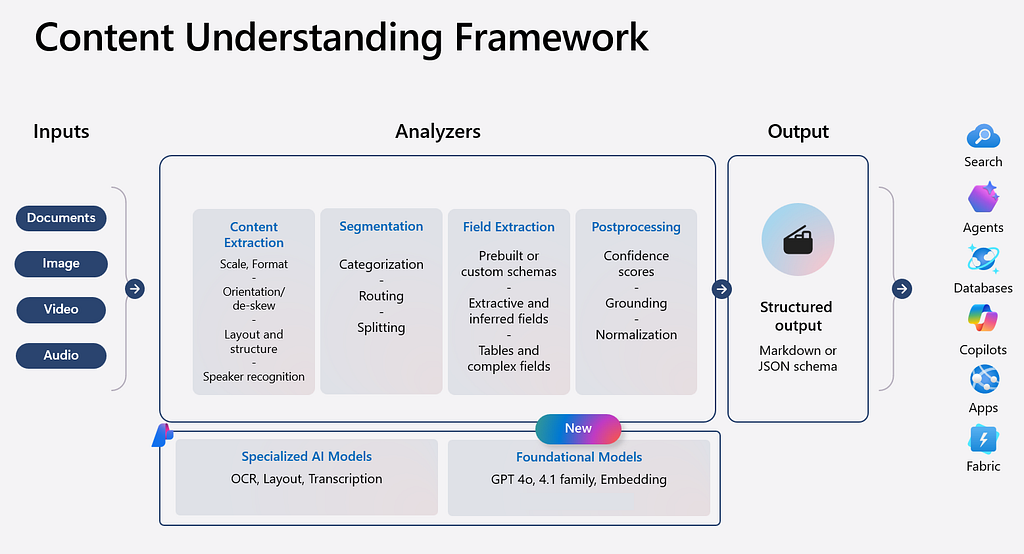
An Analyzer is the core component in Azure Content Understanding. It is responsible for extracting structured information from different kinds of content. At the time of writing, Azure provides 88 built-in analyzers, and you can use the following script to list all of them:
import os
from typing import cast
from dotenv import load_dotenv
from azure.ai.contentunderstanding import ContentUnderstandingClient
from azure.core.credentials import AzureKeyCredential
from azure.identity import DefaultAzureCredential
load_dotenv()
endpoint = os.environ["AZURE_AI_ENDPOINT"]
key = os.getenv("AZURE_AI_API_KEY")
credential = AzureKeyCredential(key) if key else DefaultAzureCredential()
client = ContentUnderstandingClient(endpoint=endpoint, credential=credential)
# [START list_analyzers]
print("Listing all available analyzers...")
# List all analyzers
analyzers = list(client.list_analyzers())
print(f"Found {len(analyzers)} analyzer(s)")
# Display summary
prebuilt_count = sum(
    1 for a in analyzers if a.analyzer_id and a.analyzer_id.startswith("prebuilt-")
)
custom_count = len(analyzers) - prebuilt_count
print(f"  Prebuilt analyzers: {prebuilt_count}")
print(f"  Custom analyzers: {custom_count}")
# Display details for each analyzer
for analyzer in analyzers:
    if analyzer.analyzer_id and analyzer.analyzer_id.startswith("prebuilt-"):
        print("  Type: Prebuilt analyzer")
    else:
        print("  Type: Custom analyzer")
    print(f"  ID: {analyzer.analyzer_id}")
    print(f"  Description: {analyzer.description or '(none)'}")
    print(f"  Status: {analyzer.status}")
    # Show tags if available
    if analyzer.tags:
        tags_str = ", ".join(f"{k}={v}" for k, v in analyzer.tags.items())
        print(f"  Tags: {tags_str}")
    print()
print("=" * 60)
The JSON Definition of an Analyzer
Each analyzer can be defined through a JSON object. Some of the most important fields include:
- analyzerId: the unique identifier of the analyzer
- name: the name of the analyzer
- description: a short explanation of what the analyzer does
- baseAnalyzerId: the base analyzer or template that this analyzer builds on
- config: the overall runtime and behavior configuration
- fieldSchema: the set of fields the analyzer is expected to extract
- supportedModels: the list of models that can be used
- models: the actual model configuration selected for execution
For example, you can use the following script to retrieve the JSON definition of the built-in analyzer prebuilt-invoice:
import os
import json
from typing import cast
from dotenv import load_dotenv
from azure.ai.contentunderstanding import ContentUnderstandingClient
from azure.core.credentials import AzureKeyCredential
from azure.identity import DefaultAzureCredential
from IPython.display import display, Markdown, Latex
load_dotenv()
endpoint = os.environ["AZURE_AI_ENDPOINT"]
key = os.getenv("AZURE_AI_API_KEY")
credential = AzureKeyCredential(key) if key else DefaultAzureCredential()
client = ContentUnderstandingClient(endpoint=endpoint, credential=credential)
print("\nRetrieving prebuilt-invoice analyzer...")
invoice_analyzer = client.get_analyzer(analyzer_id="prebuilt-invoice")
# Display full analyzer JSON for prebuilt-invoice
print("\n" + "=" * 80)
print("Prebuilt-invoice Analyzer (Raw JSON):")
print("=" * 80)
invoice_json = json.dumps(invoice_analyzer.as_dict(), indent=2, default=str)
print(invoice_json)
print("=" * 80)
# [END get_prebuilt_invoice]
Once we understand how an analyzer is structured and defined, we can build one that better matches our own document extraction requirements. That is where the real value of customization comes from.
Custom Analyzer
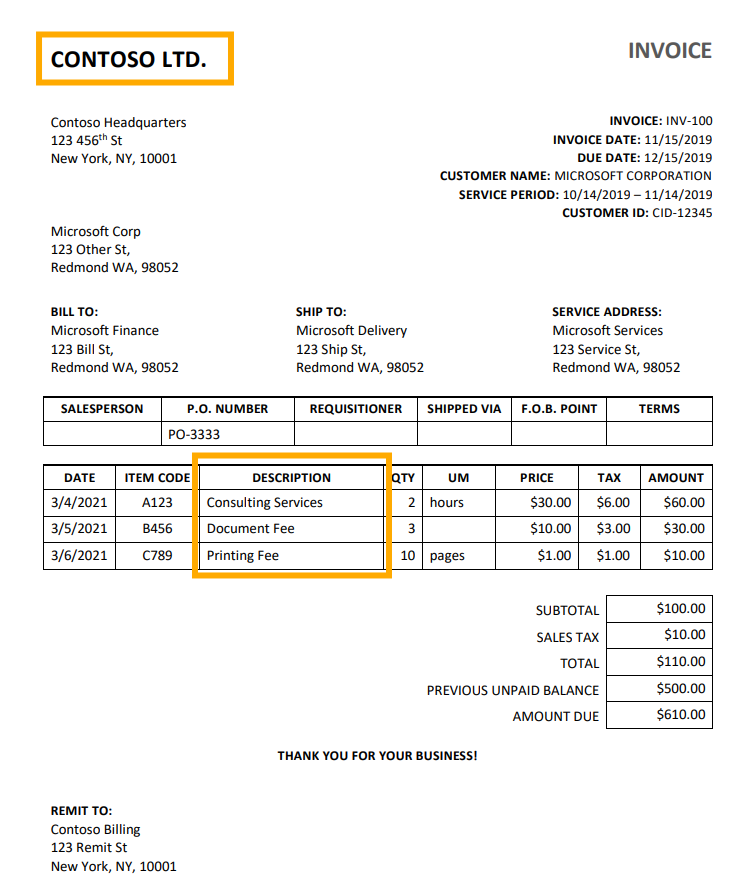
Now let’s build a custom invoice analyzer. This analyzer focuses on only two pieces of information: VendorName and InvoiceItems. The following invoice is a sample, and the highlighted area is exactly what we want to extract:
Define fieldSchema
fieldSchema is a very important part of the analyzer because it plays two roles at the same time:
- data contract: it defines what data should be extracted
- LLM guide: it tells the model what to pay attention to and how to interpret that information
For the two target fields in this example, VendorName is a string, while InvoiceItems is more complex. It is an array, and each element in the array is an object that contains multiple fields. The definition looks like this:
from azure.ai.contentunderstanding.models import (
    ContentAnalyzer,
    ContentAnalyzerConfig,
    ContentFieldSchema,
    ContentFieldDefinition,
    ContentFieldType,
    GenerationMethod,
    ArrayField,
)

# Generate a unique analyzer ID
analyzer_id = f"my_invoice_analyzer_{int(time.time())}"
# Define field schema with custom fields
field_schema = ContentFieldSchema(
    name="InvoiceFields",
    description="Schema for extracting Invoice information",
    fields={
        "VendorName": ContentFieldDefinition(
            type=ContentFieldType.STRING,
            method=GenerationMethod.EXTRACT,
            description="Name of the vendor or supplier, typically found in the header section",
            estimate_source_and_confidence=True,
        ),
        "InvoiceItems": ContentFieldDefinition(
            type=ContentFieldType.ARRAY,
            method=GenerationMethod.GENERATE,
            description="List of items or services billed in the invoice, typically found in the line items section",
            estimate_source_and_confidence=True,
            item_definition=ContentFieldDefinition(
                type=ContentFieldType.OBJECT,
                properties={
                    "description": ContentFieldDefinition(
                        type=ContentFieldType.STRING,
                        description="Description of the billed item or service",
                    ),
                    "quantity": ContentFieldDefinition(
                        type=ContentFieldType.NUMBER,
                        description="Quantity of the billed item or service",
                    ),
                },
            ),
        ),
    },
)
When defining a field, there are four properties that matter the most:
- type: the field type, such as string or array
- method: how the field value is produced, such as extract or generate; the former extracts from the document directly, while the latter lets the model generate the result
- description: the field description; the LLM relies on this information to understand the field, so it is extremely important for accuracy; I will come back to this in the Prompt Engineering section
- confidence: the confidence score of the result, which can be used as a signal for whether human review is needed
Define Analyzer Behavior
As a commercial Intelligent Document Processing product, Azure Content Understanding does not expose too many implementation details under the hood. Because of that, some readers may feel that it looks like a black box.
But in practice, the overall technical direction is still quite understandable in the LLM era. In fact, we can infer a lot from the way the product is configured and used. For example, this custom analyzer needs the following configuration:
# Create analyzer configuration
config = ContentAnalyzerConfig(
    enable_formula=False,
    enable_layout=True,
    enable_ocr=True,
    estimate_field_source_and_confidence=True,
    return_details=True,
)
enable_ocr: After OCR is enabled, the analyzer can extract information from images and scanned documents. For native PDF files, you may consider turning it off to improve performance.
enable_layout: After the layout model is enabled, it can better understand documents with complex structures. If you only need plain text, you may consider disabling it.
I am only using these two options as examples here. For a more complete list of settings, please check the Azure documentation.
Create a Custom Analyzer
With the schema and configuration ready, we can create the custom analyzer:
# Generate a unique analyzer ID
analyzer_id = f"my_invoice_analyzer_{int(time.time())}"
analyzer = ContentAnalyzer(
    base_analyzer_id="prebuilt-document",
    description=(
        "Custom analyzer for extracting company information"
    ),
    config=config,
    field_schema=field_schema,
    models={
        "completion": "gpt-4.1",
        "embedding": "text-embedding-3-large",
    },  # Required when using field_schema and prebuilt-document base analyzer
)
# Create the analyzer
poller = client.begin_create_analyzer(
    analyzer_id=analyzer_id,
    resource=analyzer,
)
Use the Custom Analyzer
From the usage perspective, a custom analyzer is not very different from a built-in analyzer:
from azure.ai.contentunderstanding.models import ArrayField
# --- Use the custom document analyzer ---
from azure.ai.contentunderstanding.models import AnalysisInput
print("\nAnalyzing document...")
file_path = "sample_files/sample_invoice.pdf"
with open(file_path, "rb") as f:
    file_bytes = f.read()

poller = client.begin_analyze_binary(
    analyzer_id=analyzer_id,
    binary_input=file_bytes,
)
result = poller.result()
if result.contents and len(result.contents) > 0:
    content = result.contents[0]
    if content.fields:
        company = content.fields.get("VendorName")
        if company:
            print(f"VendorName: {company.value}")
            if company.confidence:
                print(
                    f"  Confidence:"
                    f" {company.confidence:.2f}"
                )
        items = content.fields.get("InvoiceItems")
        if items:
            # print(f"InvoiceItems: {items.value}")
            for obj in items.value:
                description = obj["valueObject"]["description"]["valueString"]
                quantity = obj["valueObject"]["quantity"]["valueNumber"]
                conf = obj["valueObject"]["quantity"]["confidence"]
                print(f"description={description}, quantity={quantity}, confidence={conf}")
else:
    print("No content returned from analysis.")
Let’s look at the output and see whether the extraction is accurate. The overall result looks quite good:
Analyzing document...
VendorName: CONTOSO LTD. Confidence: 0.66
description=Consulting Services, quantity=2
description=Document Fee, quantity=3
description=Printing Fee, quantity=10
Improve Analyzer Accuracy with Prompt Engineering
In the previous sections, I only briefly mentioned how custom analyzer accuracy can be improved. Next, let’s examine this more systematically from the perspective of Prompt Engineering.
At this point, the overall workflow of Azure Content Understanding should already be quite clear. It first uses the tools wrapped by the analyzer to extract text and structural information from the original document. Then it uses the language understanding ability of the LLM to extract or generate the target field values based on the field definitions in the analyzer.
So the natural question is: how can we help the LLM find the right information more accurately? This is exactly where Prompt Engineering comes in. From simple to advanced, here are three techniques worth considering:
- Accurate field names: a field name is the most basic prompt. Compared with generic names like field1 and field2, meaningful names such as VendorName and Product Name provide much better guidance.
- Detailed field descriptions: field names can only carry limited information. That is why the description field is so important. It should provide clear and specific guidance to help the model locate the correct content. It can also include position hints, expected formats, and possible alternative labels.
- Few-shot prompt: if the first two methods are still not enough, you can use few-shot prompting. By giving the LLM a few concrete examples, it can leverage that context and reason more accurately. Azure Content Understanding also provides Content Understanding Studio, where users can manually label examples and turn them into learning samples:
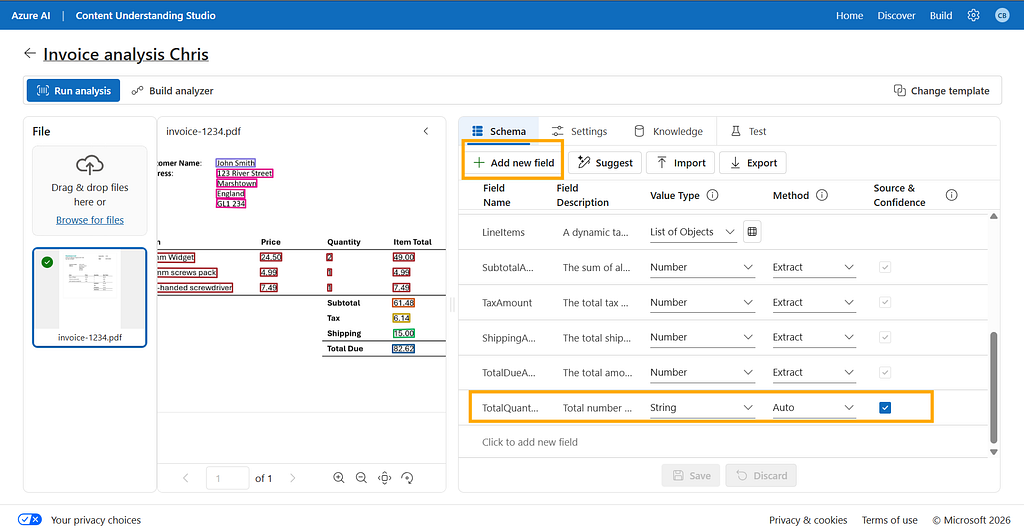
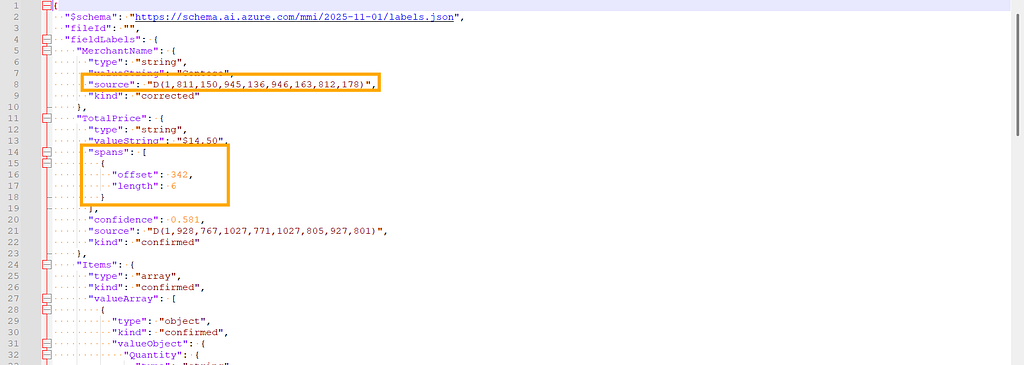
If you upload these learning samples when creating the analyzer, they can effectively improve the accuracy of the final analysis result. I will share the detailed usage of this part in a future article.
I am Chris Bao, a Microsoft Certified Trainer focused on the Azure AI platform. I specialize in Azure AI services and Agent development, and I provide training and consulting services for both enterprises and individual learners.
For collaboration, please contact: baoqger@gmail.com
Azure Content Understanding Accuracy Improvement Guide — Custom Analyzer + Prompt Engineering was originally published in Towards AI on Medium, where people are continuing the conversation by highlighting and responding to this story.