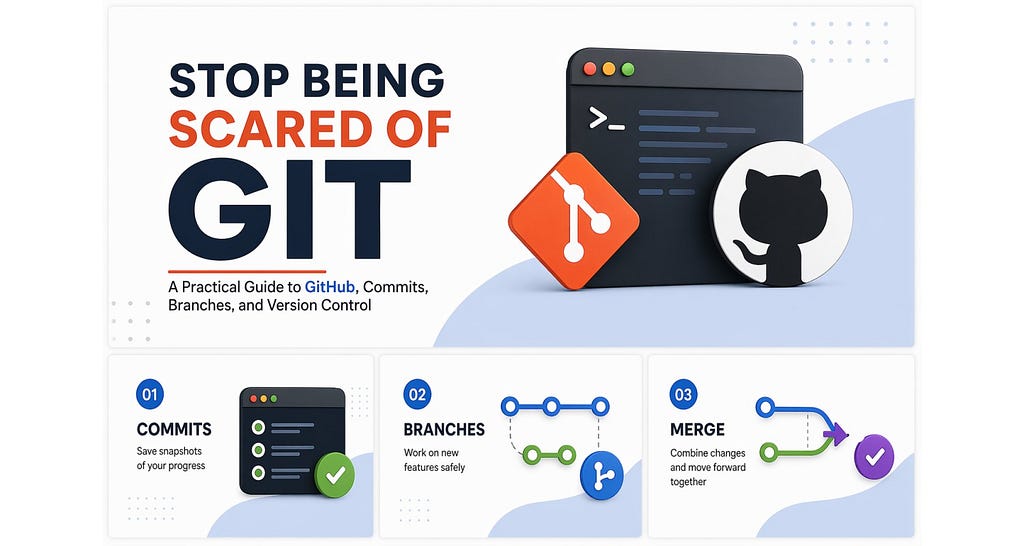
If you are learning to code, building projects, or trying to work like a real developer, sooner or later you run into two words that seem simple but feel confusing: Git and GitHub.
At first, they look technical. People throw around terms like branching, merge conflicts, pull requests, rebasing, and commits as if everyone is supposed to understand them automatically. Most beginners do not. And that is exactly why Git feels harder than it really is.
The truth is simple: Git is a system that helps you track changes in your code, and GitHub is a platform where you store and collaborate on Git repositories.
That is it at the core.
But once you understand what version control is actually doing behind the scenes, Git stops feeling like a scary list of commands and starts feeling like one of the most useful tools in software development.
First, what is version control?
Imagine you are writing code for a project. On Monday, everything works fine. On Tuesday, you add a new feature and suddenly break three other things. On Wednesday, you want to go back to the stable version from Monday, but you have already overwritten your files.
Without version control, this becomes chaos.
You end up with folders like:
- project-final
- project-final-2
- project-latest-final
- project-real-final
- project-final-use-this-one
Version control solves this problem.
It gives you a structured history of your project so you can:
- see what changed
- see when it changed
- see who changed it
- restore older working versions
- experiment safely
- collaborate without overwriting each other’s work
So when people say Git is “version control,” they mean it is a tool that keeps track of your project over time like a timeline of your codebase.
What Git actually does
Git tracks changes in files inside a repository. A repository, often called a repo, is just your project folder being managed by Git.
When Git is active, it watches your files and helps you record meaningful checkpoints called commits.
A commit is like saving a snapshot of your project at a particular point in time.
Not just “save the file,” but “save the state of the project with a message explaining what changed.”
For example:
- Added login form
- Fixed navbar bug on mobile
- Connected frontend to backend API
- Updated README with setup steps
These messages become part of your project’s history.
That means if something breaks later, you can inspect earlier states and recover confidently.
Git vs GitHub
This confuses almost everyone in the beginning.
Git
Git is the actual version control tool installed on your machine.
GitHub
GitHub is a cloud platform where Git repositories are hosted and shared.
A simple way to think about it:
- Git = the tracking system
- GitHub = the online platform for backup, sharing, and collaboration
You can use Git without GitHub. But if you want to collaborate with others, store your project online, open pull requests, or contribute to open source, GitHub becomes incredibly useful.
What happens when you use Git?
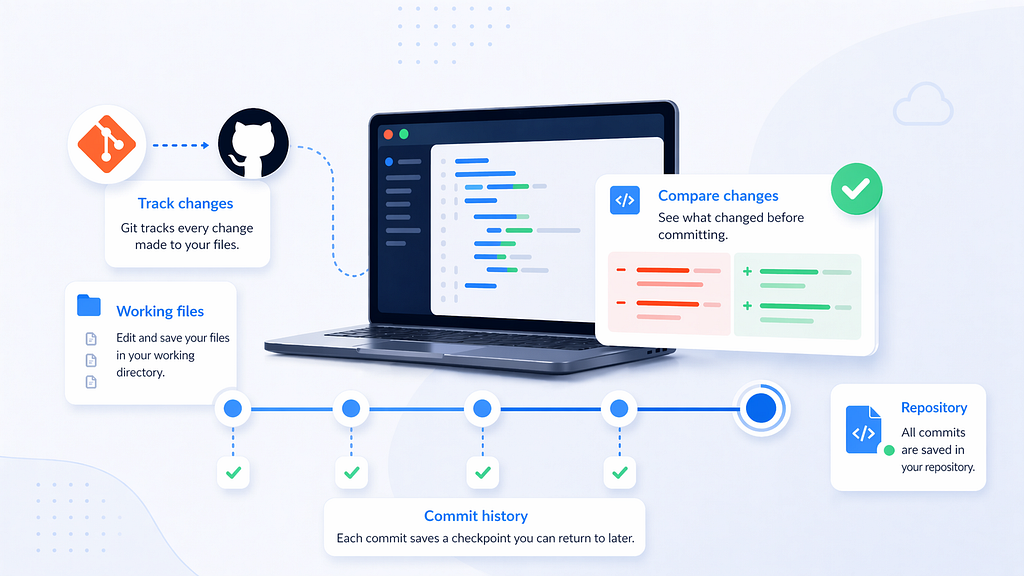
To really understand Git, it helps to understand the flow.
When you change a file, Git does not immediately save that change as a final checkpoint. It works in stages.
There are usually three important states:
1. Working directory
This is where you edit files normally.
2. Staging area
This is where you tell Git, “I want these changes included in my next commit.”
3. Repository history
This is where Git permanently records the snapshot as a commit.
That flow looks like this:
edit file → stage changes → commit snapshot
This is why Git feels different from normal file saving. It lets you choose what changes belong together before saving them into project history.
The most useful Git commands to know
Let us go through the practical commands you will actually use.
1. Initialize a Git repository
If you already have a project folder and want Git to start tracking it:
git init
This creates a hidden .git directory inside your project. That folder stores all the history and metadata Git needs.
From that point onward, your folder becomes a Git repository.
2. Check what is happening
git status
This is one of the most useful commands in Git.
It tells you:
- which files changed
- which files are untracked
- which files are staged
- what branch you are on
If you ever feel lost in Git, run git status.
3. Stage changes
To stage one file:
git add filename
To stage everything:
git add .
This tells Git which changes should be included in the next commit.
Think of staging as preparing your next checkpoint.
4. Commit changes
git commit -m "Add user registration form"
This creates a snapshot in Git history.
The message matters because it explains what was done at that point in the project.
Good commit messages make collaboration and debugging much easier later.
5. See project history
git log
A shorter version:
git log --oneline
This shows your commit history so you can understand how the project evolved.
6. Connect to GitHub
If you created a repository on GitHub and now want to connect your local project to it:
git remote add origin https://github.com/username/repository-name.git
This adds GitHub as a remote destination for your project.
You can verify it with:
git remote -v
7. Push your code to GitHub
git push -u origin main
This uploads your local commits to GitHub.
The -u option sets the upstream branch so future pushes become simpler.
After that, you can often just run:
git push
8. Clone a repository
If a project already exists on GitHub and you want a copy on your machine:
git clone https://github.com/username/repository-name.git
This downloads the full repository, including its history.
9. Get the latest changes
git pull origin main
This fetches and merges the latest updates from GitHub into your local branch.
In team projects, this is one of the commands you will use all the time.
Why branches exist
Branches are one of Git’s best features.
A branch lets you work on something new without disturbing the main version of the project.
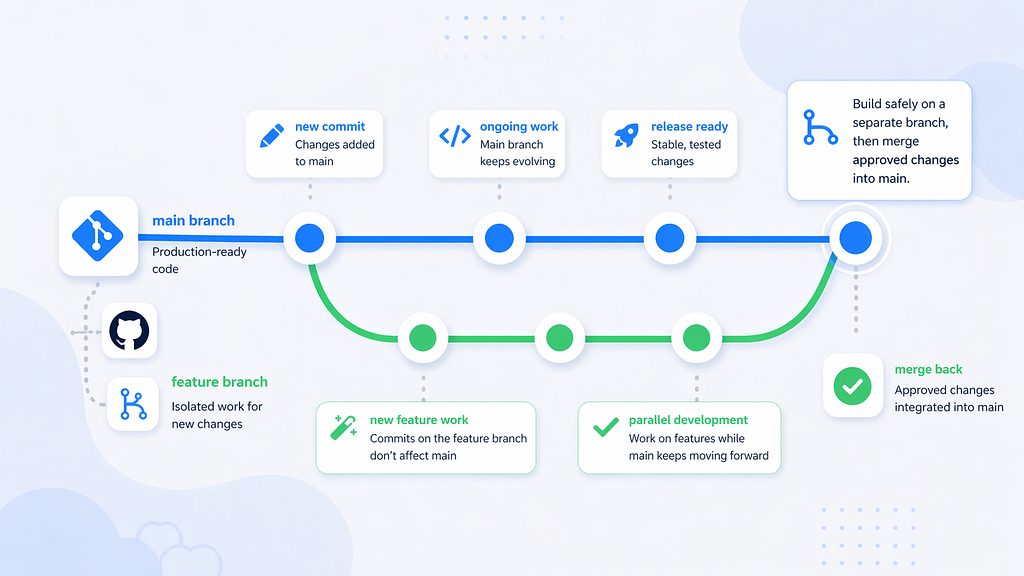
Suppose your main project is stable, but you want to add a dashboard feature. Instead of editing the main branch directly, you create a new branch just for that work.
git checkout -b feature-dashboard
Or with the newer command:
git switch -c feature-dashboard
Now you are in a separate line of development.
That means you can experiment, commit changes, and even break things on that branch without affecting the stable main branch.
This is how real teams build safely.
Switch between branches
git branch
This shows all local branches.
To switch:
git checkout main
Or:
git switch main
Merge a branch
Once your feature is ready, go back to the main branch:
git checkout main
Then merge the feature branch:
git merge feature-dashboard
Git will combine the changes from that branch into main.
That is how separate work eventually becomes part of the main project.
What is a merge conflict?
A merge conflict happens when Git cannot automatically decide how to combine changes.
For example, if two people edit the same line in the same file differently, Git needs a human to decide which version should stay.
This sounds scary, but it is normal.
You open the file, look at the conflicting code, choose the correct final version, save it, and then commit the resolved merge.
Conflicts are not a sign that Git failed. They are Git asking for clarification.
What GitHub adds beyond Git
GitHub is more than a code storage site.
It adds collaboration workflows that are essential in real projects.
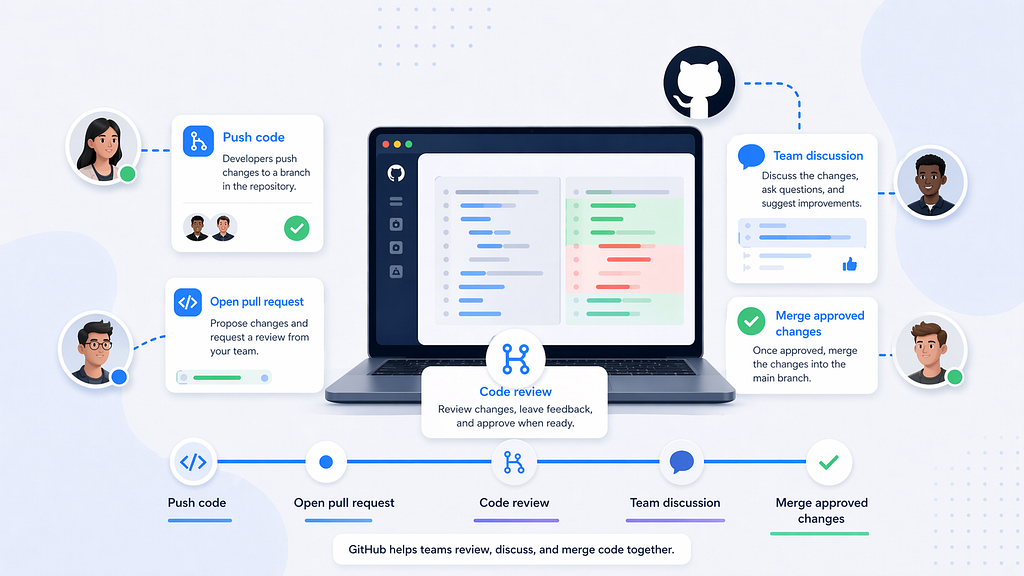
Pull requests
A pull request is a request to merge your branch into another branch, usually main.
This lets teammates review your code before it becomes part of the project.
Code review
Others can comment on your code, suggest improvements, and approve changes.
Issues
You can track bugs, tasks, and feature ideas.
Actions
You can automate testing, deployment, linting, and more.
README and project visibility
GitHub gives your project a homepage through the repository page, where people can understand what your project does and how to run it.
So Git tracks code history. GitHub turns that history into a collaborative development workflow.
Useful commands that save you often
See unstaged changes
git diff
See staged changes
git diff --staged
See all branches
git branch
Create and switch to a branch
git checkout -b feature-name
Delete a branch
git branch -d feature-name
Fetch remote changes without merging
git fetch
Rename current branch to main
git branch -M main
Remove file from staging
git restore --staged filename
Discard local changes in a file
git restore filename
Be careful with this one because it removes uncommitted changes.
Undoing mistakes in Git
This is one of the biggest reasons Git is worth learning.
You will make mistakes. Everyone does. Git gives you ways to recover.
Fix the last commit message
git commit --amend -m "Better commit message"
Revert a commit safely
git revert commit_hash
This creates a new commit that undoes an earlier one.
Reset to an earlier state
git reset --soft commit_hash
git reset --mixed commit_hash
git reset --hard commit_hash
These are powerful commands, especially --hard, which can permanently remove local changes. Use them carefully.
Stash: when you need to pause work
Sometimes you are halfway through a change but need to switch branches urgently.
Instead of committing unfinished work, you can stash it.
git stash
Later, bring it back:
git stash pop
This is extremely useful when context switches happen.
One file every developer should know: .gitignore
Not every file should be tracked by Git.
For example:
- dependency folders
- build files
- logs
- secret environment variables
- cache folders
That is where .gitignore comes in.
Example:
node_modules/
.env
dist/
__pycache__/
*.log
This prevents unnecessary or sensitive files from entering version control.
One of the most important habits in Git is never commit secrets like API keys or passwords.
A real beginner-friendly Git workflow
Here is a practical flow for a solo project:
git init
git add .
git commit -m "Initial commit"
git branch -M main
git remote add origin https://github.com/username/project-name.git
git push -u origin main
Then later:
git add .
git commit -m "Build landing page"
git push
For a feature workflow:
git pull
git checkout -b feature-auth
git add .
git commit -m "Add login validation"
git push -u origin feature-auth
Then open a pull request on GitHub.
What beginners usually get wrong
A lot of Git frustration comes from a few common mistakes.
One is committing everything blindly with git add . without checking what changed.
Another is working directly on main for every task.
Another is writing bad commit messages that say nothing useful.
And one of the biggest mistakes is not pulling the latest code before starting work on a shared repository.
Git becomes much easier when you slow down and treat it like a workflow, not just a command list.
The mental model that makes Git click
Here is the simplest mental model I know:
- Your files are your current work
- Staging is your selected set of changes
- Commit is a saved checkpoint
- Branch is a safe alternate path
- Merge is combining paths
- GitHub is the shared online home for the project
Once you understand that, the commands stop feeling random.
They start feeling logical.
Final thoughts
Git is not just a tool developers use because everyone else does. It is one of the reasons modern software development can scale.
It protects your work.
It lets you experiment without fear.
It makes collaboration possible.
And it gives structure to what would otherwise become a mess very quickly.
You do not need to memorize every Git command to start. You only need to understand the core ideas: repositories, commits, branches, merging, and remotes.
Once those click, Git becomes less of a headache and more of a superpower.
The best way to learn it is not by reading definitions forever. It is by using it on a real project, making mistakes, and seeing how Git helps you recover.
That is when version control finally starts making sense.
Sources
Git Documentation — Official Git reference and commands
https://git-scm.com/doc
Git Book — Beginner-friendly explanation of Git basics, commits, branches, and workflows
https://git-scm.com/book/en/v2
A quick note before you go 👋
I break down real AI shifts before they hit the mainstream 🚀
Click Follow now so you do not miss what matters next and drop a clap 👏 if this helped.
Stop Being Scared of Git: A Practical Guide to GitHub, Commits, Branches, and Version Control was originally published in Towards AI on Medium, where people are continuing the conversation by highlighting and responding to this story.