Coding agents can update prompts, wire in tools, and change application logic across your codebase in a single run. The hard part isn’t getting the agent to make changes, but knowing whether those changes actually made your LLM application better.
Most teams still verify agent-driven changes with a few spot checks and intuition. That breaks down quickly once the agent’s changing multi-step behavior, retrieval logic, evaluator configs, or instrumentation across the app.
What you need is an evaluation harness around the coding agent itself: a repeatable way to trace what changed, score outcomes, and catch regressions before they ship.
In this post, I’ll show how Gemini CLI and Arize Skills work together to do that.
The problem: coding agents can change systems faster than teams can verify them
A coding agent can inspect your codebase, plan a sequence of actions, run commands, edit files, and iterate on the result.
That changes the unit of debugging.
You’re no longer checking a single prompt and output. Instead, you’re checking the trajectory:
- which tools the agent called
- which files it changed
- which intermediate steps it took
- what state it carried forward
- whether those changes improved downstream behavior
That’s why evaluating an agent-assisted LLM application needs more than a few sample prompts. You need a system for measuring the effect of changes over time.
The evaluation harness pattern
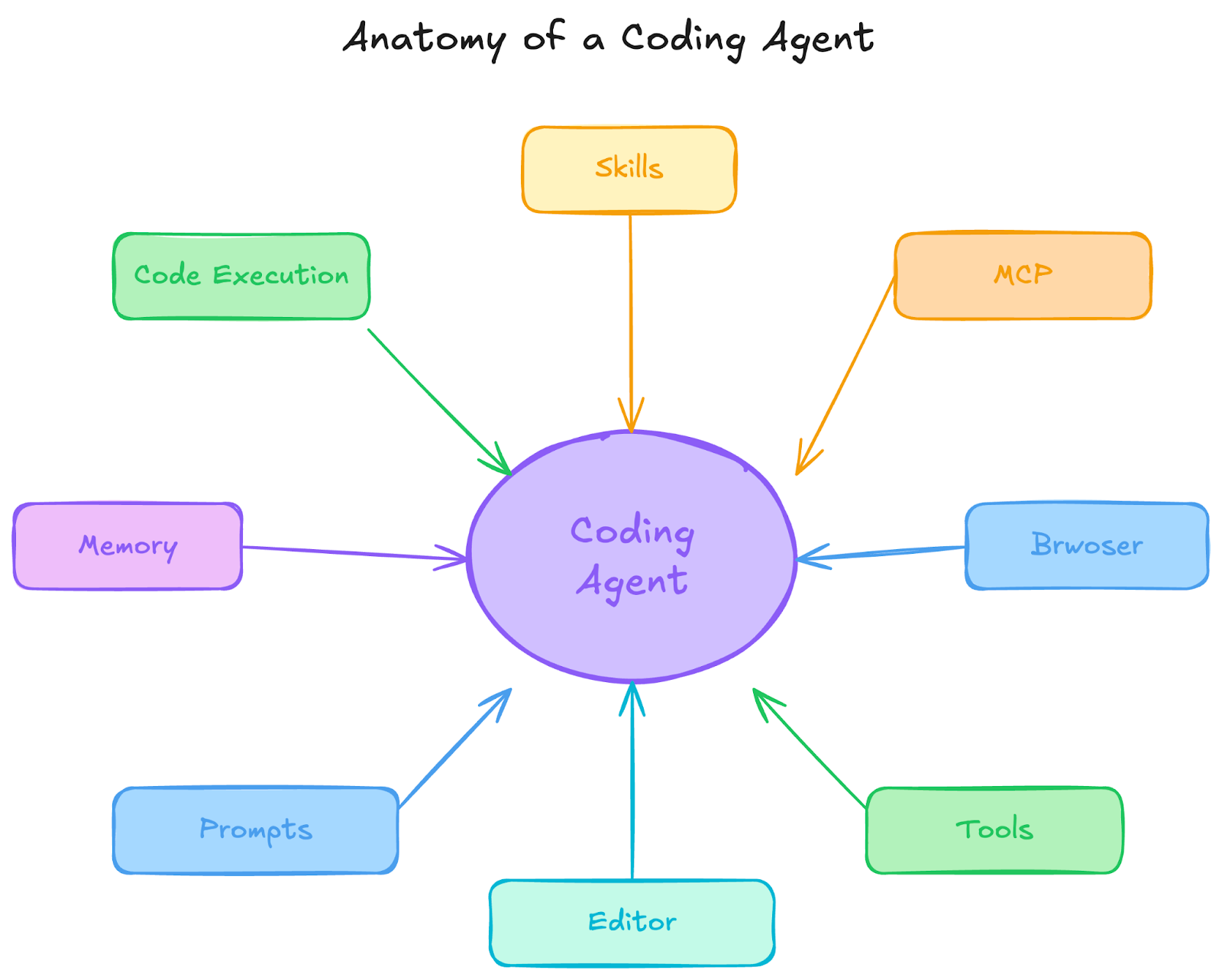
An agent harness is the system around the model that makes an agent usable in practice: context management, tool calling, shell execution, file operations, MCP servers, and the control loop that decides what to do next.
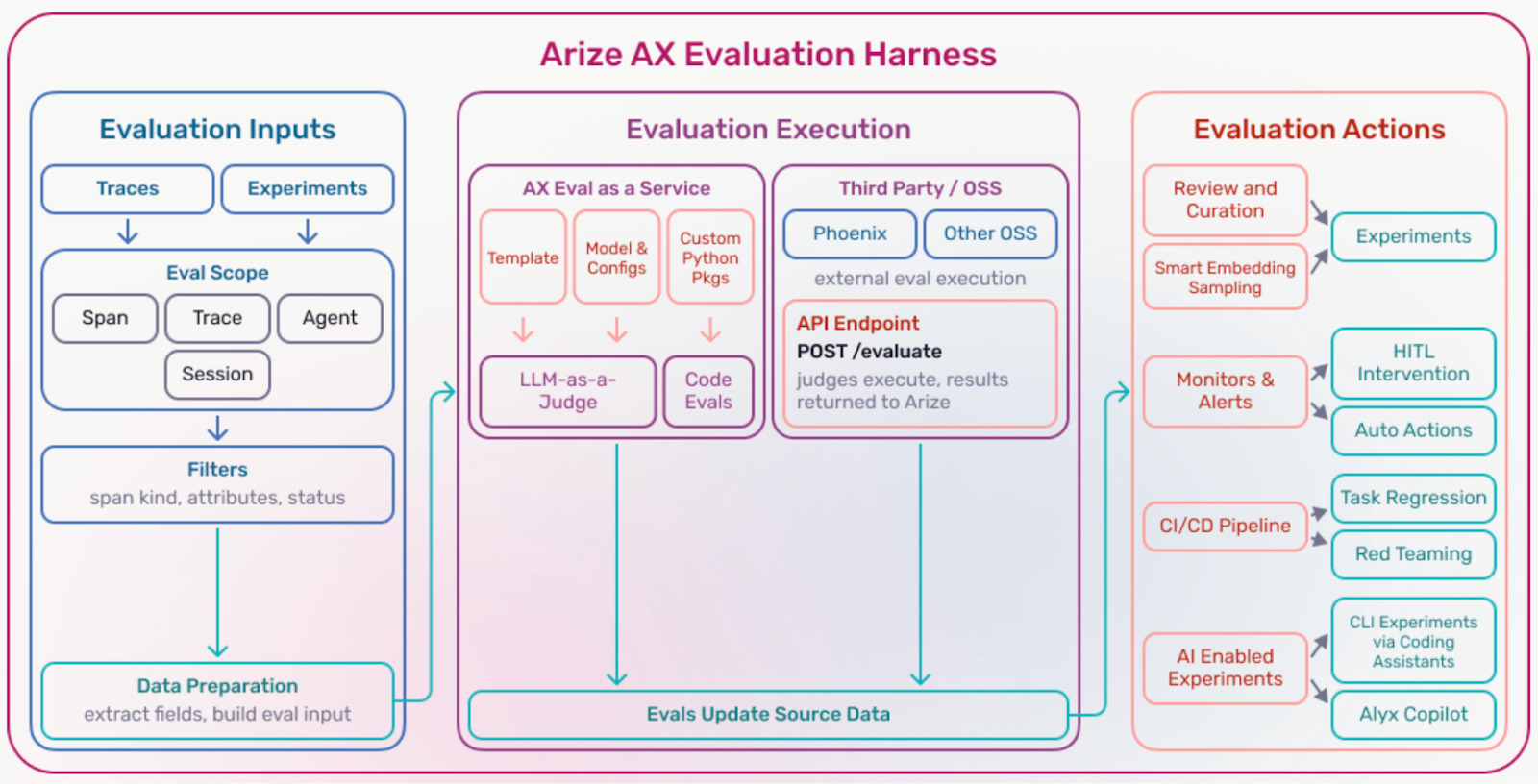
An evaluation harness is the system around that agent harness that tells you whether changes have improved behavior.
At a minimum, it gives you three things:
- Inputs. The traces, spans, sessions, or datasets you want to evaluate.
- Evaluator execution. The evaluators that measure quality, correctness, safety, latency, or policy adherence. These might be deterministic checks, LLM-as-a-judge evaluators, embedding similarity, or custom scoring functions.
- Evaluation actions. What happens next: route failures to annotation, alert on regressions, gate changes in CI, or feed low-performing cases back into prompt or retrieval updates.
The key point is simple: Evaluations are only useful when they drive action.
An evaluation harness turns scores into an operational workflow.
What this looks like in practice
Suppose you ask Gemini CLI to update an agent in one of these ways:
- add tracing to a feature
- modify a system prompt
- change retrieval settings
- add a tool call step
- wire in an evaluator
At that point, “the code changed” isn’t the same as “the system improved.”
A useful evaluation harness should let you do something more concrete:
- pull a representative set of production traces
- build a dataset from those traces
- run evaluators against the baseline and the updated version
- compare results
- inspect failures
- block or revise the change if quality dropped
That’s the loop most teams want, but usually do by hand.
Why Gemini CLI is a good fit for this workflow
Gemini CLI is Google’s coding agent and runs in your terminal, backed by a 1-million-token context window. It can read a codebase, execute shell commands, operate on files, and connect to external services through MCP.
That makes it a good interface for evaluation work because evaluation work is operational. It isn’t just “generate some text.” It’s:
- modify code
- run a command
- inspect traces
- export data
- create a dataset
- run evaluators
- review failures
- iterate
Gemini CLI already knows how to work inside a project. The missing piece is workflow knowledge: how to perform those evaluation steps correctly and consistently.
Arize Skills: Teaching your agent the evaluation workflow
Arize Skills give the agent that workflow knowledge.
Instead of guessing which commands to run, which objects to create, or how to connect traces to evaluators, the agent can follow a defined recipe for working with Arize AX.
That matters because evaluation work is rarely one command. A typical loop looks more like this:
- instrument the app
- capture traces from real runs
- create a dataset from those traces
- run experiments or evaluators
- inspect the worst failures
- refine prompts, retrieval, or agent behavior
- rerun and compare
Without skills, a coding agent has to infer that workflow from scratch.
With skills, it can execute the workflow in a more structured way.
What Arize Skills cover
Arize Skills are structured workflow definitions for common observability and evaluation tasks in Arize AX.
Today, they cover the main steps in the evaluation loop, including:
| Skill | What it does |
|---|---|
| arize-instrumentation | Analyze a codebase and add Arize AX tracing |
| arize-trace | Export and debug traces by trace ID, span ID, or session ID |
| arize-dataset | Create, manage, and download datasets |
| arize-experiment | Run experiments against datasets |
| arize-evaluator | Create LLM-as-judge evaluators and set up continuous monitoring |
| arize-ai-provider-integration | Manage LLM provider credentials |
| arize-annotation | Configure annotation workflows and bulk-annotate spans |
| arize-prompt-optimization | Optimize prompts using trace data, experiments, and meta-prompting |
| arize-link | Generate deep links to traces, spans, and sessions in the Arize UI |
The practical value here isn’t just convenience, but consistency.
If you tell the agent to “run evaluations on the last 100 traces for this feature” or “instrument this app and create a dataset from failed runs,” the agent needs to know more than syntax. It needs to know the workflow.
Better together: one tool changes the system, the other measures it
On their own, Gemini CLI can change the system and Arize AX can measure it. But when you put them together with skills, the agent can help help operate the full improvement loop:
- add instrumentation
- trace production behavior
- export representative examples
- run evaluators
- surface regressions and failure cases
- feed those failures back into prompt, retrieval, or agent updates
That’s the real benefit. You’re not just using a coding agent to move faster. You’re shortening the loop between change, evaluation, and improvement.
A concrete example
Imagine you have an LLM support assistant in production and want to improve how it handles escalation requests.
You could use Gemini CLI with Arize Skills to:
- add tracing to the assistant if it is not already instrumented
- export recent traces related to escalation behavior
- create a dataset from those traces
- run evaluators for factuality, policy compliance, and escalation correctness
- inspect the lowest-scoring examples
- update the prompt or retrieval logic
- rerun the evaluation set and compare results
That’s an evaluation harness in practice.
The agent isn’t just making edits, but helping to execute a repeatable workflow for improving the system.
Get started
Arize Skills work with any agent that supports the skills protocol, across any LLM provider or coding agent. The evaluation harness is yours to keep regardless of which tools you choose.
Get started with a few lines of code in your terminal ( documentation):
uv tool install arize-ax-cli npx skills add Arize-ai/arize-skills –skill ‘*’ –yes
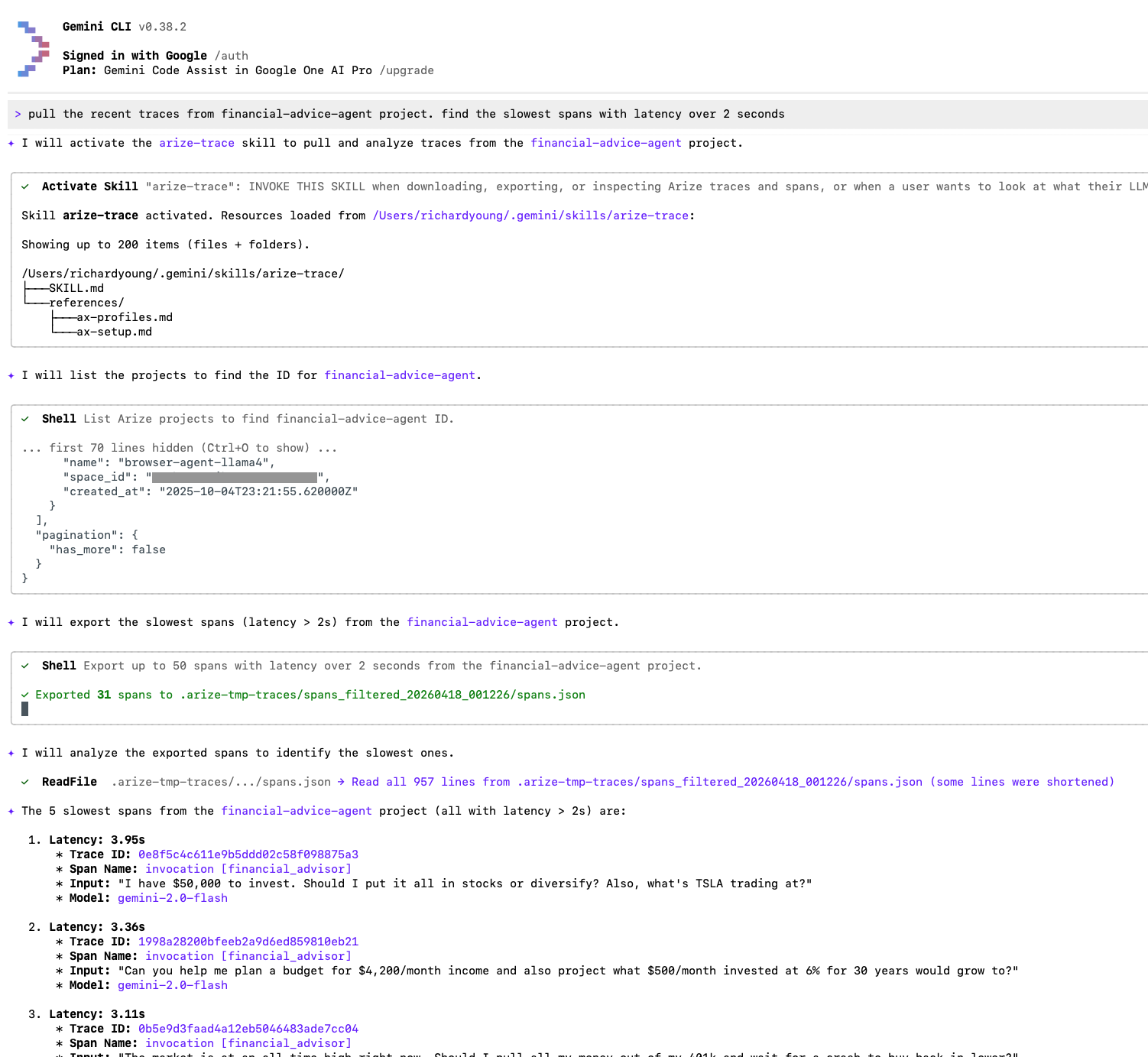
The installer auto-detects your agents and installs the Arize CLI and Skills. And once it’s installed, you can start with a concrete task instead of a generic prompt. For example:
- “Add Arize tracing to this app”
- “Export the last 100 traces for this feature”
- “Create a dataset from failed traces”
- “Run an experiment with a hallucination evaluator”
- “Show me the slowest agent spans”
From there, every skill is available through natural language. You can also connect Arize’s MCP servers for persistent IDE integration:
# Tracing Assistant MCP server
gemini extensions install https://github.com/Arize-ai/arize-tracing-assistant
# Docs MCP server
gemini mcp add arize-ax-docs https://arize.com/docs/mcp
Additional resources
- Arize Skills GitHub repo
- Arize AX documentation
- Gemini CLI GitHub repo
- Set up Arize with AI coding agents
- AX CLI overview
The post How to add an evaluation harness to your Gemini CLI coding agent appeared first on Arize AI.