For all the fancy-schmancy things our modern-day technology promises to do for us, one thing Google has yet to give us is a simple and reliable way to sync the clipboards on our Android phones and computers.
It’s such a powerful feat to have at your fingertips, when it works well — ’cause you can just copy something in one place and then paste it immediately in the other, without any thought or effort. At its best, it’s like your two work surfaces share the same clipboard and work harmoniously to make your life easy.
What’s most frustrating is that Google actually had a super-simple system for this years ago, within Chrome — a single switch you could flip that’d just make your clipboards sync seamlessly and automatically, across any two devices where the browser was installed — but then, in typical Google form, the company gave up on the concept and killed it off at some point along the way. (Sigh.)
Since then, we’ve been left with a mishmash of overly complicated workarounds and compromise-ridden consolation prizes to choose from.
It’s overwhelming, to say the least, and more than a little annoying. But with the right pinch of one-time planning, you can still set up a synced clipboard between your Android device and computer. You just have to know where to begin.
Lemme show you the four best paths, then you can figure out which one of ’em makes the most sense for you.
[Get smart solutions in your inbox with my free Android Intelligence newsletter. Three new things to try every Friday — and my Android Notification Power-Pack as a special welcome bonus.]
Android-computer clipboard syncing option #1: The keyboard connection
If you’re using a Windows computer alongside your favorite Android companion, you’ve got one especially easy option — though it does come with a catch.
And no, it isn’t Microsoft’s official Link to Windows app. That system is obnoxiously limited and locked down in terms of which specific devices it allows to use it — for absolutely no good reason — and it more often than not isn’t even worth your time to futz around with.
The simplest path for Android-Windows clipboard syncing is actually the Microsoft-owned SwiftKey Keyboard. It’s one of my picks for the best Android keyboard apps, in large part because of the native Windows clipboard syncing it offers.
In short, if you don’t mind using SwiftKey for your Android text input, you can set it up so that anything you copy on Android is instantly available on Windows — and vice-versa. There’s nothing to it. It just works, instantly and automatically, which is something no other clipboard-syncing setup currently offers.
The catch is that you’ve gotta commit to stickin’ with SwiftKey as your keyboard. It’s honestly a solid all-around keyboard, so you might not mind — and/or you might find the clipboard syncing sorcery useful enough to make any hesitations worth accepting.
If, on the other hand, you strongly prefer Gboard — or any other Android keyboard app — keep reading, ’cause you do have other options.
Android-computer clipboard syncing option #2: The simple share
If the keyboard syncing path isn’t right for you (or maybe if you aren’t even using Windows to begin with), the next best option is leaning on Google’s native Quick Share system to sync stuff across your clipboards manually, as needed.
This setup lacks the instant, ongoing syncing that SwiftKey provides, which is a bummer. At the same time, it could present a privacy advantage, from some perspectives — since everything you copy won’t automatically be synced across your devices without warning or any opportunity for exception.
- On the Android front, provided you’re using a reasonably recent device, Quick Share is already built in and present — so there’s nothing you need to do there. The same is true for ChromeOS, on Chromebooks.
- On Windows, you’ll need to install and set up the official Google Quick Share Windows app.
- On Macs — sorry, Charlie: Apple doesn’t like its devices to play nicely with things it didn’t create. But, with the right device, you might be able to share stuff into Apple’s propriety AirDrop system, thanks to a recent (and ongoing!) Android-side workaround.
To get things ready, you’ll need to go into the Quick Share settings on any device involved and make sure that system is set to be visible to all of your other nearby devices. (On Android, search your system settings for Quick Share to find the appropriate area. On Windows, open the Quick Share app you just installed. And on ChromeOS, click the clock in the lower-right corner of your desktop and then click the Quick Share tile.)
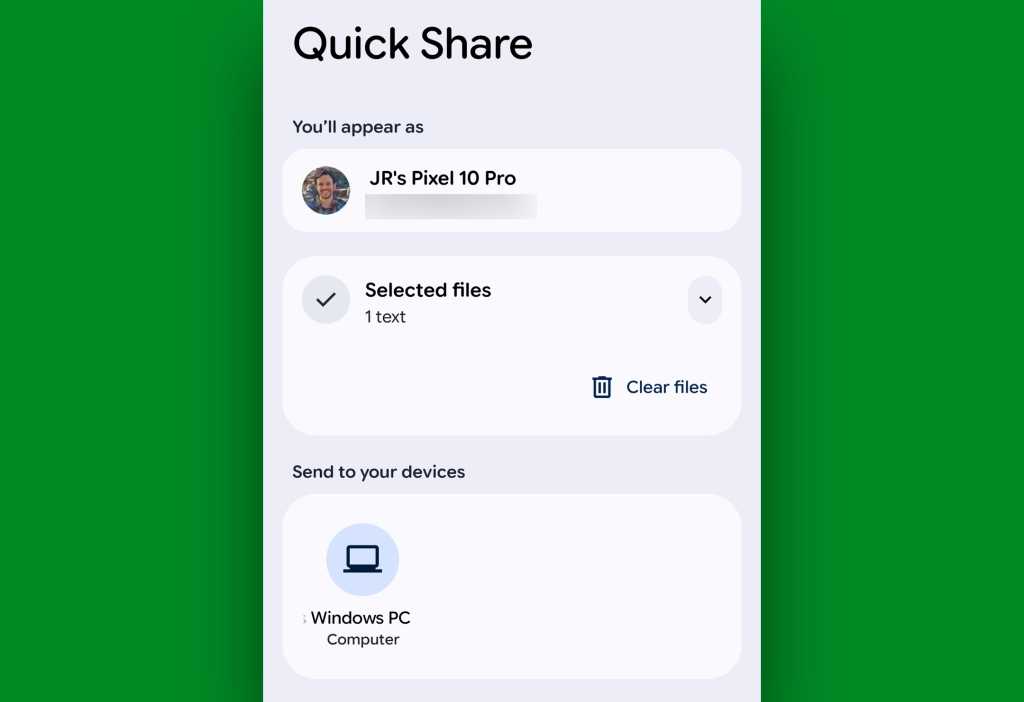
Then, when you’ve got something you want to sync to the clipboard on one of your other devices — from Android:
- Press and hold your finger onto the text you want to share to highlight it, then select “Share” from the menu that pops up.
- Select “Quick Share” from the list of options.
- And select your computer from the list of available devices.
JR Raphael, Foundry
That’s it! Within a split second, you should see a notification on the computer that the text has been received and is on the clipboard and available — and you can then hit Ctrl-V in any open field to paste it.
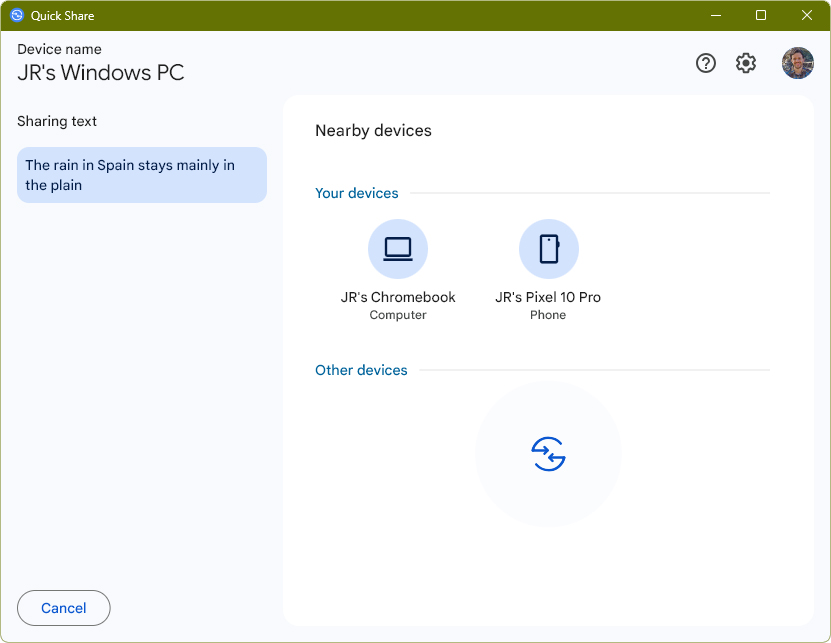
From Windows, meanwhile, you’ll copy your text normally — using Ctrl-C — then open the Quick Share app and hit Ctrl-V to paste it and sync it over to your Android phone’s clipboard.
JR Raphael, Foundry
With ChromeOS, there’s weirdly no way to sync stuff from the computer to Android (go figure). But maybe, hopefully, surely, Google’s upcoming Android-ChromeOS “merger” plan will address that and make this kind of cross-device clipboard sharing even richer and more effective in that arena.
Android-computer clipboard syncing option #3: The browser beam
Two other interesting options exist for quick ‘n’ easy clipboard sharing — at least, if you’re going from Android to another computer.
No matter what kind of computer it is (yes, even the illustrious Macintosh, in this instance!), as long as you’ve got Chrome installed there and signed into the same Google account you’re using on the Android front, remember this:
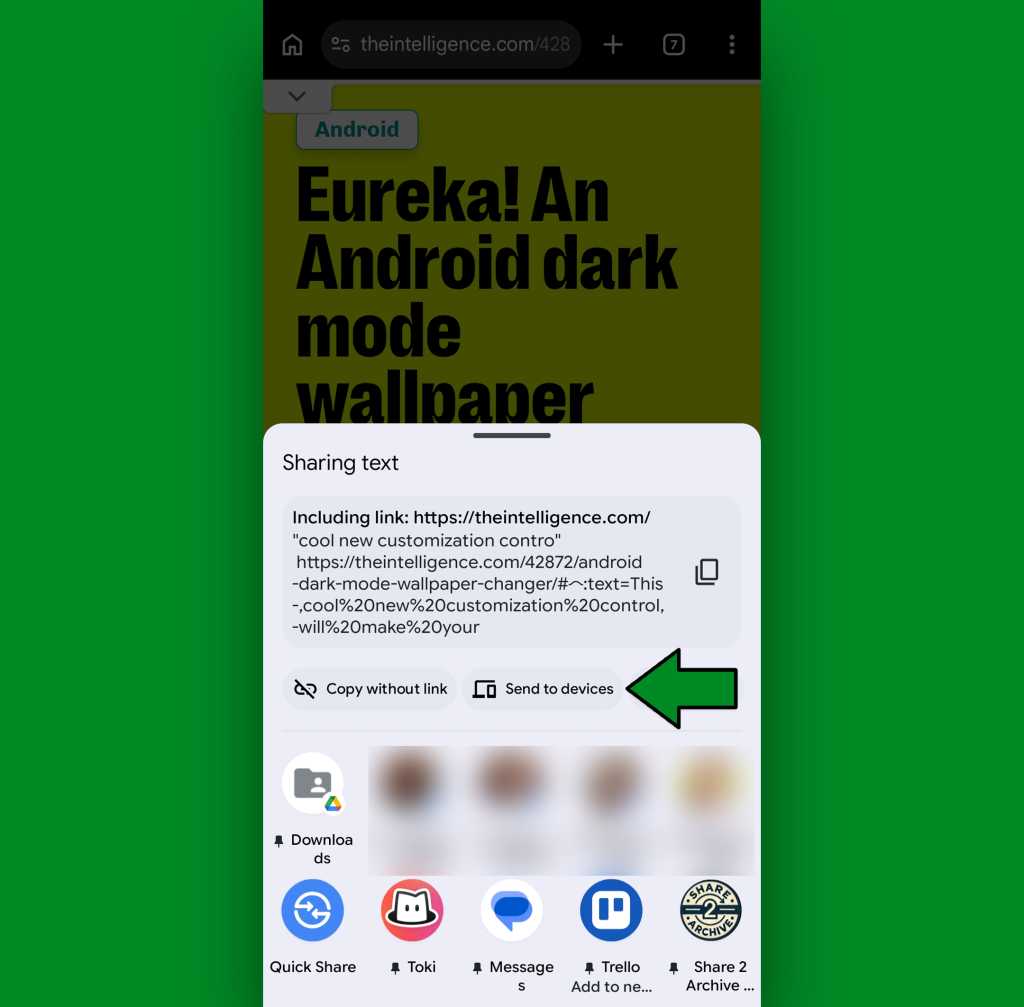
In Chrome on Android, you can highlight any text on any page — by pressing and holding it with your finger — then select “Share” followed by “Send to devices.”
JR Raphael, Foundry
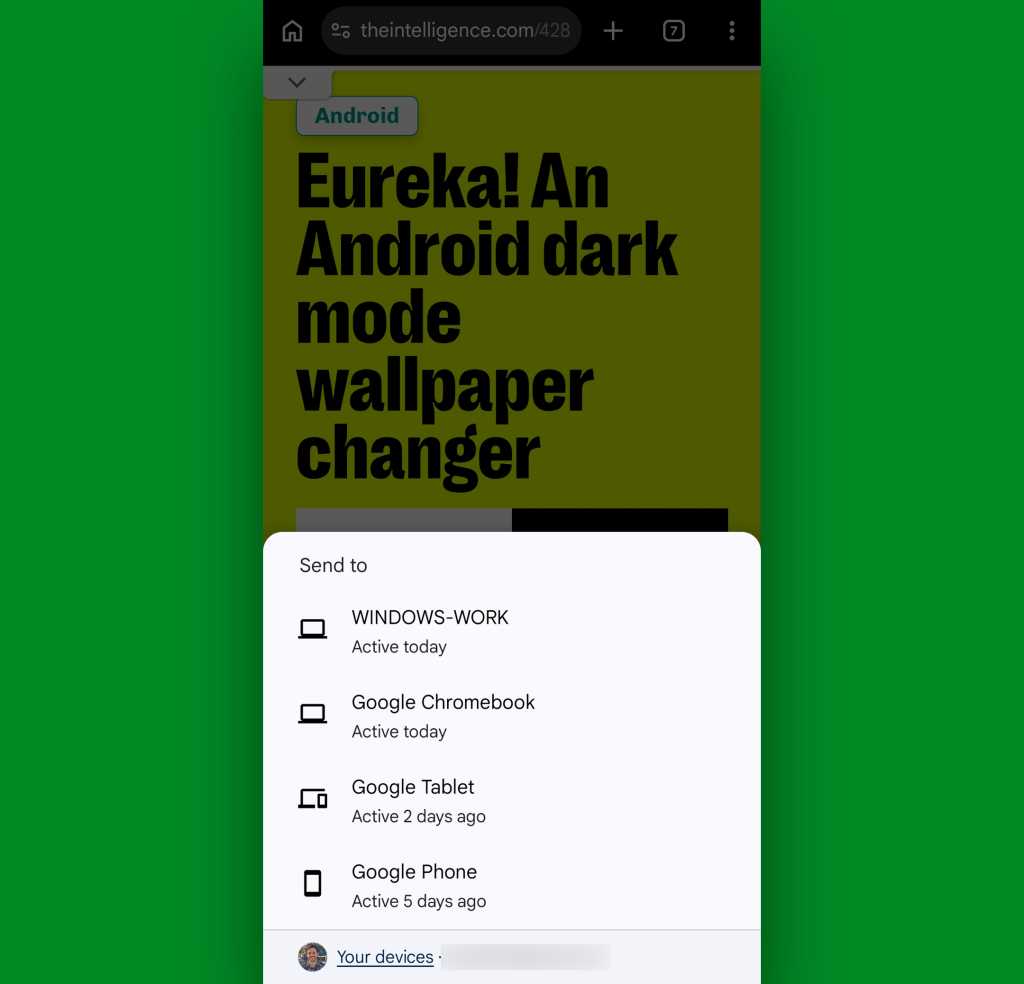
Chrome will show you a list of all the devices where you’ve been signed into the browser with that same Google account in recent days. You can tap any of ’em — and in an instant, your text will be on that system’s clipboard and ready for pasting anywhere your precious pinkies (and other assorted appendages) desire.
JR Raphael, Foundry
And last but not least…
Android-computer clipboard syncing option #4: The Lens limb
If you want to sync some text from Android to a computer and the text isn’t already in a standard plain-text form — something from a photo, for instance, or in an area of the operating system for whatever reason doesn’t support standard text selection — just capture a screenshot or share the existing image over to Google Lens.
Lens is a fantastic and free Google app. You’ll need to download its official shortcut from the Play Store before you can share to it.
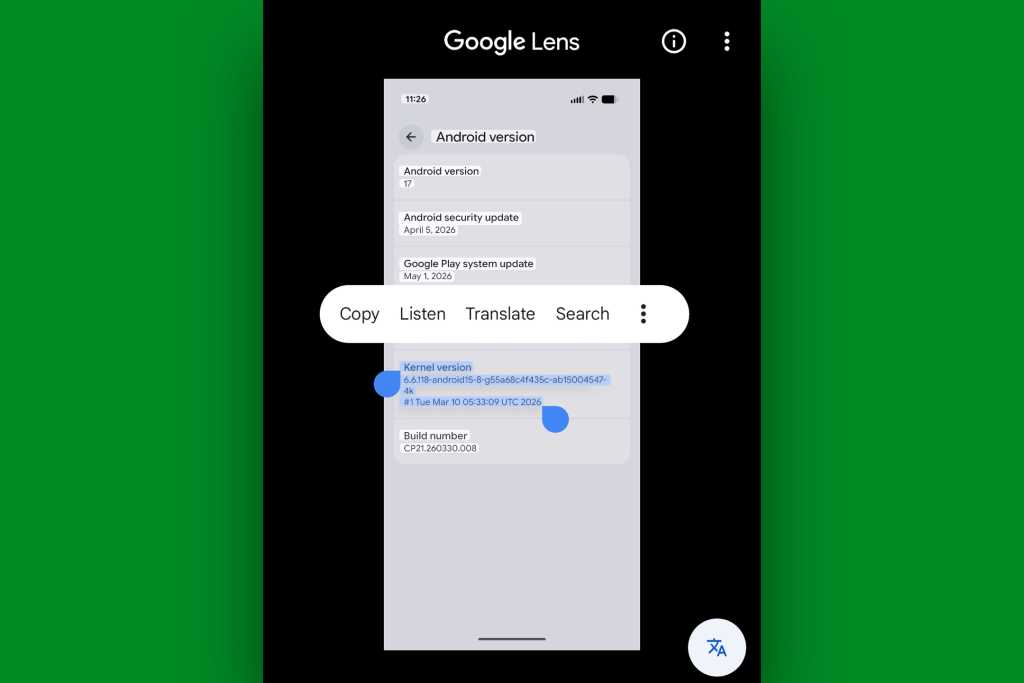
Once you’ve got whatever you’re seeing into Lens, you can then press and hold any text within the image there to select it.
JR Raphael, Foundry
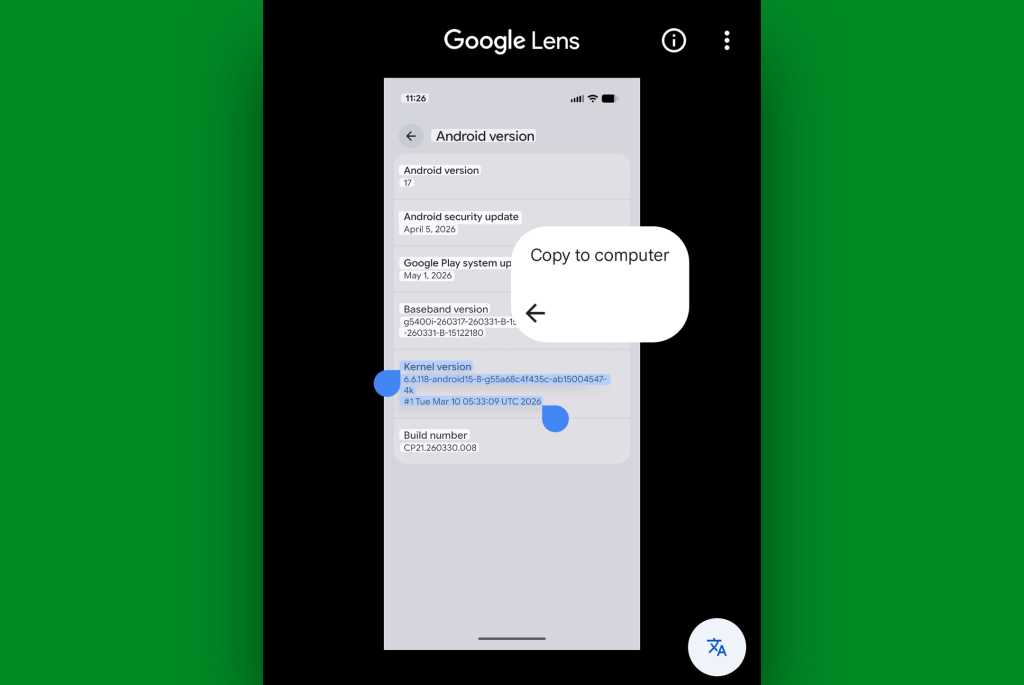
Then, tap the three-dot menu icon within the text selection menu that appears — and hey, how ’bout that? Tucked away there, where no reasonably sane person would ever think to look, is a handy little command called “Copy to computer.”
JR Raphael, Foundry
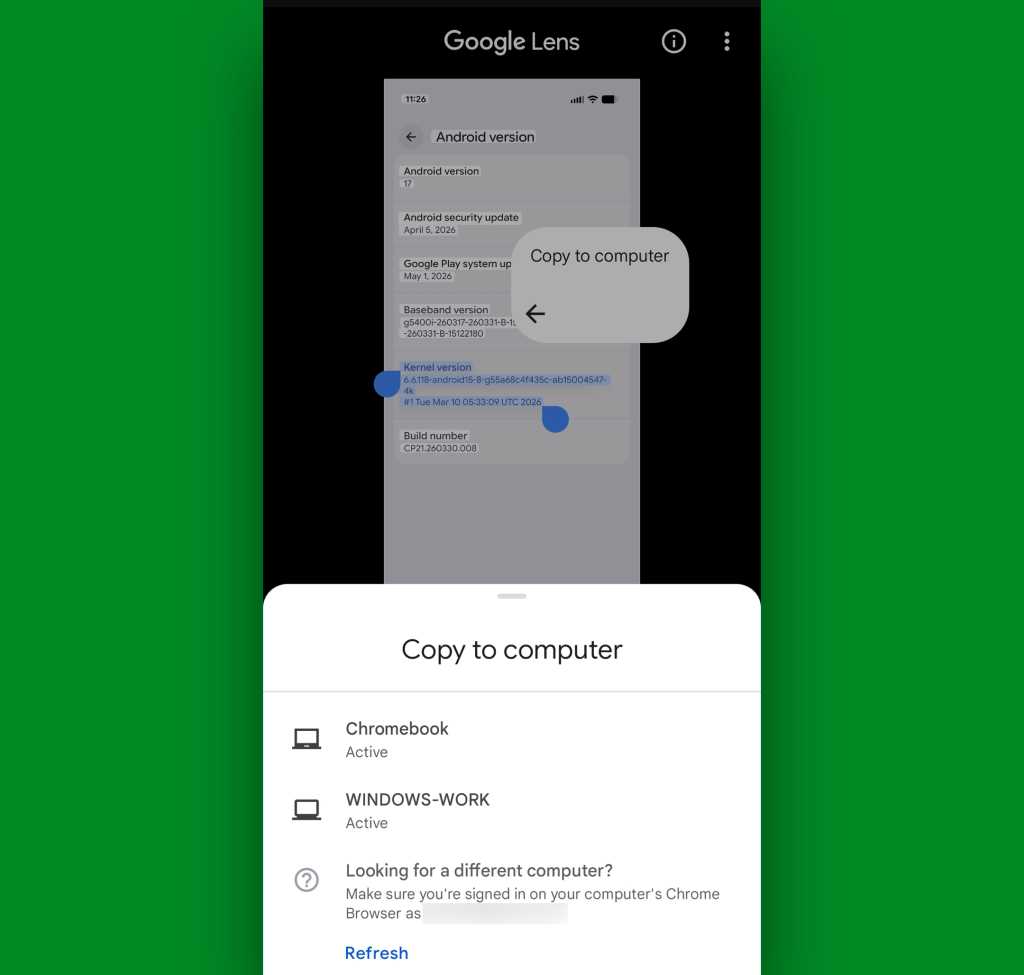
Tap that bad boy and tap it good, and you’ll be able to choose from any computer where you’re currently signed into Chrome with the same Google account — Windows, Chromebook, Mac, Linux, you name it — and after that, the text from that image will be on your computer’s clipboard and ready to paste wherever.
JR Raphael, Foundry
These options may not be as easy or effortless as they oughta be, but they do get the job done. And once you know how to use ’em, you’ll have a whole new kind of time-saving text trick in your toolkit and ready to deploy — just like the total tech wizard we all know you’re meant to be.
Check out my free Android Intelligence newsletter for even more thoughtful knowledge — including three new things to try each Friday and a trio of useful Android notification tools to get you going.