Excel, AI
A practical walkthrough for turning a structured prompt into a reusable Excel template for books.

This article captures one of the most useful ideas in Chapter 3 of my book Learning Generative AI for Excel: using ChatGPT to speed up common Excel operations without turning the process into guesswork.
The goal is simple on the surface. We want to create an Excel template for describing books. But what makes the exercise valuable is not only the final spreadsheet. It is the method. We are learning how to tell ChatGPT exactly what structure, formatting, and logic we want so that the result is usable and not just plausible.
That distinction matters. In practical spreadsheet work, a weak prompt often creates a weak file. A clear prompt, by contrast, gives us a much stronger starting point and reduces the manual corrections we need later.
In this tutorial, I will walk through the solution to exercise 1 in Chapter 3, step by step, using the repository material for Chapter 3 and staying aligned with the book's approach to template creation: clear instructions, practical intent, and careful validation.
What the Exercise Is Asking You to Build
Exercise 1 asks us to create an Excel template describing books.
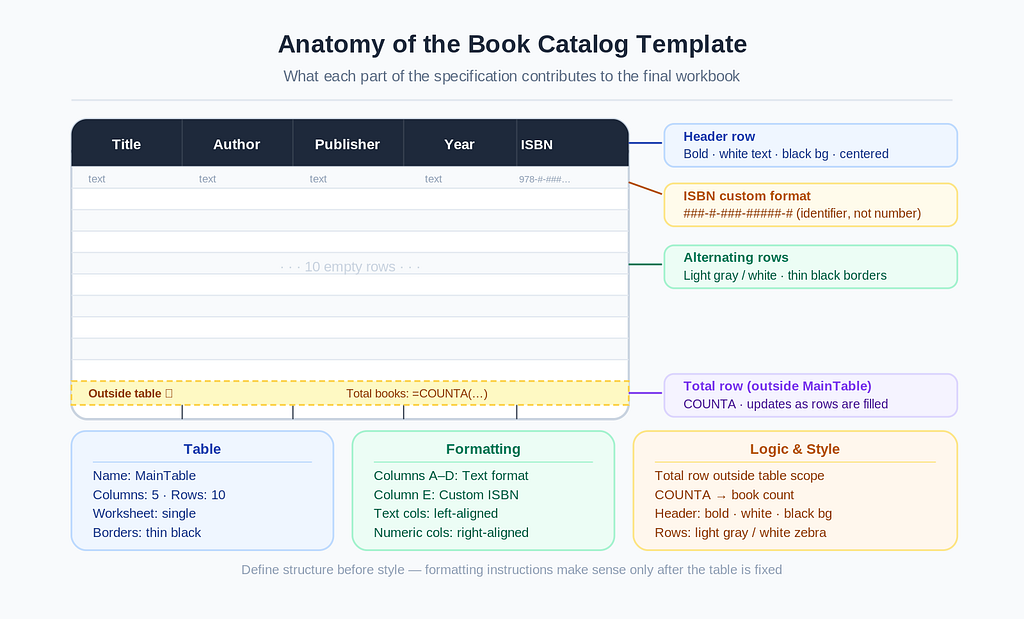
The workbook should contain a single worksheet with a table named MainTable and the following columns:
- Title
- Author
- Publisher
- Year
- ISBN
The table should include 10 empty rows. Then it should be formatted carefully:
- text formatting for the text-based columns
- a custom ISBN format for the last column
- a total row outside the table to count the books
- a specific visual style for the header, rows, alignment, and borders
This is exactly the kind of task where ChatGPT can save time. The structure is detailed enough to describe clearly, but repetitive enough that writing it all manually in Excel would take longer than necessary.
Why This Exercise Belongs in Chapter 3
Chapter 3 focuses on speeding up common operations with ChatGPT, especially template creation, Autofill, and data enrichment.
This exercise sits in the first area: creating templates from scratch.
That is important because many real spreadsheets begin as templates. Before analysis, dashboards, or formulas, there is often a structure someone has to build. Expense trackers, reading logs, book catalogs, and inventory sheets all begin from the same kind of question:
How do I move from a blank workbook to a clean, reusable structure as quickly as possible?
The answer in this chapter is not “let ChatGPT improvise.” The answer is “give ChatGPT a structured specification.”

Step 1: Start with a Framing Prompt
The solution file begins with an opening instruction that frames the whole interaction:
I want to create an Excel template describing books. I’ll provide you with all the options to include in the template, and when I have finished, you’ll format it as an .xlsx file.
This first sentence tells ChatGPT three things:
- The task is template creation
- The domain is books
- The final output should be an Excel file
This kind of framing reduces ambiguity. Instead of asking for a vague “book spreadsheet,” we define the context before giving the details.
Step 2: Define the Table Structure
The next part of the prompt specifies the worksheet and columns:
- Create a single worksheet
- Add a table with Title, Author, Publisher, Year, and ISBN
- Format it as an Excel table
- Name it MainTable
- Add 10 empty rows
This is the backbone of the file.
What I like about this part of the exercise is that it shows a useful rule for working with ChatGPT and Excel: define the structure before you define the style.
If the model does not know the exact worksheet layout, everything that follows becomes less reliable. Formatting instructions make more sense only after the table itself is fixed.
Step 3: Add Cell Formatting Rules
Once the structure is defined, you can add number-format instructions:
- Column A as text
- Column B as text
- Column C as text
- Column D as text
- Column E as custom: ###-#-###-#####-#
Without formatting rules, ChatGPT might still generate a spreadsheet that looks correct at first glance while handling values inconsistently. For example, an ISBN should not be treated as a normal number. It is an identifier. The custom pattern makes the intent explicit.
This is a good example of something I insist on throughout the book: when data has a semantic meaning, the prompt should reflect that meaning.
Step 4: Add Logic Outside the Table
The exercise then asks for an extra row below the table:
- Place it below the ISBN row
- Keep it outside the table
- Use it to calculate the total number of books as a row count
This is a nice detail because it turns a static template into a slightly smarter one.
Even though the workbook is mostly empty at the beginning, the total row gives the file a clear purpose. It also reminds us that templates are not only about layout. They are also about the small pieces of logic that make later use easier.
In practice, this means ChatGPT is not only building a table. It is also laying the groundwork for a workflow.
Step 5: Define the Visual Style Explicitly
The last major block of the solution covers styling.
For the first row:
- bold text
- white text color
- black background
- centered text
For the other rows:
- left alignment for text columns
- right alignment for numeric columns
- alternating background color between light gray and white, starting from the second row
For the borders:
- thin black borders
This level of detail is exactly what makes the prompt strong.
Many users stop too early and ask ChatGPT to “make it look good.” That request is convenient, but not precise. Here, instead, every visual decision is stated clearly. The result is much easier to evaluate because the instructions are concrete.
Putting It All Together
When we combine all these steps, the final prompt becomes less like a casual request and more like a design specification.
That is the real lesson of Exercise 1.
We are not using ChatGPT as a magician. We are using it as an executor of a well-defined template plan. The better the specification, the more useful the generated file becomes.
In this sense, the solution is not only about books. It teaches a reusable method:
- open with context
- define the structure
- define formatting
- define logic
- define style
This same sequence can be reused for many other Excel templates.
How I Would Validate the Result
Once ChatGPT produces the workbook, I would not stop there. I would validate five things:
- Is there only one worksheet?
- Is the table really named MainTable?
- Are there exactly 10 empty rows in the table?
- Is the ISBN column using the requested custom format?
- Is the total row outside the table and counting correctly?
Then I would check the visual rules:
- header colors
- alignment
- alternating row colors
- borders
This final review matters because template generation is useful only when the output is trustworthy enough to reuse.

Common Mistakes to Avoid
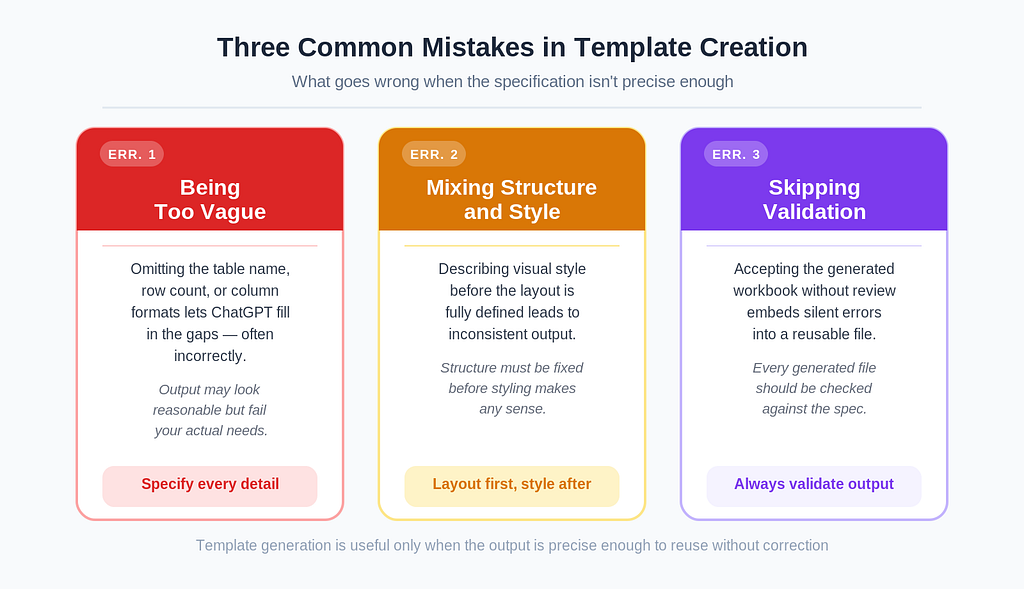
There are three common mistakes in this kind of exercise.
The first is being too vague. If you omit details such as the table name, row count, or column formats, the output may still look reasonable but fail to meet your actual needs.
The second is mixing structure and style without order. If the layout is unclear, styling instructions can become inconsistent.
The third is skipping validation. A generated workbook should always be checked before it becomes a reusable template.
Summary
Exercise 1 from Chapter 3 is a concise yet practical example of how to use ChatGPT to build an Excel template from scratch.
What makes it useful is not just the final spreadsheet. It is the prompting discipline behind it. We begin with context, move through structure and formatting, and finish with style and validation. That sequence turns a generic AI request into a reliable workbook specification.
For me, this is one of the clearest practical lessons of Chapter 3: ChatGPT is most helpful in Excel when used to reduce repetitive setup work without sacrificing precision.
If you are interested in Excel + AI, this is exactly what I explore in depth in my book Learning Generative AI Tools for Excel.
Build a Book Catalog Template in Excel with ChatGPT: A Step-by-Step Tutorial was originally published in Towards AI on Medium, where people are continuing the conversation by highlighting and responding to this story.