Turn LLMs into autonomous workers that retrieve data, process tasks, and report results with minimal supervision
Introduction
Large language models are typically used as interactive tools, but this does not scale to real business workflows. A more useful approach is to treat LLMs as workers within a system that execute tasks and return structured results with minimal supervision.
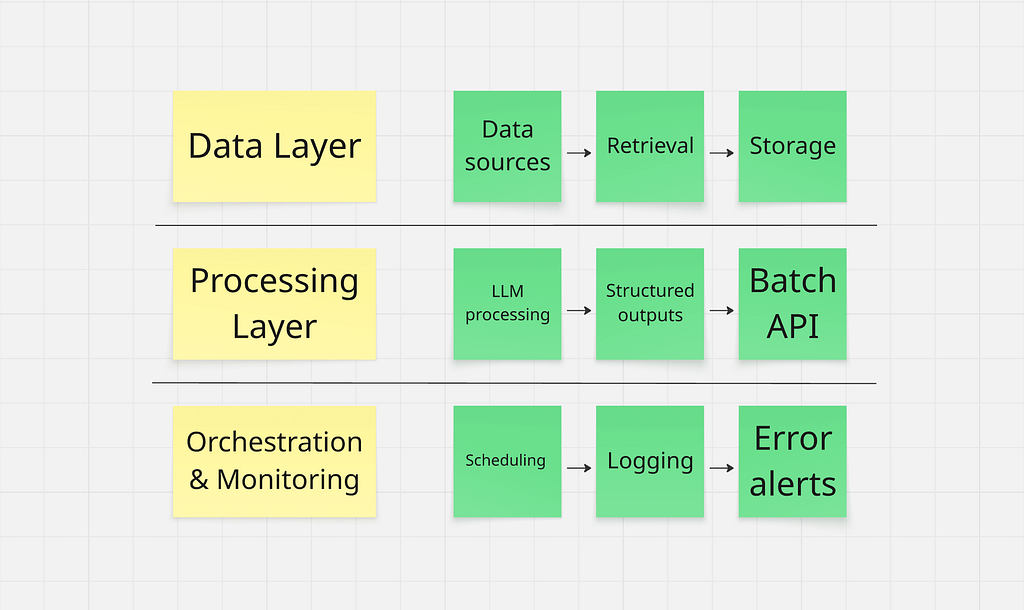
In this article, we design such a system using the OpenAI API: an autonomous pipeline that retrieves data, processes it, stores results, and monitors execution. We also cover key production techniques, including structured outputs, the Batch API, and integration patterns for real workflows, with brief notes on RAG, fine-tuning, and MCP.
⭐ Star the repo → https://github.com/andrey7mel/Hiring-ChatGPT/
Stage 1. Choosing a Task and Designing the Prompt
Step 1. Choosing the Task
What types of tasks are best suited for full automation? In practice, they usually share three characteristics:
Regularity.
The task repeats daily (or weekly) and is largely routine. It’s exactly the type of work you would gladly delegate to a reliable contractor.
Complete solvability with an LLM.
You can formulate the prompt and input data in such a way that the model consistently produces a correct result — and you are comfortable accepting that result without manual verification.
Automatable integration.
Both the collection of input data and the processing of outputs can be fully automated — via SQL queries, APIs, scraping, or UI automation.
Think of the model as a remote employee working in another time zone. You send the task specification in the evening and receive the result in the morning. The executor cannot ask clarifying questions, so both the instructions and the input data must be exhaustive.
Our Example Task
Every day we need to translate large volumes of product descriptions.
We could simply use an off-the-shelf translator like Google Translate — but let’s complicate the task. We need the result written in an Instagram-style tone: with emojis, engaging language, and a strong sales focus.
Everything we’re going to build could be assembled using tools like OpenAI Agent Builder, n8n, Make.com, or similar platforms. However, the goal of this article is to go through the process manually and understand what is happening under the hood. Therefore, we’ll work with pure Python and the OpenAI API.
Note: The product description dataset used in this tutorial is simulated/synthetically generated for educational purposes
Step 2. A Simple Prompt in Chat
First, let’s write a simple prompt and try translating a product description using the regular version of ChatGPT.
Prompt v1
Translate the product description in an Instagram-style tone, using emojis: <text>Now we move on to a critically important stage: prompt optimization.
A lot has been written about prompt engineering. There are also specialized GPTs designed to help write better prompts. In addition, with the release of ChatGPT-5, a powerful tool for prompt optimization appeared — Prompt Optimizer
Let’s modify our prompt according to best practices: add a role, a task description, context, examples of good outputs, and the desired output format.
Prompt v2
You are an expert in creating engaging Instagram content for a sports brand.
Your task is to transform the following text into an Instagram-style post:
make it appealing, lively, and easy to read using emojis, an energetic tone, and a style adapted for social media.
Focus on emotion, inspiration, comfort, strength, style, and energy.
Use short paragraphs, include hashtags, and end with a clear call to action.
Example text: <sample text>
Text to translate: <text>
Step 3. Accessing the OpenAI API
In the first step, we worked in the regular ChatGPT interface. Now we move to the API, which provides more control over the model and is better suited for automation.
The API is billed separately — you pay for each request. You can obtain free credits and grants.
You can also receive daily free tokens if you agree to share your requests with OpenAI.
Once access is configured, the most convenient place to start experimenting is the Playground:
Step 4. Choosing a Model and Configuring Parameters
Unlike the web version, in the API we choose the model and define its behavior ourselves. The logic is simple:
for simple routine tasks, standard (non-reasoning) models are sufficient; for complex multi-step tasks, reasoning models are more suitable.
For standard models, the key parameters are:
Temperature — controls text variability.
Values between 0.0–0.3 produce stable and predictable outputs, while 0.7–1.0 generate more creative and “lively” phrasing.
Max tokens — the maximum response length in tokens.
If the value is too low, the response may be truncated; if it is too high, it only increases cost and latency.
Top P — nucleus sampling: the share of the most probable tokens the model can choose from.
At 1.0, nothing is filtered out. At 0.8–0.95, the model ignores the “long tail” of rare tokens, making responses slightly more stable.
Reasoning models introduce several additional settings:
Text format — the format of the final output.
By default, it is plain text. If Markdown or another format is required, it must be explicitly specified in the request. GPT-5 does not format responses as Markdown by default to maintain compatibility with applications that cannot render it.
Reasoning effort — the amount of “thinking effort.”
Lower values produce faster and cheaper responses, while higher values allow deeper analysis of multi-step problems, with more tool calls and context usage.
Verbosity — the length of the final answer (not the internal reasoning).
Lower values produce shorter responses; higher values generate more detailed ones.
Summary — a short description of what the model is doing or has done.
This is particularly useful in agent-based workflows: it can include an action plan, intermediate updates, or a concise summary of the final result.
Step 5. Adapting the Prompt for the API
In the API, prompts are structured into three components:
- System — the model’s “constitution” and role: tone, style, formatting rules, and constraints. This is the highest-priority layer.
- Prompt messages — the conversation history, including examples and context.
- Chat message — the specific input for the current request.
If Prompt and Chat conflict, Chat takes precedence.
If anything contradicts System, System wins.
In our case, we will simplify this structure and split the prompt into two parts:
- a System message containing all requirements, style guidelines, and constraints
- a Chat message containing only the text to be transformed
This separation makes the system more stable and predictable when used in automation. In the Playground, we can immediately copy the generated code with our parameters: (three dots at the top → Code).
Stage 2. Automatic Data Retrieval, Processing, and Storage
Step 6. Automatic Data Retrieval
To automate the process, we need to regularly retrieve all untranslated texts.
In real-world projects, most data lives in databases — typically SQL-like databases. The ideal scenario is having direct access to the database where product descriptions are stored.
If such access is not available, the data will need to be obtained through alternative approaches:
Web interface scraping.
You can use Selenium to extract data from web pages and then send it to ChatGPT.
Uploading saved pages.
Save pages as PDF or HTML, send them to the model, and ask it to extract the required fields. Alternatively, you can use ready-made parsers such as Firecrawl.
Calling the website’s API.
If the web application has an internal API, you can inspect the network requests (often including cookies) and call those endpoints directly.
Native applications.
In this case, UI automation tools can help: Power Automate Desktop, AutoHotkey, pywinauto, UiPath, and similar solutions.
It’s also worth mentioning Computer Use / Browser Use systems. This is a promising direction, but currently still unstable and often requires constant access to workstations and internal systems.
There are many possible approaches, and the right one depends heavily on your situation. In the following example, we assume that we have access to an SQL database.
We’ll write an SQL query that extracts product descriptions that are not yet marked as translated. If you’re not confident with Python or SQL, you can simply describe the task in plain language and ask ChatGPT to generate the code — modern models handle this very well.
with conn.cursor() as cursor:
    query = "SELECT id, text FROM products WHERE translated = 0"
    cursor.execute(query)
    rows = cursor.fetchall()
As a result, we obtain a file called texts_to_translate.csv, containing IDs and the texts that need to be translated.
Step 7. Translation via the OpenAI API
Now we need to teach the model to translate these texts. For this, we write a script that:
- reads texts_to_translate.csv,
- sends each text to the LLM using our prompt,
- saves the results into a separate file.
def translate_texts(input_csv="texts_to_translate.csv",
                    output_csv="translated_texts.csv",
                    sleep_seconds=1.2):
    """Read texts from CSV, translate them with OpenAI, and save the result to a new CSV."""
    df = pd.read_csv(input_csv)

    if df.empty:
        print(f"No rows found in {input_csv}. Nothing to translate.")
        return

    translated_texts = []

    for idx, row in df.iterrows():
        user_content = str(row["text"])
        product_id = row["id"]

        try:
            # Send the request to OpenAI for translation and creative adaptation
            response = client.responses.create(
                model="gpt-5-chat-latest",
                instructions=system_prompt,
                input=user_content,
                temperature=0.9,      # More creativity
                top_p=0.95,           # Limit to most likely words
                max_output_tokens=4096,
            )

            translated = response.output_text.strip()

        except Exception as e:
            # In a real production setup you might want to log this instead of printing
            print(f"Error translating product id {product_id}: {e}")
            translated = ""

        translated_texts.append(translated)

        # A small pause between requests to reduce the chance of hitting rate limits
        time.sleep(sleep_seconds)

    df["translated_text"] = translated_texts
    df.to_csv(output_csv, index=False)
    print(f"Saved {len(df)} translated records to {output_csv}")
Step 8. Processing the Retrieved Data
Next, we need to return the translations to the internal system or database. As in the previous step, you can use any automation method that is convenient for you:
- direct SQL access to the database,
- API calls to your internal system,
- UI automation that enters the translated text into the required fields.
In our example, we’ll assume that we have direct database access. We’ll write a script that retrieves the translations and inserts them into the Products table.
# Iterate over all products and update their translations in the database
for idx, row in df.iterrows():
    cur.execute(
        "UPDATE products "
        "SET translated_text = %s, translated = 1 "
        "WHERE id = %s",
        (row["translated_text"], int(row["id"])),
    )
Step 9. Automatic Execution
The ideal approach is to run the scripts on a separate cloud server. If you already have a server, you probably know how to configure scheduled jobs there.
However, not everyone has a server, so we’ll use a simpler solution: schedule the scripts to run on a regular computer — either home or work. The only requirement is that the computer must be turned on at the scheduled time.
We’ll schedule the task to run every day at 11:00.
Steps:
Create a file called run_all.bat in the same folder. This file will sequentially run all three scripts.
Make sure to change the folder path on the first line to the location where your scripts are stored.
cd C:\app\translate
call .venv\Scripts\activate.bat
python extract_texts_from_db.py
python openai_text_translator.py
python save_translations_to_db.py
Next, create a script for automatic scheduling: create_local_task.ps1
Open the folder containing your scripts (C:\app\translate), hold Shift, right-click in an empty area inside the folder, and select Open PowerShell Window Here.
Run the command:
.\create_local_task.ps1
After executing the script, you should see the following output:

You can check the task status using the command:
Get-ScheduledTaskInfo -TaskName RunColorsScript
If the task is no longer needed, you can remove it:
Unregister-ScheduledTask -TaskName RunColorsScript
If you have created many tasks, you can view the list of all tasks (excluding Microsoft system tasks):
Get-ScheduledTask | Where-Object { $_.TaskPath -notlike “\Microsoft\*” }
Step 9, Part 2. Automatic Execution with Administrator Privileges
The auto-start script we created runs under the user account that launches it. This is convenient because it does not require additional permissions. However, this approach has a limitation: the task requires an interactive session.
If the computer restarts and you happen to be on the login screen when the task is scheduled to run, the task will not start because the user session has not yet been created. The same will happen if you log out or log in under a different account. As a result, the entire process simply will not start.
To eliminate this dependency, administrator privileges are required. In this case, we can create a task that will run regardless of the user session state — at the scheduled time, even if:
- no one is logged into the system,
- the computer has just restarted,
- there is no active user session.
Now let’s write the code that creates a task with administrator privileges: create_admin_task.ps1
Next, you need to:
- Run PowerShell as Administrator.
- Navigate to the project folder: cd C:\app\translate
- Execute the script: .\create_admin_task.ps1
After that, the process will run reliably regardless of the user session state.
Stage 3. Improving the Script
Step 10. Writing Logs to a File
The script runs automatically, so if a problem occurs we need to understand what went wrong. To do this, we add file logging.
Instead of print, we connect a logger that writes messages to a file:
def log(message):
    """Print message to console and save it to a daily log file."""
    timestamp = datetime.now().strftime("%Y-%m-%d %H:%M:%S")
    line = f"{timestamp} {message}"

    # print to console
    print(line, flush=True)

    # ensure log directory exists
    log_dir = Path(LOG_DIR)
    log_dir.mkdir(parents=True, exist_ok=True)

    # daily file name, e.g. app_20250215.log
    filename = f"app_{datetime.now().strftime('%Y%m%d')}.log"
    filepath = log_dir / filename

    # append log line to file
    with filepath.open("a", encoding="utf-8") as f:
        f.write(line + "\n")
Now all logs are written to a file named according to the script execution date. If something goes wrong, you can quickly open the log and see at which step the error occurred.
Step 11. Reports in Google Sheets
If we were working with a freelancer, we would expect not only an invoice but also a report of the completed work. The same logic applies to an LLM employee.
Writing reports only to a file is inconvenient because it requires constant access to the computer. It is much more convenient to keep reports in Google Sheets, where statistics are always available from any device. An alternative approach is a Telegram bot that periodically sends reports.
Let’s write a function that adds a record to a Google Sheet:
def publish_google_sheet_log(message):
    """
    Insert a new log row at the TOP of the sheet.
    Column A = timestamp (local computer time)
    Column B = message
    """
    if not GOOGLE_SHEET_ID or not SERVICE_ACCOUNT_JSON:
        raise RuntimeError("GOOGLE_SHEET_ID and SERVICE_ACCOUNT_JSON must be defined at the top of the file")

    try:
        creds = Credentials.from_service_account_file(
            SERVICE_ACCOUNT_JSON,
            scopes=[
                "https://www.googleapis.com/auth/spreadsheets",
                "https://www.googleapis.com/auth/drive",
            ],
        )

        service = build("sheets", "v4", credentials=creds)
        sheets = service.spreadsheets()

        timestamp = datetime.now().strftime("%Y-%m-%d %H:%M:%S")

        # Step 1: Shift existing rows down by 1 (insert a new top row)
        insert_request = {
            "insertRange": {
                "range": {
                    "sheetId": 0,             # works if the sheet uses the first tab (ID = 0)
                    "startRowIndex": 0,
                    "endRowIndex": 1
                },
                "shiftDimension": "ROWS"
            }
        }

        sheets.batchUpdate(
            spreadsheetId=GOOGLE_SHEET_ID,
            body={"requests": [insert_request]},
        ).execute()

        # Step 2: write timestamp and message to A1 / B1
        row_data = [[timestamp, message]]

        sheets.values().update(
            spreadsheetId=GOOGLE_SHEET_ID,
            range="A1:B1",
            valueInputOption="RAW",
            body={"values": row_data},
        ).execute()

    except Exception as e:
        print(f"Error while publishing log to Google Sheets: {e}")
To use this function, you will need a service account (essentially an API key for accessing Google resources).
To obtain the service-account.json file:
- Open https://console.cloud.google.com. Go to APIs & Services → Library, find and enable Google Sheets API.
- Go to APIs & Services → Credentials, click Create credentials, and select Service account. Give it a name, for example sheets-logger, then click Create.
- Go to IAM & Admin → Service Accounts, open the created service account, switch to the Keys tab, click Add key → Create new key, and select JSON format. A file will be downloaded — this is your service-account.json. Place it next to your scripts.
Next, you need to grant this account access to the spreadsheet:
- Open your Google Sheet.
- Click Share. Add the service account email (it looks like my-project-123456@myproject.iam.gserviceaccount.com).
- Grant it Editor access.
After this, the service account will be able to write data to Google Sheets.
Step 12. Push Notifications in Telegram
So far, we have configured two types of logging:
Technical logs (files).
A detailed “medical history” of the system, stored locally on your computer.
Managerial reports.
A concise summary of results.
Both of these methods operate on a pull principle. To check the status, you must take the initiative and open the logs or the spreadsheet yourself.
But what if you forget to check it? And precisely today your internet connection goes down or the database password changes? The script crashes, the workflow stops, and you only discover it a week later when you finally check the reports.
In critical situations, we need a push principle. The system must proactively notify us about a problem. We’ll implement this using a Telegram bot.
We don’t need complex bot libraries. The Telegram API allows sending messages with a simple HTTPS request. For this we only need a bot token and a chat ID.
Create a bot and obtain an API Token
- Open @BotFather in Telegram.
- Send the command /newbot.
- Choose a name and a username (the username must end with bot).
- You will receive an API Token. Save it.
Get the Chat ID (where messages will be sent)
Personal messages:
Find your bot in Telegram search and press Start (or send /start). Without this step, the bot cannot send you messages.
Group:
If you want notifications in a shared chat, add the bot to that group.
To find the chat ID, forward any message from that chat to @userinfobot (or @getmyid_bot). The bot will return the Chat ID.
Now we modify our main script (for example, translate_texts.py or a general launcher script). We wrap the task execution in a try–except block and send a Telegram notification if an error occurs:
def send_telegram_message(message):
    """
    Send a message to Telegram bot.
    """
    if not BOT_TOKEN or not CHAT_ID:
        raise RuntimeError("BOT_TOKEN and CHAT_ID must be defined at the top of the file")

    try:
        url = f"https://api.telegram.org/bot{BOT_TOKEN}/sendMessage"
        data = {
            'chat_id': CHAT_ID,
            'text': message
        }

        response = requests.post(url, data=data)
        response.raise_for_status()

        return True

    except Exception as e:
        print(f"Error while sending message to Telegram: {e}")
        return False
Now your system can operate autonomously.
If everything works correctly, you review reports in Google Sheets during lunch. If something breaks, you immediately receive a notification and can react.
Step 13. Structured Outputs — Response Template
Until now, we asked the model to simply “return text.” But an LLM is fundamentally a next-token generator operating on probabilities. This can introduce noise: sometimes the model may add phrases like “Here is your translation:”, break formatting, or introduce a syntax error in the data (for example, forgetting a closing bracket).
What we need is a guarantee that we always receive clean, structured data ready to be written to the database.
For this purpose, we use Structured Outputs. This feature allows us to define a strict response schema. In other words, instead of giving our “employee” a blank sheet of paper, we give them a structured form with specific fields that must be filled in.
We implement this using the Pydantic library. We define the structure of the post (for example, text and hashtags) as a class, and the model must return data exactly in that format.
# --- Structured Outputs: output schema definition ---
class InstagramTranslation(BaseModel):
    """Expected structured response from the model."""
    instagram_text: str = Field(
        description="Final Instagram-ready post in Russian."
    )
    hashtags: List[str] = Field(
        default_factory=list,
        description="List of relevant hashtags without the leading '#'.",
    )

#...
# --- Structured Outputs: use responses.parse with a Pydantic schema ---
response = client.responses.parse(
    model="gpt-5-chat-latest",
    instructions=system_prompt,
    input=user_content,
    temperature=0.9,   # More creativity
    top_p=0.95,        # Limit to most likely words
    max_output_tokens=4096,
    text_format=InstagramTranslation,
)


# --- Structured Outputs: parsed is an InstagramTranslation instance ---
parsed: InstagramTranslation = response.output_parsed


translated = parsed.instagram_text.strip()
tags = " ".join(
    f"#{tag.strip()}"
    for tag in parsed.hashtags
    if isinstance(tag, str) and tag.strip()
)
Step 14. Batch API — Save 50%
Right now, our script works in synchronous (online) mode. We send a request and wait for a response. This is convenient when the result is needed immediately, but it is also the most expensive way to interact with the API.
If you have thousands of products and immediate translation is not critical, you can use the Batch API.
The idea is simple: we collect all requests into a single file and send it to OpenAI. The requests are processed within 24 hours (usually faster), using available server capacity.
In return, we receive a 50% discount.
When working with the Batch API, several things are important:
Store the batch_id.
Each Batch API job has its own identifier. You must save it in order to retrieve the results later.
Avoid duplicate processing.
If the script runs more frequently than once every 24 hours, multiple batch jobs may remain unfinished at the same time. You need to store in your database which items have already been sent for processing and avoid sending them again.
Link responses to products using custom_id.
Each request in the .jsonl file has a custom_id field. Write the product ID or the table row ID there. The Batch API does not guarantee response order, so during result processing you use custom_id to determine which product a translation belongs to.
Let’s implement this in our project.
def get_batch_schema():
    """Generates the JSON schema required for the Batch API."""
    props = InstagramTranslation.model_json_schema()["properties"]
    return {
        "type": "json_schema",
        "json_schema": {
            "name": "InstagramTranslation",
            "strict": True,
            "schema": {
                "type": "object",
                "properties": props,
                "required": list(props.keys()),
                "additionalProperties": False
            }
        }
    }

def create_batch_job(df, processed_ids):
    """Prepares payload, uploads file, and starts the OpenAI Batch job."""
    schema = get_batch_schema()
    tasks, new_ids = [],[]

    for _, row in df.iterrows():
        pid, text = str(row["id"]), str(row["text"])
        if pid in processed_ids:
            continue

        tasks.append(json.dumps({
            "custom_id": pid,
            "method": "POST",
            "url": "/v1/chat/completions",
            "body": {
                "model": "gpt-5-chat-latest",
                "messages":[
                    {"role": "system", "content": SYSTEM_PROMPT},
                    {"role": "user", "content": text}
                ],
                "response_format": schema,
                "temperature": 0.9,
                "max_tokens": 4096
            }
        }))
        new_ids.append(pid)

    if not tasks:
        return logger.info("No new items to translate.")

    jsonl_filename = "batch_payload.jsonl"
    with open(jsonl_filename, "w", encoding="utf-8") as f:
        f.write("\n".join(tasks))

    try:
        with open(jsonl_filename, "rb") as f:
            batch_file = client.files.create(file=f, purpose="batch")

        batch_job = client.batches.create(
            input_file_id=batch_file.id,
            endpoint="/v1/chat/completions",
            completion_window="24h"
        )

        db_helper.add_new_batch(batch_job.id, batch_file.id, new_ids)
        logger.info(f"Batch created! ID: {batch_job.id}")

    except Exception as e:
        logger.error(f"Failed to create batch: {e}")

def process_completed_batch(batch_id, output_file_id):
    """Downloads results, parses structured outputs, and saves them."""
    logger.info(f"Processing batch {batch_id}...")

    try:
        file_content = client.files.content(output_file_id).text
        results =[]

        for line in file_content.strip().split('\n'):
            item = json.loads(line)
            custom_id = item['custom_id']

            if item.get('response', {}).get('status_code') == 200:
                raw_content = item['response']['body']['choices'][0]['message']['content']
                parsed = InstagramTranslation(**json.loads(raw_content))

                results.append({
                    "id": custom_id,
                    "translated_text": parsed.instagram_text,
                    "hashtags": " ".join([f"#{t}" for t in parsed.hashtags])
                })
                db_helper.mark_item_completed(custom_id)
            else:
                logger.error(f"API Error for ID {custom_id}")

        if results:
            pd.DataFrame(results).to_csv(DATA_DIR / f"results_{batch_id}.csv", index=False)
            db_helper.update_batch_status(batch_id, "completed", output_file_id)
            logger.info(f"Saved {len(results)} items.")
        else:
            db_helper.update_batch_status(batch_id, "failed")

    except Exception as e:
        logger.error(f"Failed to process batch {batch_id}: {e}")
Step 15. Future Directions: Scaling the Architecture
Once your basic scheduled pipeline runs reliably, you will likely hit new bottlenecks: the model might lack proprietary company knowledge, a massive “do-it-all” prompt may degrade output quality, or the workflow might require more autonomy. Here is how to evolve your architecture for complex production environments.
1. Expanding Knowledge and Shaping Behavior: RAG vs. Fine-Tuning
Standard models rely on public data. To integrate your corporate guidelines or private documentation, you have two primary engineering paths:
- Retrieval-Augmented Generation (RAG): Best for injecting facts. Instead of stuffing a 500-page manual into a context window, RAG dynamically searches a vector database for relevant fragments and appends them to your prompt. Use RAG for dynamic data like pricing, changing laws, or warehouse inventory.
- Fine-Tuning: Best for shaping behavior and form. If you need the model to consistently output code in a niche proprietary language or deeply internalize a specific brand voice, fine-tuning adjusts the model’s internal weights. As a bonus, fine-tuning open-source models (like Llama or Qwen) allows you to run them locally, ensuring absolute data privacy and zero API token costs.
2. Breaking Monoliths into LLM Pipelines
Cramming instructions for translation, stylistic editing, and JSON formatting into a single prompt often leads to chaotic results. In production, generalists lose to specialized workflows.
Transition to a modular LLM Pipeline: chain smaller, specialized calls. For instance, use a fast, inexpensive model (Model A) to generate a draft translation, pass the output to a reasoning model (Model B) that acts as an editor to enforce tone-of-voice guidelines, and use a strict Python script to assemble the final payload. This multi-agent approach improves quality, allows intermediate validation steps, and optimizes API costs.
3. Increasing Autonomy with Agents and MCP
Our current setup is rigid: a Python script dictates the exact SQL queries and data flow. The next evolutionary step is giving the AI “keys” to the database using AI Agents and the Model Context Protocol (MCP).
MCP standardizes how models connect to external tools, allowing an agent to dynamically analyze a database schema, find untranslated rows, and process them without rigid pre-programming.
However, this autonomy introduces significant risks regarding determinism and security (a misinterpreted prompt could result in a DROP TABLE). For production, avoid giving agents open-ended access. Instead, use a hybrid approach: expose strictly scoped MCP tools (e.g., get_untranslated_product() and update_translation(id, text)) so the agent orchestrates the logic while your code strictly controls the execution boundaries.
Conclusion
We have gone from a simple conversation to a fully autonomous system capable of performing real business tasks.
We configured the API, wrote scripts to process data, optimized costs using the Batch API, and added logging to make the process stable. In essence, we created a “virtual employee” that works on a schedule and requires no constant supervision.
From here, the system can evolve further — toward RAG, agent-based architectures, and MCP. The direction depends entirely on the problems you want to solve.
Github: https://github.com/andrey7mel/Hiring-ChatGPT/
Hiring ChatGPT as Employees: Building Autonomous AI Workflows was originally published in Towards AI on Medium, where people are continuing the conversation by highlighting and responding to this story.