A step-by-step guide using llmfit + Ollama to host DeepSeek Coder V2 16B on Apple Silicon
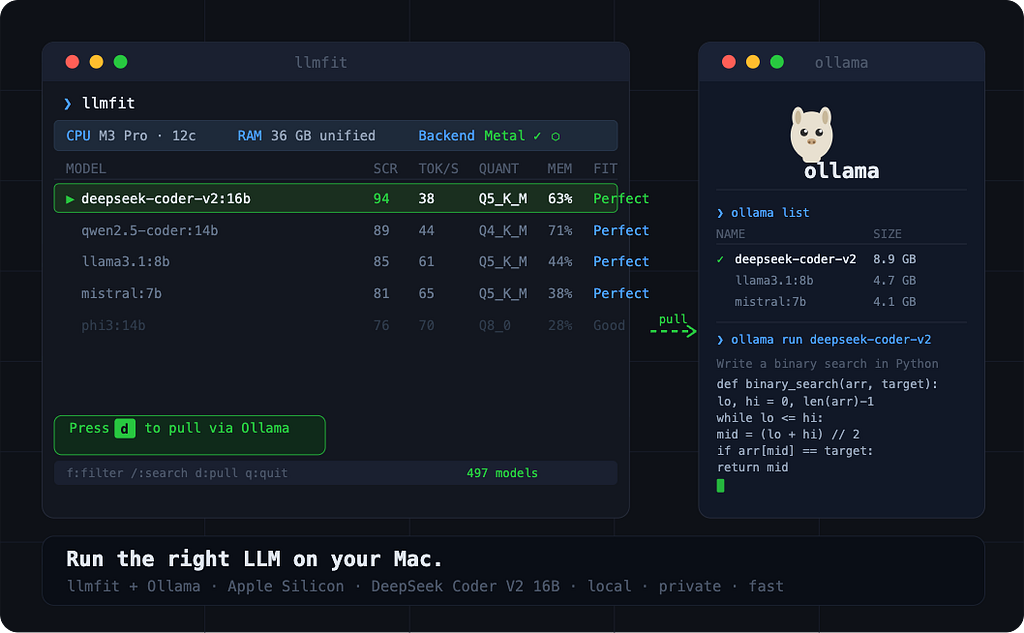
Running LLMs locally is easier than ever, but most tutorials skip the most important step: figuring out which model actually fits your hardware before you pull it. Download the wrong one and you’re waiting 20 minutes for a model that crawls at 2 tokens per second, or worse, one that doesn’t run at all.
In this guide, you’ll use llmfit alongside Ollama to detect your hardware, identify a model that fits well, pull it with a single keystroke, and run it locally ,all on a MacBook Pro with Apple Silicon. By the end, you’ll have DeepSeek Coder V2 16B running on your machine: a capable coding model that’s smarter than it looks, because of how its architecture works.
What you’ll need
- A MacBook Pro with Apple Silicon (M1/M2/M3/M4)
- Ollama installed
- Homebrew for installing llmfit
- ~10GB of free disk space for the model
What is llmfit?
llmfit is an open-source terminal tool written in Rust (6.5k GitHub stars) that reads your system hardware ,RAM, CPU cores, GPU, VRAM ,and scores 497 LLM models to tell you which ones will actually perform well on your machine.
It evaluates each model across four dimensions:
- Quality: model capability, parameter count, quantization level
- Speed: estimated tokens/sec on your specific backend (Metal on Apple Silicon)
- Fit: how efficiently the model uses your available memory (sweet spot: 50–80%)
- Context: context window size relative to your use case
It integrates directly with Ollama: you can see which models are already installed, and pull new ones without leaving the terminal UI.
On Apple Silicon, llmfit recognises that unified memory serves as both RAM and VRAM, and scores models against the Metal backend. The recommendations are specific to your machine, not generic.
Step 1: Install Ollama
If you haven’t already:
brew install ollama
Then start it:
ollama serve
Or just launch the Ollama desktop app. Either way it needs to be reachable at http://localhost:11434 — llmfit will pick it up automatically.
Step 2: Install llmfit
brew tap AlexsJones/llmfit
brew install llmfit
Or use the quick install script:
curl -fsSL https://llmfit.axjns.dev/install.sh | sh
Confirm it’s working:
llmfit --version
Step 3: Launch the TUI
llmfit
The interactive terminal UI opens immediately. At the top you'll see your detected hardware: CPU core count, total RAM, GPU name, unified memory size, and the active inference backend, Metal, on Apple Silicon.
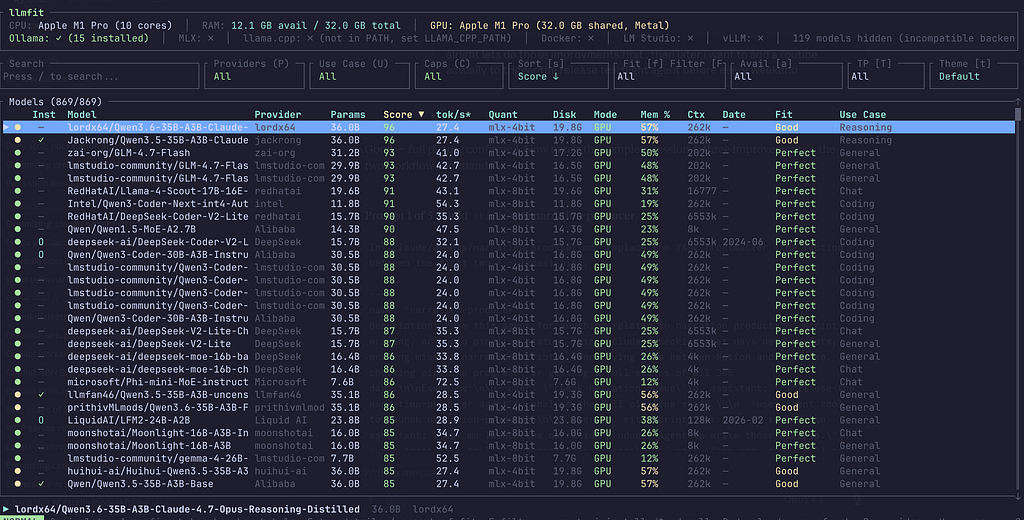
The main table lists models ranked by composite score for your machine. Each row tells you:
Score: Composite score across Quality, Speed, Fit, Context
Est. tok/s: Predicted tokens/sec on your hardware and backend
Quant: Best quantization that fits in your memory
Mode: GPU / MoE / CPU+GPU / CPU
Mem%: % of available memory the model will use
Inst: ✓ if already installed in Ollama
The models at the top are the best fit for your machine right now. Scroll down and you’ll see the ones that are too large, or that would require heavy CPU offloading, llmfit marks these clearly.
Step 4: Filter to what actually fits
Press f to cycle through fit levels. Move to Perfect.
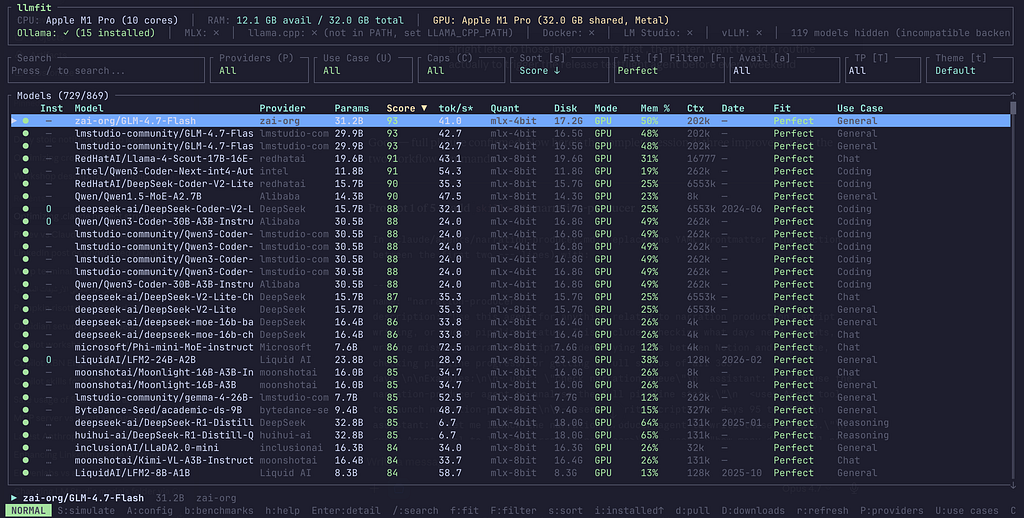
“Perfect” means the model fits comfortably in your GPU memory (unified memory on Apple Silicon), runs at full Metal acceleration, and leaves headroom for the rest of your system. These are the models you want for daily use.
Step 5: Search for DeepSeek Coder
Press / to open search, then type deepseek-coder.
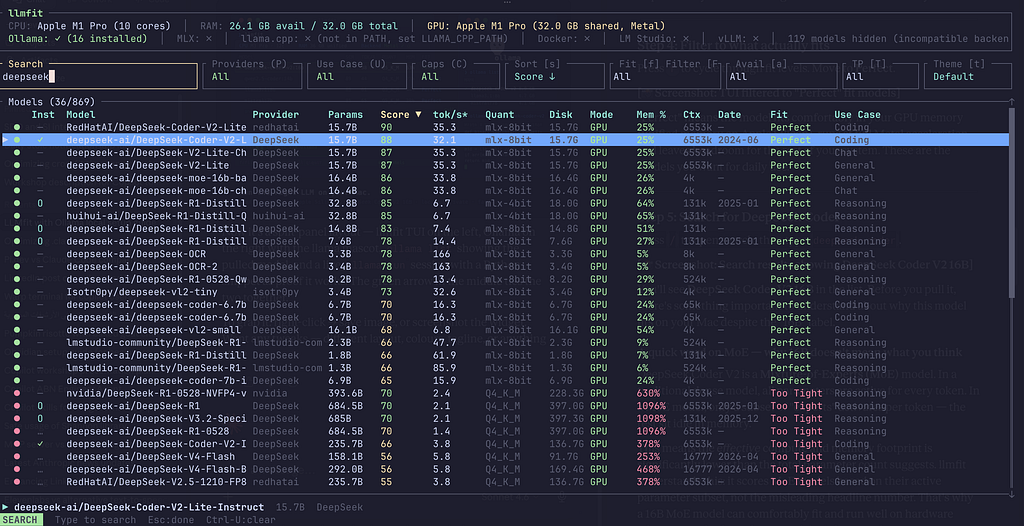
You’ll see DeepSeek Coder V2 16B in the list. Before you pull it, there’s something important to understand about why this model fits on your Mac despite the “16B” label.
A quick word on MoE — why 16B doesn’t mean what you think
DeepSeek Coder V2 is a Mixture-of-Experts (MoE) model. In a traditional dense model, all parameters are active for every token. In a MoE model, only a subset of “experts” activates per token, the rest sit idle in memory.
This means the effective compute and memory footprint is significantly lower than the total parameter count suggests. llmfit understands this: it scores MoE models based on their active parameter subset, not the misleading headline number. That’s why a 16B MoE model can comfortably fit and run well on hardware where a standard 13B dense model might struggle.
The Mode column in llmfit will show MoE for this model, a signal that expert offloading is in play.
Step 6: Inspect the model before pulling
Navigate to DeepSeek Coder V2 16B with the arrow keys and press Enter to open the detail view.
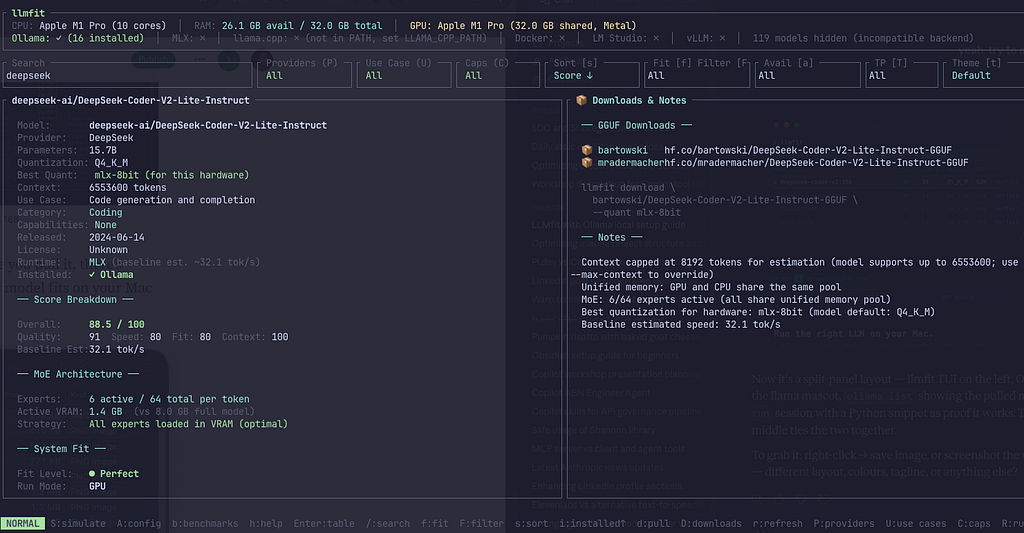
You’ll see the recommended quantization for your hardware, the estimated tokens per second on Metal, and how much of your unified memory it will use. This gives you confidence before committing to the download , no surprises after a 10GB pull.
Step 7: Pull the model from inside llmfit
With the model selected, press d.
llmfit sends a pull request to Ollama and shows a live download progress indicator directly in the TUI.

No context switching, no copying model names into another terminal. Just d, and watch it go.
When the download completes, the Inst column shows a green ✓ for that model.
Step 8: Verify and run
Open a new terminal and confirm the model landed:
ollama list
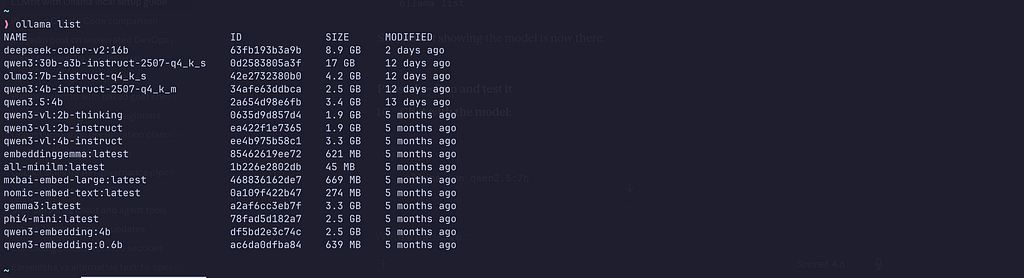
Now run it:
ollama run deepseek-coder-v2:16b

Try a coding prompt , ask it to write a function, explain some code, or review a snippet. On Apple Silicon with Metal, DeepSeek Coder V2 16B runs at a comfortable, usable speed for an interactive coding assistant.
Bonus: CLI mode for quick lookups
If you just want fast answers without the TUI, llmfit has a solid CLI mode
# Top 5 perfect fits for your hardware
llmfit fit --perfect -n 5
# Best coding models for your machine
llmfit recommend --json --use-case coding --limit 3
# Your hardware profile as JSON
llmfit --json system
The --use-case coding flag is particularly useful here, it shifts the scoring weights so that Quality is prioritised over Speed, which is the right trade-off when you want a capable code assistant over a fast but less capable one.
The key insight: llmfit removes the guesswork. Instead of pulling models based on name recognition and hoping for the best, you start with your hardware and work forward to the best model for it. That’s the right order of operations.
Resources
- llmfit: https://github.com/AlexsJones/llmfit
- Ollama: https://ollama.com
- DeepSeek Coder V2 on Ollama: https://ollama.com/library/deepseek-coder-v2
ound this useful? Star the llmfit repo, it’s a well-maintained open-source project that deserves the attention.
Your LLM Is Probably Suffocating Your Mac was originally published in Towards AI on Medium, where people are continuing the conversation by highlighting and responding to this story.