ChatGPT’s Secret Codes: 30 Commands That Can Save You Hours
30+ slash commands, ready-to-use prompt patterns, and practical workflows that make ChatGPT behave less like a random chat partner and more like a dependable tool.
Picture this: you ask ChatGPT to write copy for a landing page. Technically, the result looks fine. No obvious mistakes. The length is acceptable. The text is readable enough.
But it still falls flat.
There’s no voice, no point of view, no real substance. You rewrite the prompt, then rewrite it again, and somehow the output keeps missing the target.
Now you’re staring at five different versions, and not one of them is usable.
If that sounds familiar, you’re not alone. I know that loop very well.
Now picture a different workflow. You type one simple line:
/ACT AS: UX copywriter
And suddenly the answer comes back in the right tone, with the right emphasis, with the right internal logic — often close enough to drop straight into a mockup without hours of cleanup.
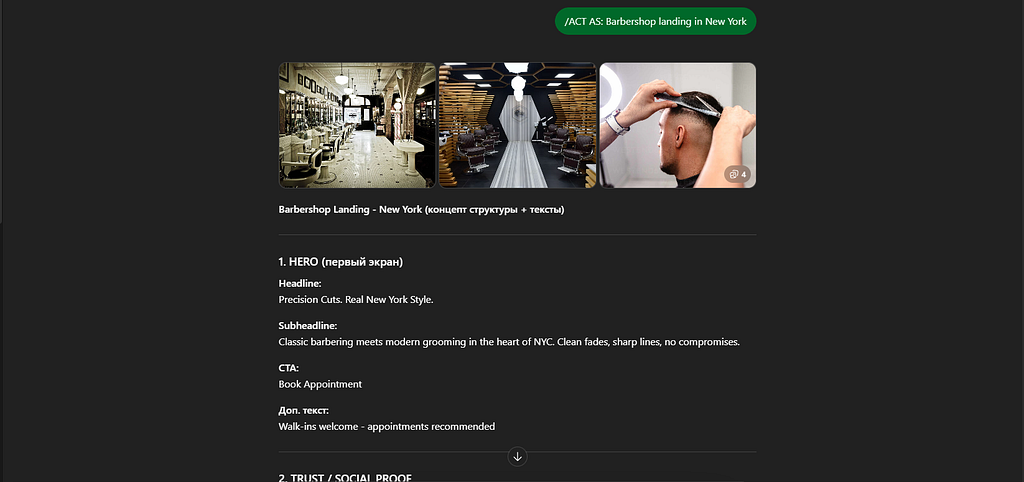
Of course, you can always add more context, clarify the task, and refine the request. But that’s not the point here. What matters is this: a short role instruction can dramatically reduce the amount of prompting you need, because ChatGPT understands immediately what kind of specialist it is supposed to be.
This is not magic. It’s not some hidden hack. And it’s definitely not a secret OpenAI mode.
It’s simply a compact instruction that shifts ChatGPT from “generic answer machine” into a narrower, more useful expert mode. Most people never use it that way.
In this article, I’ve collected more than 30 commands that actually hold up in practice. I tested them on real tasks, removed the fluff, and organized the rest into a clear system: what each command does, why it matters, and how to use it. You’ll also find examples, practical scenarios, and a simple setup guide.
Telegram channel with free prompts
What slash commands are — and why they work
Slash commands are short text instructions you place at the beginning or end of a prompt. The slash itself does not activate anything inside ChatGPT. It simply helps the model interpret your request faster and more precisely: the role, the output format, the tone, and the depth of the answer.
These aren’t official OpenAI features, and they’re not hidden somewhere in the interface. You won’t find them listed as a native product function.
They’re better understood as prompt shorthand — patterns users discovered through repeated use.
At some point, people noticed that abbreviations like ELI5, TLDR, or SWOT tend to produce fairly stable outputs. That makes sense. These labels are common across the internet. The model has seen them countless times during training and learned to associate them with specific response structures.
Do they work every time? No.
A command can be ignored if your prompt is too long, if multiple instructions clash, or if the expected output format isn’t explicit enough.
A few simple ways to reduce that risk:
- lock the format with commands like /FORMAT: TABLE or /FORMAT: MARKDOWN
- avoid stacking more than 3–4 labels in a single prompt
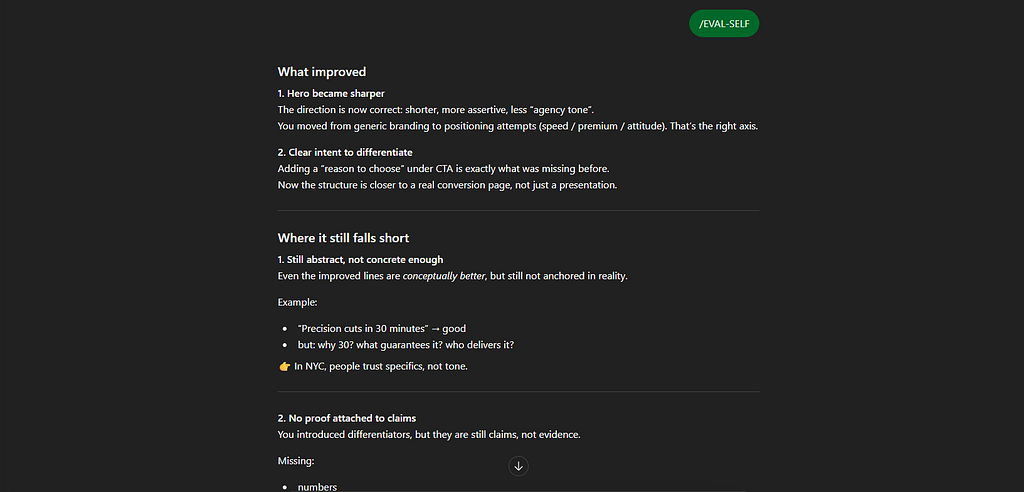
- for important tasks, ask the model to review itself with /EVAL-SELF
30+ commands worth keeping in your toolkit
I pulled these from current 2025–2026 materials, tested them against real use cases, and kept only the ones that behave consistently enough to be useful. Everything weak or redundant got cut.
What follows is the practical version: a clean list grouped by category, so you can find the right mode quickly instead of digging through examples.
Simplifying and explaining
When you need to break down a complex idea, explain it clearly to a client, or remove unnecessary cognitive load, these commands are especially useful.
/ELI5 — explain it like I’m five; strips out jargon and leans on analogy
/ELI10 — similar, but slightly more advanced; still simple, just less childlike
/STEP-BY-STEP — turns the answer into numbered steps
/FIRST PRINCIPLES — explains a concept from the ground up, starting with fundamentals
/SIMPLIFY — rewrites or explains something in simpler language without losing meaning
Brevity and focus
Sometimes you have ten minutes before a call and a twenty-page report to get through. Or a client sends a giant brief that needs to be distilled fast. This is where compression commands earn their place.
/TLDR — condenses text into 2–3 sentences
/BRIEFLY — answers in 1–2 sentences
/EXEC SUMMARY — gives an executive summary with conclusions and action points
/SMARTBRIEF — summarizes with the emphasis on what matters most
Output format and structure
If you’ve ever pasted a ChatGPT answer into Google Sheets and then spent fifteen minutes manually cleaning up columns, you already know why formatting commands matter. Same goes for those moments when you need a table and get a wall of prose instead.
/FORMAT AS: [format] — forces a specific structure: TABLE, JSON, CSV, MARKDOWN
/CHECKLIST — turns the answer into a checklist
/SCHEMA — outputs structured data
/LISTIFY — turns any text into a clean list
/OUTLINE — builds the structure of an article or document
/WIREFRAME — describes a wireframe in text form
Role, tone, and audience
This is the strongest category by far.
Ask ChatGPT to “write button copy,” and the output will change dramatically depending on whether the model thinks it’s a UX writer, a marketer, or a product designer. Role affects everything: vocabulary, priorities, framing, and depth.
/UXMODE — analyzes the task as a UX expert
/ACT AS: [role] — switches into a specialist mode, for example: /ACT AS: UX researcher
/TONE: [tone] — sets the tone of voice, for example: /TONE: friendly
/AUDIENCE: [who] — adapts the answer for a specific audience, for example: /AUDIENCE: beginner designers
/JARGON — uses professional terminology where relevant
/JARGONIZE — converts plain language into more professional documentation-style writing
/HUMANIZE or /HUMAN — makes the text sound more natural and less robotic
/STYLE=[style] — writes in a specific style or mimics a known format, for example: /STYLE=TED Talk
/ROLE: TASK: FORMAT: — combines three key parameters in one line
/3 LEVELS — explains the same idea at three different levels of complexity
Analysis and critical thinking
Need to compare tools? Test an idea? Surface risks? This set pushes ChatGPT beyond polite agreement and into something closer to structured analysis.
/SWOT — standard SWOT analysis: strengths, weaknesses, opportunities, threats
/COMPARE: A vs B — compares options based on clear criteria
/PROS_CONS — builds a pros and cons table
/PITFALLS — highlights common mistakes and hidden issues
/COUNTERARGUE — generates counterarguments against your idea
/SYSTEMATIC BIAS CHECK — checks the reasoning for cognitive bias
/MULTI-PERSPECTIVE — analyzes the issue from multiple professional viewpoints
/PARALLEL LENSES — runs the answer through optimistic, pessimistic, and realistic scenarios
Editing and rewriting
Sometimes the raw material is already there, but it needs reshaping. A draft needs polishing. Documentation needs to become a Telegram post. Or a correct answer needs to stop sounding like it was written by a machine.
/REWRITE AS: [style] — rewrites in a specific style or platform format
/CLEANUP — removes repetition and improves structure
/HOOK — generates stronger opening lines
/EXPAND — develops the topic more fully
/JARGONIZE — turns plain writing into professional documentation
Advanced and professional modes
When you need something more concrete than a general answer — code, a technical breakdown, a production-ready prompt — these commands are more useful than broad conversation.
/DEV MODE — technical mode for code and specifications
/PM MODE — product-manager mode for planning and prioritization
/CODE: [language] — returns ready-to-use code with comments
/DEBUG — finds problems in code
/PROMPT — generates prompts for image or video models
Output quality controls
When the stakes are higher, the first answer shouldn’t automatically be the final one. These commands push ChatGPT to examine its own reasoning and expose weak spots.
/EVAL-SELF — self-critique after generating the answer
/REFLECTIVE MODE — meta-analysis of what may have been missed
/DELIBERATE THINKING — a slower, more careful reasoning mode
/NO AUTOPILOT — discourages shallow, generic output
/METRICS MODE — prioritizes measurable criteria over vague language
/GUARDRAIL: [constraint] — sets limits for what the answer should or should not include
Utility commands
These are small, but useful — especially in longer chats where the model starts losing context.
/RESET — resets the working context
/CONTEXT STACK: n — tells the model to rely on the last n messages
/BEGIN WITH: “text” — makes the answer start with a specific phrase
/END WITH: “text” — makes the answer end with a specific phrase
So you have the commands. What do you do with them?
A list of commands is just vocabulary. The real skill is knowing how to combine them into useful instructions.
Here are five simple workflows that fit directly into everyday work.
Scenario 1: a UX audit in two minutes
Let’s say you need a quick review of a food delivery app before a client call. One message is enough:
/ACT AS: Senior UX designer
/TONE: professional
/FORMAT AS: TABLE
Audit a food delivery mobile app.
Evaluate navigation, onboarding, visual hierarchy, and accessibility.
The result will usually be a structured table with observations and recommendations for each category. It won’t replace a full UX audit, but it gives you a strong first pass.
Scenario 2: article structure from scratch
You sit down to write and have no clean entry point. Instead of wrestling with the blank page, you can get a usable structure in under a minute:
/ROLE: content strategist TASK: article structure FORMAT: OUTLINE
Topic: “How a UX designer can use AI in 2026”
/AUDIENCE: mid-level designers
Scenario 3: a fast comparison of tools
Trying to choose between Figma, Framer, and Webflow? Instead of reading ten reviews, compress the decision:
/COMPARE: Figma vs Framer vs Webflow
/FORMAT AS: TABLE
/AUDIENCE: beginner designers
You’ll get a comparison table focused on criteria that actually matter to that audience.
Scenario 4: rewriting for social media
Let’s say you have dry documentation, but what you need is a readable Telegram post:
/REWRITE AS: Telegram post
/TONE: friendly
/HOOK
[Paste source text]
Scenario 5: generating an image prompt
Need a visual? Let ChatGPT prepare the prompt:
/PROMPT: Seedream 5.0 LITE
Style: minimalism, gradients
Theme: the future workspace of a UX designer
The sandwich rule: how to combine commands
One command can help. Three well-chosen commands can completely change the output.
A strong prompt usually has four layers:
- Role — who is responding
- Task — what needs to be done
- Format — how the answer should be structured
- Tone — how it should sound
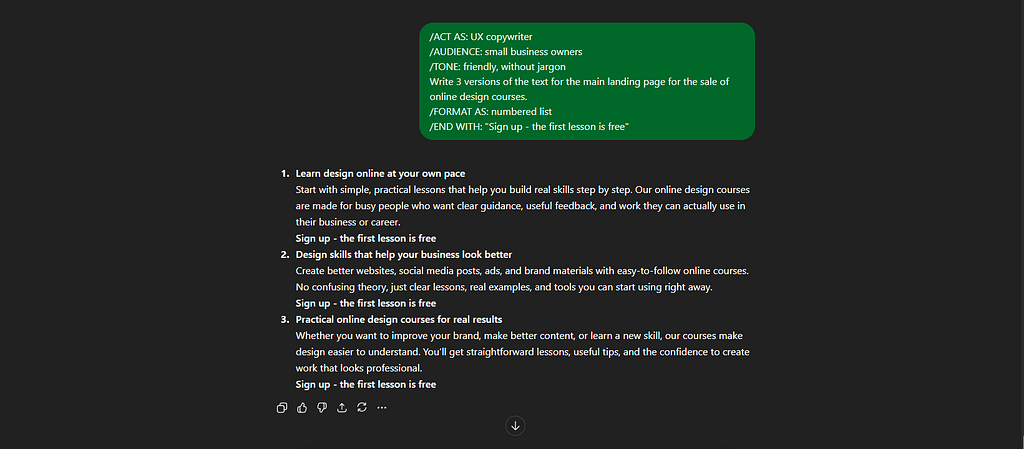
Here’s a full example:
/ACT AS: UX copywriter
/AUDIENCE: small business owners
/TONE: friendly, no jargon
Write 3 versions of hero section copy
for a landing page selling online design courses.
/FORMAT AS: numbered list
/END WITH: “Sign up — the first lesson is free”
How to make these commands permanent
Typing the same instructions every time works, but it’s inefficient. It’s like resetting your alarm every morning instead of saving it once.
Method 1: use Custom Instructions
Custom Instructions are essentially a standing note that ChatGPT reads before answering. You can set them up in a few minutes.
Go to Settings
Open Personalization
In the About You section, briefly describe who you are and what you do
For example:
UX/UI designer. I work in Figma and write articles about design.
Then open Custom Instructions and define the commands you want ChatGPT to recognize.
For example:
Recognize slash commands at the beginning of a message:
/UXMODE: respond as a UX expert
/TLDR: provide a short 3-point summary
/PROS_CONS: return a pros and cons table
/PROMPT: generate a prompt for Seedream 4.5
/REWRITE: rewrite in the requested style
/HELP: show the list of commands
Use Markdown. Be specific. No fluff.
In practice, 6–8 saved commands are usually enough.
Where to start right now
Do not try to memorize all 30 at once. You don’t need to.
Start with three:
Try /TLDR — paste any article into ChatGPT and add the command. You’ll see the result almost instantly.
Try /ACT AS: [your profession] — assign a role and watch how the depth of the response changes.
Try /STEP-BY-STEP — use it for any task that feels messy or hard to break down.
Once those become second nature, add /SWOT, /REWRITE, and /FORMAT AS. After a week, you’ll probably notice two things: you spend less time prompting, and the answers become more predictable.
How to invent your own slash command
Slash commands are not a fixed system. The list in this article is just a working set that has already proven useful.
But you can create your own labels for the kinds of tasks that repeat in your workflow.
Step 1: look for repeated requests
Think about what you ask ChatGPT to do again and again:
Write landing page copy without marketing clichés.
Explain the structure of a design system step by step so I can hand it off to a junior designer.
Compare Figma and Framer in a table so it’s easier to scan.
And any other recurring requests you keep bringing back.
These patterns usually relate to:
- writing style
- output format
- explanation depth
- target audience
- level of detail
If the same requirement keeps showing up, you already have a candidate for a custom command.
Step 2: reduce it to a marker
A command is just a compressed version of your usual instruction.
It should be:
- unambiguous
- testable
- easy to interpret
For example:
/BRIEF
/FACTS ONLY
/FOR DEV
/TABLE
Or whatever feels intuitive to you.
A command does not create new model behavior on its own. It just saves you from rewriting the same long instruction every time.
Step 3: define it once
Go to ChatGPT Settings -> Personalization -> Custom Instructions
Then describe what each command means.
For example:
If a message contains a slash command, interpret it as a formatting or response requirement.
/BRIEF — answer without introductions or extra explanation.
/FACTS ONLY — avoid opinions and vague phrasing.
/FOR DEV — explain using technical logic and implementation examples.
/TABLE — always return the answer as a table.
Once that’s done, the command becomes a real productivity tool.
Instead of repeatedly writing the same clarification, you just add one short marker to the prompt. Less friction, same logic.
The important part is not the commands themselves
Slash commands matter less as commands than as a way of thinking.
They force you to stop asking vague questions and start defining response parameters: role, format, tone, depth, audience.
It doesn’t really matter whether you use 5 labels or 30. What matters is that you stop hoping for a lucky answer and start shaping the model’s behavior on purpose.
That’s the real shift: from chatting to directing.
If this article was useful, save it, send it to a colleague, and try one of these commands in your next real workflow.
30 ChatGPT Commands That Actually Save You Hours (Tested in Real Workflows) was originally published in Towards AI on Medium, where people are continuing the conversation by highlighting and responding to this story.